
Scanned PDF To Word OCR Timeline And Review Steps
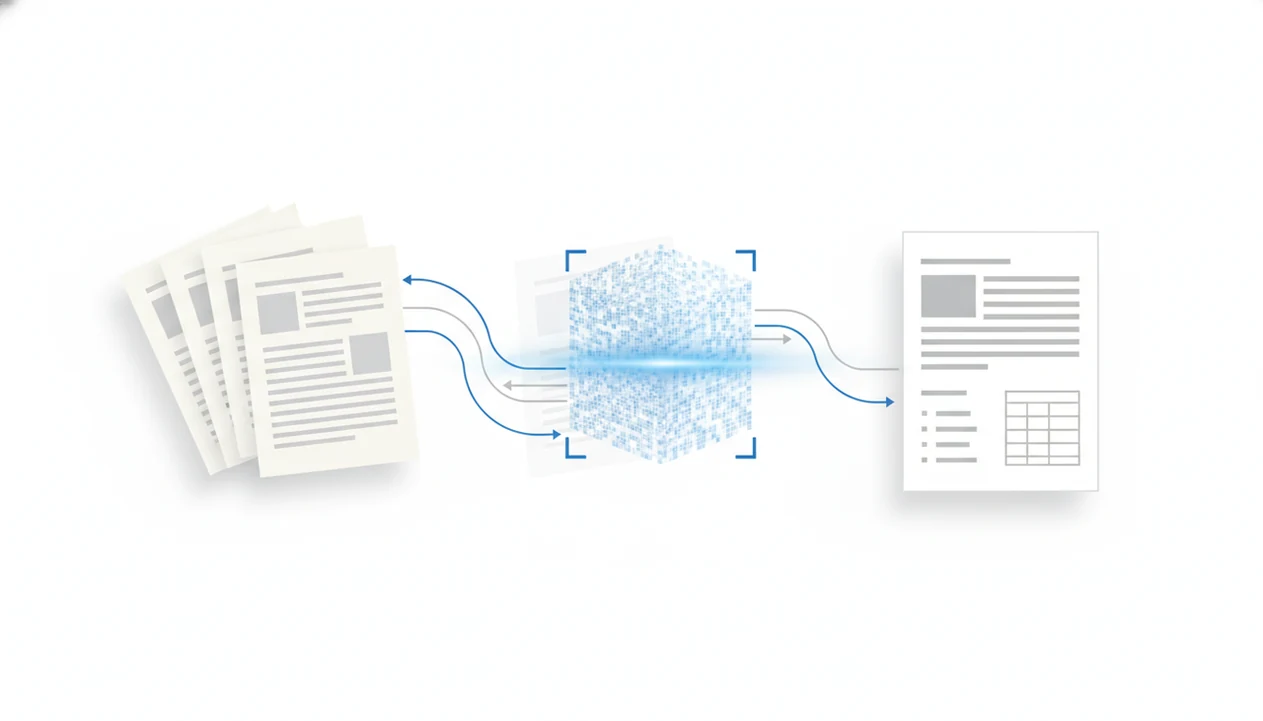
A scanned PDF to Word OCR timeline usually moves through import, scan detection, OCR recognition, layout rebuilding, DOCX export, and human review. Scanned files take longer than normal PDFs because each page is an image that must be read before the text can become editable.
> A scanned PDF to Word OCR timeline is the sequence of processing stages that turns image-based PDF pages into editable text and layout inside a DOCX file.
- Scanned PDFs are slower than text PDFs because OCR must recognize characters from page images before Word text can be created.
- The biggest timeline factors are page count, file size, scan quality, language selection, layout complexity, and mobile network speed.
- The last practical step is proofreading the DOCX because OCR can miss text, distort tables, or misread low-quality scans.
Scanned PDF To Word OCR Timeline Definition
A scanned PDF to Word OCR timeline is the sequence of processing stages that turns image-based PDF pages into editable text and layout inside a DOCX file.
A scanned PDF is not built from selectable text. It is usually a set of page images, even when the words look sharp on screen. We see this often when a user long-presses a “text” paragraph and the phone only grabs one image block.
OCR must run before editable DOCX text can exist. A mobile PDF-to-Word converter can create editable DOCX files from source PDFs, but it cannot guarantee replicas of every scan, stamp, margin note, or table border.
How Scanned PDF Processing Works Behind The Convert Button
Scanned PDF processing works by importing the file, detecting image-based pages, preparing those images for OCR, recognizing characters, rebuilding the layout, and creating a DOCX. The progress spinner often hides all of those stages.
First, the app receives the PDF from Files, Photos, a browser download, or another app. Then it checks whether the PDF has a text layer or only page images. Image preprocessing may deskew pages, improve contrast, or separate text areas from pictures. OCR recognition reads characters and words. Layout reconstruction tries to place paragraphs, tables, columns, and images into Word structure.
OCR is usually the longest stage for scanned documents because every page has to be interpreted before the DOCX can be assembled. Some apps process on the phone. Others send the file to cloud OCR systems, where upload speed and queue timing matter. A student opening a handout from the Files app five minutes before class feels that difference fast.
Before You Start: Scan And File Checks
Before converting, check whether the PDF is ready for OCR and DOCX export. A minute of preflight can prevent a long wait, a failed upload, or a Word file full of broken lines.
- Test the PDF for selectable text by trying to highlight a word. If the whole page moves like one picture, treat it as an image-only scan and expect OCR to take longer.
- Inspect the scan quality before you upload. Straight pages, dark text on a light background, full margins, and no cropped headers give OCR a better starting point.
- Choose the correct OCR language before conversion, especially when the document uses accents, non-English words, or more than one language.
- Reduce oversized image files only when the text stays sharp. Smaller files can upload faster, but compression that blurs letters usually creates more cleanup later.
- Avoid encrypted, password-protected, or permission-locked PDFs when you need a DOCX export. If you own the file, remove restrictions first so the converter can read and rebuild the content.
Small fixes before upload usually beat waiting through the same OCR job twice.
Five OCR Conversion Timeline Facts That Affect Speed
These five facts explain why one scanned file converts quickly while another waits, retries, or needs heavy cleanup.
- A scanned PDF is made of page images, so recognition must happen before the text can become editable in Word.
- Most tools follow the same rough OCR conversion timeline: import, scan detection, OCR, layout rebuilding, and DOCX export.
- Page count, file size, image resolution, document language, and processing location can all change conversion timing.
- Correct language selection and clean scans reduce errors, especially when pages are not skewed or washed out.
- Proofreading is still needed because complex layouts, handwriting, stamps, and crowded tables are not reproduced with certainty.
High-quality printed text usually performs better than faint scans, screenshots, or pages with skew and shadows. Tesseract’s image-quality guidance specifically calls out resolution, deskewing, contrast, borders, and noise removal as factors that affect OCR results: https://tesseract-ocr.github.io/tessdoc/ImproveQuality.html.
How To Use A Scanned PDF To Word OCR Timeline
Use the timeline as a checklist, not just a wait estimate. It helps you prevent avoidable OCR mistakes before you send the DOCX onward.
- Choose the scanned PDF from Files, Drive, Mail, or your Android file picker.
- Select the correct document language before OCR, especially for accented characters or mixed-language pages.
- Start conversion and avoid switching networks while the upload or OCR stage is active.
- Keep the app open when possible, since background limits can pause some iPhone and Android workflows.
- Open the DOCX in Microsoft Word mobile or Google Docs and compare it against the original scan.
If you need a mobile tool for image-only files, a download scanned PDF to Word app workflow is usually easier than retyping pages from a phone screen.
Small check. Big difference.
Scanned PDF To Word Timeline Stages From Upload To DOCX
“What happens after I upload a scanned PDF for Word conversion?” The usual flow is file import, scan detection, OCR recognition, layout reconstruction, and DOCX generation.
Import And Scan Detection
Stage 1 is file import or upload. The app receives the PDF and checks its size, page count, and access permissions. Stage 2 is scan detection and page image analysis. The system decides whether pages contain selectable text or need OCR.
A short file may finish before a longer file that was uploaded earlier because conversion systems often use queues and priority rules. Small jobs can move through faster while large, image-heavy files wait for more processing capacity.
OCR Recognition And DOCX Export
Stage 3 is OCR text recognition. Stage 4 is layout reconstruction for paragraphs, tables, columns, and images. Stage 5 is DOCX generation, followed by download or app handoff.
For a broader timing comparison across text-based and scanned files, the PDF to Word conversion timeline separates normal PDF conversion from OCR-heavy scanned PDF processing.
Why Scanned PDF Processing Takes Longer On Mobile
Scanned PDF processing takes longer on mobile because the phone is handling upload, OCR coordination, battery limits, and app background rules at the same time. A flickering Wi-Fi icon in a classroom corner can add more delay than the page count suggests.
Cloud OCR can be faster when servers have strong recognition hardware, but the file must upload first and may wait in a queue. On-device OCR avoids that upload step and may feel better for privacy-sensitive documents, but phones have limited CPU, memory, and battery headroom.
Battery state can matter. So can heat.
If iOS or Android pushes the app into the background, processing may slow or pause. Apple notes that background execution is limited and task-specific on iOS, which is why long uploads or processing jobs can behave differently after an app is backgrounded: https://developer.apple.com/documentation/backgroundtasks. For platform-specific setup, readers often compare download PDF to Word app for iPhone and download PDF to Word app for Android paths before choosing a workflow.
Troubleshooting A Slow Or Stuck OCR Conversion
A slow or stuck OCR conversion usually means the upload, recognition, or export stage needs a cleaner input or a steadier connection. Start with the simplest fix before assuming the file has failed.
- Retry the conversion on stable Wi-Fi if the upload bar appears frozen, especially with image-heavy scans from Mail, Drive, or a browser download.
- Split a very large scanned PDF into smaller batches when one long file keeps timing out or waiting in the queue. Ten clean pages can be easier to process than one oversized packet.
- Re-scan blurry, shadowed, cropped, or low-contrast pages before running OCR again. A sharper source file usually beats repeated attempts on a bad scan.
- Keep the app open during upload and OCR processing when possible. Switching apps, locking the phone, or moving between networks can interrupt some mobile workflows.
- Export the DOCX again if tables, columns, or page breaks look badly shifted after the first result. Then compare the new Word file against the original scan before sharing.
If the second attempt still looks wrong, treat review time as part of the job, not as a surprise.
OCR Conversion Timeline Myths About Editable Word Files
OCR myths usually come from expecting a scanned page to behave like a normal digital document. It doesn't.
- Instant conversion: Scanned PDF to Word conversion should not always be instant. Multi-page scans need image analysis, text recognition, layout rebuilding, and export.
- Exact Word replica: OCR does not create a pixel-matched Word copy every time. Numbered contract clauses can shift by half a line after conversion.
- No-OCR editing: No-OCR conversion does not make scanned text editable. It may only place the page image inside Word.
- Equal OCR engines: OCR engines do not all perform the same. Accuracy varies by language, scan quality, font, layout, and device or server processing.
For most scanned business files, OCR works best when the page is clean, printed, straight, and high contrast, while manual cleanup fits documents with handwriting or dense tables.
Editable DOCX Review Steps After OCR Conversion
Review is part of the real OCR conversion timeline, not an optional extra. Clean printed text can convert with high accuracy, but poor scans still create wrong letters, broken lines, and table problems.
- Compare the DOCX against the original scanned PDF page by page.
- Proofread names, numbers, dates, headings, and labels before sharing.
- Check tables, columns, bullets, page breaks, and line breaks for shifted structure.
- Open the file in Microsoft Word mobile before sending it back from your phone.
- Correct OCR errors before redlining, signing, submitting, or archiving the document.
The quiet cleanup matters. One wrong digit in an invoice or one shifted resume bullet can change the meaning. If you mainly need a Word-ready output, a download PDF to DOCX app route may fit better than a general PDF toolbox.
Limitations
OCR conversion has real limits, even when the workflow is set up correctly.
- Low-resolution scans can increase OCR errors and manual correction time.
- Skewed pages, shadows, handwriting, and noisy backgrounds reduce recognition accuracy.
- Tables, columns, stamps, signatures, and complex formatting may not reproduce cleanly.
- Long PDFs, encrypted files, and image-heavy documents can take much longer.
- Mixed-language or non-Latin scripts may require extra OCR passes.
- Cloud OCR depends on upload speed, server load, and queue timing.
- On-device OCR can be slower because phones have limited CPU, memory, and battery.
- Privacy-sensitive files may not be appropriate for every cloud OCR workflow.
After handling a sensitive file, we also recommend deleting unneeded local copies from Recents or the app file list. It is a small file-handling step, but it is easy to forget.
FAQ
How long does OCR take for a scanned PDF?
OCR can take seconds for a clean one-page scan or several minutes for long, image-heavy, or complex PDFs. Exact timing depends on page count, resolution, language, layout, network speed, and processing method.
Why is my scanned PDF still processing?
A scanned PDF must be analyzed as page images, recognized with OCR, rebuilt into layout, and exported as DOCX. A single progress indicator may hide all of those stages.
Does OCR make scanned text editable in Word?
Yes, OCR is the step that turns scanned page images into editable Word text. Without OCR, the scan may remain an image inside the DOCX.
Can OCR read handwriting in a scanned PDF?
OCR is much less reliable on handwriting than on clean printed text. Handwritten notes often need manual transcription or careful correction after conversion.
Does scan quality affect OCR speed and accuracy?
Yes, blur, low resolution, skew, shadows, and weak contrast can reduce accuracy and extend the timeline. Poor scans often create more manual cleanup after DOCX export.
Why should I choose the document language before OCR?
Language selection helps the OCR engine match characters, accents, and word patterns correctly. It is especially important for multilingual documents or non-English scans.
Is cloud OCR faster than on-device OCR?
Cloud OCR can be faster for large files, but upload speed, queue timing, and privacy requirements affect the result. On-device OCR may be slower but avoids sending the file to a remote system.
Should I proofread the DOCX after OCR?
Yes, every OCR-created Word file should be reviewed before use. PDF To Word App and similar tools can produce editable DOCX output, but users should still verify text, numbers, tables, and formatting.