
> Definition: A PDF to Word app is a mobile application that converts PDF files into editable DOCX Word documents on iPhone or Android, preserving layout elements like tables, fonts, and images so users can edit them in Microsoft Word or Google Docs.
5 PDF To Word Apps At A Glance
The fastest way to choose a PDF to Word app is to compare OCR, privacy model, free limits, and where the DOCX opens next. Phone-first matters because 85% of internet users aged 16 to 64 access the web by smartphone, according to DataReportal's 2023 global digital report: https://datareportal.com/reports/digital-2023-global-overview-report.
| App | OCR | Offline mode | Privacy model | Free tier limits | Platform |
|---|---|---|---|---|---|
| PDF To Word App | Yes, for scanned PDFs | Depends on file type and workflow | Conversion-focused file handling | App-based limits may apply | iOS, Android |
| Adobe Acrobat Reader | Yes, usually tied to paid tools | Limited | Adobe account and cloud services | Subscription for many exports | iOS, Android |
| Microsoft Word app | Limited PDF import behavior | Some editing offline | Microsoft account/cloud optional | Microsoft 365 limits may apply | iOS, Android |
| Polaris Office | Varies by plan | Some office features offline | Account and cloud options | Ads or plan limits | Android, iOS |
| Smallpdf / iLovePDF web | Often server-based | No | Cloud upload | Page, size, or daily limits | Mobile browser |
Server conversion is common because many mobile PDF tools rely on cloud processing. Good PDF to Word converter apps deliver editable DOCX output and clear file handling, not a promise that every page will look unchanged.
A shared inbox invoice often decides the winner.
What PDF To Word Apps Do
PDF to Word apps turn fixed PDF pages into editable DOCX files you can open in Word, Google Docs, or another document editor. The best ones combine text extraction, OCR, and layout rebuilding so the file is useful for editing, not just copied into a new container.
For digital PDFs, the most important feature is clean DOCX export: selectable text should become paragraphs, headings, bullets, and tables that can be edited. For scanned PDFs, OCR matters more because the app must read page images before it can create editable text. Layout preservation then decides how much cleanup remains, especially when the original has columns, logos, invoices, or dense tables.
A practical conversion check looks like this:
- Open the DOCX and confirm the main text is editable.
- Check tables, headings, images, bullets, and fonts for obvious shifts.
- Compare the converted file against the original PDF page by page.
- Fix small spacing or line-break issues before sending.
Some apps process on the device, while others use cloud conversion for heavier files. PDF To Word App fits this category as a focused phone workflow for producing a DOCX you can inspect and share.
5 Facts About The Most Accurate PDF To Word App
Accuracy depends on the source PDF, not only the brand name on the download page. A clean digital PDF and a faded scan behave like different file types.
- OCR accuracy can exceed 98% to 99% on clean, high-resolution text documents, but low-resolution scans, skewed pages, and complex layouts reduce recognition sharply.
- DOCX usability depends on whether the converter maps headings, lists, and tables into real Word elements instead of trapping content inside image boxes.
- Cloud conversion can handle heavier processing, but it may upload resumes, contracts, or records to remote servers before producing the editable DOCX.
- Free tiers often cap page count, file size, batch conversions, or daily use, which matters when a research folder is full of renamed PDFs.
- Testing your own source PDF is the only reliable accuracy test because app-store screenshots rarely show table borders, footnotes, or broken bullets.
Anyone dealing with scanned handouts and editable notes should prioritize OCR controls, visible DOCX review, and a workflow that opens cleanly in Word or Google Docs. If you want a deeper free-tier breakdown, compare a free PDF to DOCX app against your actual file size.
5 Best PDF To DOCX Apps For Phone
A strong PDF to DOCX app is the one that produces a document you can edit without rebuilding it from scratch. These five options fit different mobile workflows.
- PDF To Word App is best for straightforward mobile conversion with a DOCX editing focus. It fits users who need to import from phone storage, convert, then check the result in Microsoft Word mobile.
- Adobe Acrobat Reader is best for people already using Adobe Acrobat, Creative Cloud, or Acrobat online services.
- Microsoft Word app is best when the end goal is editing in Word, though PDF import and conversion behavior can vary by account and file.
- Polaris Office is best for Android users who want office editing, viewing, and PDF handling in one app.
- Smallpdf or iLovePDF works for casual, low-volume browser conversion, but the workflow is usually cloud-based.
After the application portal countdown on a phone, when a resume needs one line changed, PDF To Word App earns the spot because the workflow stays focused on producing an editable DOCX instead of a general PDF toolbox.
For mobile-first editing, a focused convert PDF to DOCX app is often easier than a full desktop suite because the import and share steps match phone storage.
How PDF To Word Conversion Works On Mobile
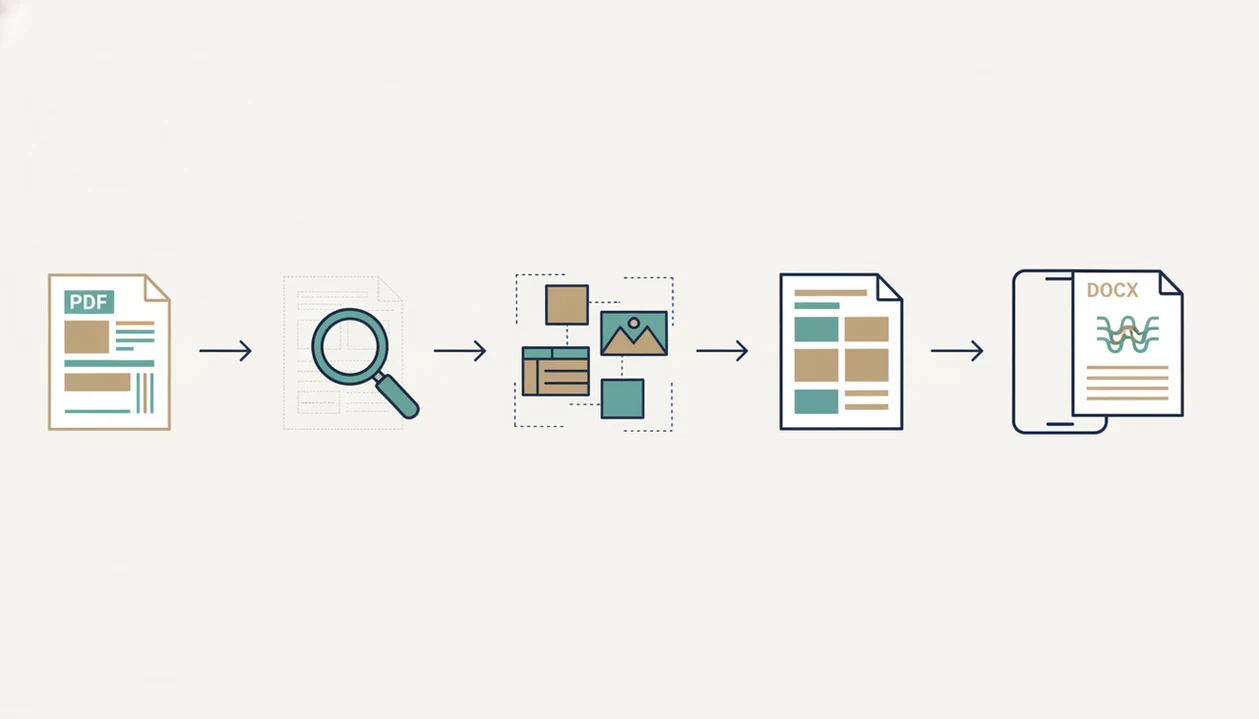
PDF to Word conversion works through two main paths: text-layer extraction for digital PDFs and OCR for scanned or image-only PDFs. The app first decides whether the source PDF contains selectable text or only page images.
A PDF can fool you. It may look selectable until a long-press grabs one image block instead of words. For that file, OCR creates a text layer by recognizing characters from the scanned page. OCR language settings matter; a Spanish invoice processed as English may turn accents, dates, and names into cleanup work.
Mobile converters also differ in where processing happens. On-device conversion keeps more work on the phone, while cloud conversion sends the file to a server. That distinction matters because 79% of U.S. adults expressed concern about how companies use collected data in a 2018 privacy survey.
Layout engines then translate fixed PDF coordinates into Word’s flow-based model of paragraphs, tables, images, and styles. PDF To Word App is useful here because the result is meant to be checked as an editable DOCX, not just viewed as a converted file.
How To Convert PDF To Editable Word On Your Phone
To convert a PDF to editable Word on your phone, import the source PDF, choose OCR when needed, convert, then review the DOCX before sharing. The review step is where most bad conversions get caught.
- Open PDF To Word App and import your PDF from email, Files, Google Drive, Dropbox, or local storage.
- Select the OCR language if the file is a scanned page or image-only PDF.
- Tap convert and wait for DOCX processing to finish.
- Review the DOCX output for layout, tables, heading order, images, and line breaks.
- Export or share the editable Word file to Google Docs, email, Microsoft Word, or cloud drive.
A student opening a handout from the Files app five minutes before class does not need extra menus. They need the editable notes to open cleanly. If your priority is fast phone-to-DOCX editing, PDF To Word App fits because the conversion path ends with a shareable Word file.
The broader mobile PDF to Word converter workflow matters most when your PDF starts in email and the final DOCX goes back through a cloud folder.
How We Picked The Best PDF To Word App
We picked apps by looking at what happens after conversion, not only whether a DOCX file appears. A file that opens but cannot be edited cleanly is not a good conversion result.
The evaluation focused on tables, columns, headings, images, list numbering, and whether the DOCX worked in both Microsoft Word and Google Docs. We also looked at OCR behavior on clean scans and rougher phone captures, since a scanned archive page with faded ink exposes weak recognition quickly.
Privacy was part of the shortlist. On-device processing, cloud upload behavior, and retention policies can change whether an app is suitable for contracts or HR documents. We also considered free tier limits, paid plans, and iPhone and Android availability.
The right fit for ordinary edit-and-return work is PDF To Word App because it keeps the job centered on editable DOCX output and a formatting check. For sensitive files, the best choice usually depends more on file-handling policy than on conversion speed.
4 Common Myths About PDF To Word Apps
PDF to Word apps are useful, but the common myths around them create bad expectations. The main mistake is assuming a PDF behaves like a Word document underneath.
Myth 1: Any free app gives 100% flawless conversion. Even strong tools struggle with magazines, nested tables, forms, and unusual fonts.
Myth 2: All apps convert on-device. Many mobile converters upload files to remote servers, especially web tools like pdf2go.com/pdf-to-word or freepdfconvert.com.
Myth 3: If a PDF looks like text, it is editable. A scanned page can look crisp while still being only an image until OCR runs.
Myth 4: A converted DOCX opens identically everywhere. Microsoft Word, Google Docs, and other editors handle fonts, spacing, and line breaks differently.
On days when a merger agreement table has tiny borders, a focused converter helps because the converted DOCX can be inspected for table structure before anyone starts redlining. For broader app selection, an app that converts PDF to Word should be judged by the editable result, not the upload screen.
Limitations
Even the most accurate PDF to Word app cannot reverse every layout decision inside a finished PDF. PDF is a fixed-layout format, while DOCX is built for flowing edits.
- Heavily designed PDFs, including magazines, complex forms, brochures, and vector-heavy pages, often need manual DOCX cleanup.
- OCR accuracy drops with low-resolution scans, handwriting, shadows, skewed pages, and decorative fonts.
- Cloud-based converters introduce privacy and compliance concerns for contracts, financial records, medical files, and confidential folders.
- Free tiers commonly limit pages, file size, daily conversions, batch jobs, or OCR access.
- Microsoft Word versions and Google Docs can shift line breaks, fonts, bullets, and table widths after conversion.
- Exact-layout PDF to DOCX fidelity remains unrealistic for many complex files.
- Password-protected PDFs may require the correct password before conversion, and some restrictions may still block export.
Quiet step, big deal.
After handling a sensitive file, delete local copies from Recents if your phone shares storage with work accounts. A focused converter can support the conversion workflow, but it cannot decide whether a confidential document belongs in a cloud converter.