
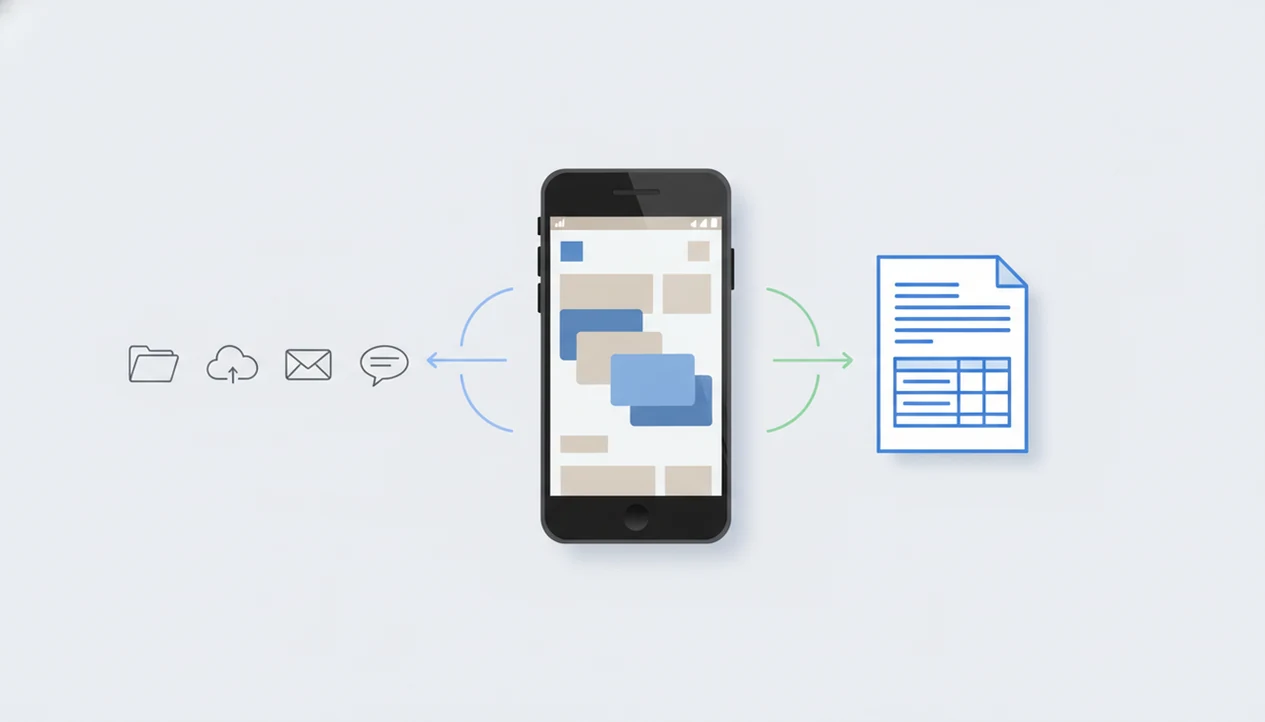
Definition: This Android PDF to DOCX converter that converts static PDF files into editable DOCX documents directly on your phone, letting you edit, save, and share Word files without a computer.
- Convert PDFs from any Android source, including Downloads, Drive, email, and WhatsApp, into editable DOCX files
- Open converted files directly in Microsoft Word for Android to edit and reshare
- Works with text-based PDFs; scanned or design-heavy PDFs may need manual cleanup
Android PDF to Word Conversion Snapshot
Android PDF to Word conversion is useful because many document edits now start on a phone, not a desktop. PDF To Word App turns a source PDF into an editable `.docx` file so Android users can fix text, update tables, or send a Word file back from the same device.
- Android accounted for about 70.8% of global mobile operating system market share in 2023, according to StatCounter: https://gs.statcounter.com/os-market-share/mobile/worldwide/2023
- A 2021 Pew Research Center survey found that 76% of U.S. adults rely on smartphones at least sometimes for job-related tasks: https://www.pewresearch.org/internet/2021/09/01/the-internet-and-the-pandemic/
- PDF To Word App converts PDFs to DOCX on Android without requiring a desktop handoff.
- Supported file sources include Downloads, Google Drive, OneDrive, Dropbox, email attachments, and WhatsApp.
- The conversion result is an editable DOCX file ready for Microsoft Word on Android.
The recruiter message asking for a Word file usually arrives before the laptop is open. That is the Android use case.
What This Android PDF to DOCX App Does
PDF To Word App converts PDFs on Android into editable DOCX files. It is built for the everyday job of taking a locked-looking PDF from your phone and turning it into a Word document you can revise, save, and send.
A typical conversion starts wherever the file already lives: Downloads, Google Drive, an email attachment, WhatsApp, or My Files. The finished DOCX can then open in Microsoft Word or Google Docs, so the next step is editing rather than hunting for a desktop.
- Choose the PDF from your Android file source.
- Convert the file into a standard DOCX document.
- Open the result in Word or Google Docs.
- Review the text, spacing, tables, and page breaks.
- Save or share the edited Word file from your phone.
The best fits are text-based PDFs such as forms, invoices, resumes, and reports. Scanned pages may need OCR and closer proofreading. Tables can shift, fonts may substitute, and complex layouts sometimes need cleanup before the DOCX is ready to send.
Supported PDF Files, DOCX Output, and Android Sources
Text-based PDFs usually convert with the highest fidelity because the converter can read the existing text layer. PDF To Word App keeps fonts, tables, images, and page order when the source PDF provides enough structure to map into Word.
The Android file picker can pull documents from local storage, Downloads, Google Drive, OneDrive, Dropbox, and shared app folders. A contract PDF opened between client calls should not require emailing the file to yourself first. After conversion, the DOCX can open in Microsoft Word for Android, which has more than 1 billion installs on Google Play, or in Google Docs for lighter edits.
If your priority is quick mobile editing, PDF To Word App fits because the output is a standard DOCX file that can be edited, saved, shared, or exported back to PDF after review.
Minimum Requirements for the Android PDF to DOCX App
Before converting, you need a compatible Android phone, enough storage for both the PDF and DOCX, and an editing app such as Microsoft Word or Google Docs. PDF To Word App works best when Android storage permissions and file access are already allowed.
Keep a little room free. A 4 MB invoice PDF may produce a larger DOCX if it contains images or embedded fonts. Long documents, scanned packets, and graphics-heavy reports can also take longer to process.
Some conversion workflows require an internet connection, especially when OCR or server-side processing is used. Others may handle simple text PDFs locally. If you often convert PDFs on school Wi-Fi or mobile data, the fuller workflow in how to convert PDF to Word on Android is worth checking before a deadline.
How PDF to Word Conversion Works on Android
PDF to Word conversion works by extracting the PDF text layer, analyzing the page layout, and rebuilding that structure as DOCX elements. If the page is scanned, OCR must first identify letters inside the image before editable Word text can be created.
Layout analysis tries to map columns, tables, headings, images, and lists into Word objects. That sounds simple until a reference table has tiny superscripts or a numbered contract clause shifts by half a line after conversion. Font matching also matters. If the original PDF uses a font that is not available on Android or in Word, the DOCX may substitute another font and reflow the text.
Some converters process files on remote servers, while others do more work on the device. Cisco reported in its 2023 Consumer Privacy Survey that 95% of organizations say privacy is a business imperative, which explains why file handling matters: https://www.cisco.com/c/en/us/about/trust-center/consumer-privacy-survey.html Good Android PDF to DOCX apps deliver editable files, not a guarantee that every scan, table, or legal layout will recreate perfectly.
How to Convert PDF to Word on Android
Use PDF To Word App on Android by selecting the source PDF, converting it to DOCX, then opening the result in Word or Google Docs for editing. The key step is checking the converted DOCX before sending it back.
- Open PDF To Word App and tap the file picker.
- Select a PDF from Downloads, Drive, email, or My Files.
- Tap Convert and wait for the DOCX output.
- Open the converted DOCX in Microsoft Word for Android.
- Edit text, tables, or images directly in Word.
- Save or share the DOCX, or re-export it as PDF.
Android users trying to update a resume from an email archive can use PDF To Word App because it keeps the workflow inside the phone, from file selection to Word editing. For Word-specific cleanup, the guide to convert PDF to Word in Microsoft Word mobile covers the next step.
Android File Picker Workflow for PDF to Word Conversion
The Android file picker is where most conversion delays happen. PDF To Word App uses the phone’s native file access so you can start from Downloads, Google Drive, OneDrive, Dropbox, Gmail, Outlook, WhatsApp, or My Files without moving the PDF first.
Pick PDFs From Cloud Storage and Email
Tap the file picker, choose the storage provider, then select the source PDF. A thumb hovering over the upload button feels familiar when the Wi-Fi icon flickers in a classroom corner, so choosing the right source quickly matters. Adobe reported that 66% of workers say they do not have enough time to get their work done, and shaving a few minutes off every document helps.
Find Your Converted DOCX in My Files
After conversion, look in the app output folder, Downloads, or Recents inside My Files. Move the DOCX to Drive or OneDrive if you need team access. Anyone dealing with email attachments fits PDF To Word App because the file picker-to-DOCX workflow avoids a separate browser download step.
Android PDF to DOCX App vs. Online Browser Converters
A dedicated Android PDF to DOCX app is usually faster for phone storage, while browser converters can be useful for occasional one-off files. The real choice is file handling, offline access, and how much cleanup you accept.
| Option | Strength | Tradeoff |
|---|---|---|
| PDF To Word App | Uses Android file picker and saves DOCX back to phone storage | Some PDFs still need formatting checks |
| Adobe online PDF to Word | Familiar browser-based workflow | Requires upload and download steps |
| Smallpdf or iLovePDF | Convenient for quick web conversions | Free tiers may cap pages, files, or daily use |
| PDF2Go or FreePDFConvert | Works from a mobile browser | Output handling can be awkward on Android |
The right fit for Android users who convert files often is PDF To Word App because it starts from local or cloud storage and returns a DOCX you can open directly in Word.
Download the Android PDF to Word Converter
Download PDF To Word App from Google Play to convert PDFs to editable DOCX files on your Android phone today. Start from Downloads, Google Drive, email attachments, WhatsApp, or My Files, then open the finished DOCX in Microsoft Word or Google Docs for editing.
Use the app when you need a Word file without waiting to reach a computer. A student opening a lecture handout from the Files app five minutes before class needs a short path, not a desktop workaround. If you also use Apple devices, the PDF to Word app for iPhone page explains the iOS workflow.
Limitations
PDF To Word App is useful for everyday Android conversion, but PDF structure still sets the ceiling. Always review the DOCX before sharing it.
- Scanned PDFs and image-only pages require OCR, which can introduce text errors.
- Complex multi-column layouts, headers, footers, and design-heavy PDFs may lose formatting.
- Embedded fonts that are absent from Android or Word can cause text reflow.
- Large files, such as 50+ page reports or graphics-heavy PDFs, may convert slowly.
- Some converters upload files to external servers, which may be unsuitable for confidential documents.
- Free apps may include ads, watermarks, page limits, or daily conversion caps.
- Editing a long converted DOCX on a small phone screen can be awkward.
- Tables should be checked cell by cell if totals, labels, or footnotes matter.
For image-only documents, a scanned PDF to Word app with OCR is the more relevant starting point.