
How To Convert PDF To Word On Android And Edit The DOCX
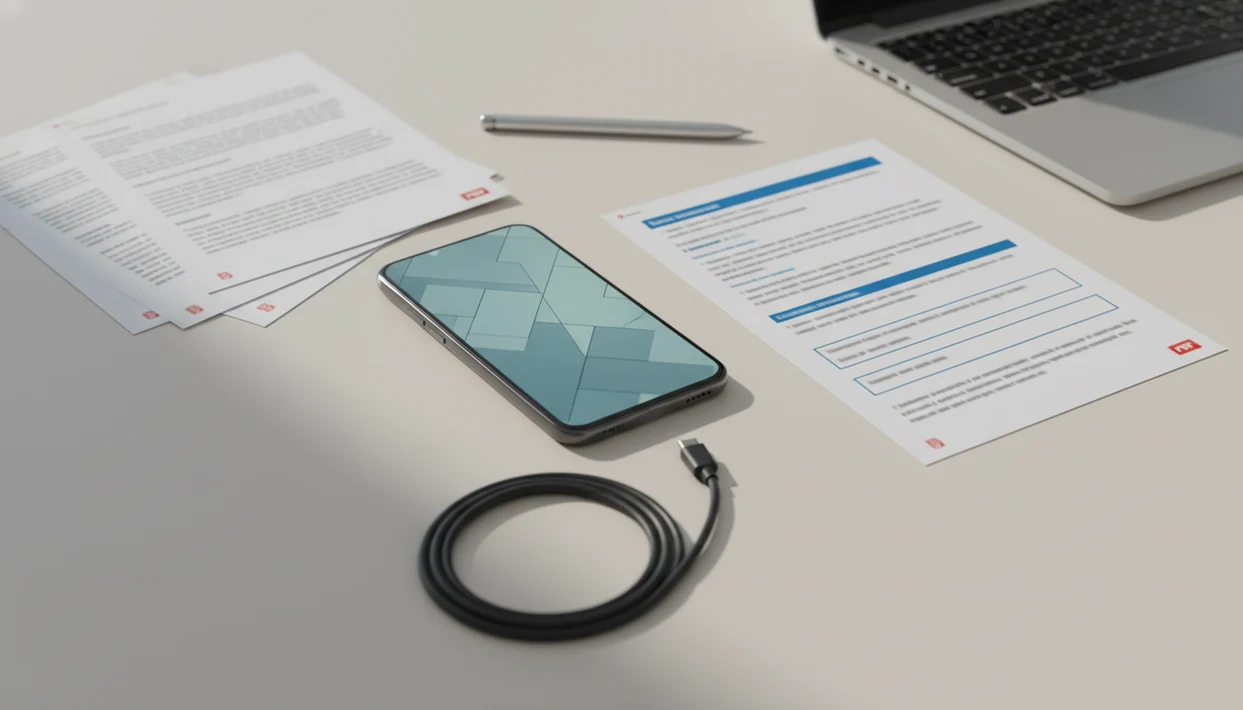
Here’s how to create an editable DOCX from a PDF on Android: open a converter app or browser converter, choose the PDF from Downloads, Files, Drive, or email, tap convert, then open the new DOCX in Microsoft Word or Google Docs. The converted Word file is a new editable document, not the original PDF.
> A mobile PDF converter is a tool that turns PDF files into editable DOCX documents on Android phones and tablets.
TL;DR
- Most Android PDF-to-Word tools create a DOCX file that opens in Word, Google Docs, or another DOCX editor.
- Start by finding the PDF in Downloads, Files, Google Drive, Gmail, or another app that can share files.
- Scanned PDFs, tables, columns, and unusual fonts may need OCR or manual cleanup after conversion.
Requirements Before You Convert On Android
Before you convert a PDF on Android, confirm that you can access the source PDF, run a converter, and open the DOCX afterward. The small checks matter, especially when the file came from Gmail at 8:42 a.m. and now only appears under Recent.
- The PDF must be saved locally, attached in email, or reachable from Google Drive, OneDrive, WhatsApp, or another cloud account.
- You need a PDF-to-Word converter app or mobile browser converter, plus Microsoft Word, Google Docs, WPS Office, or another DOCX editor.
- Most modern tools output DOCX, not the older DOC format.
- Phone-based document work is normal now; Pew reported that 97% of U.S. adults owned a cellphone in 2024 source.
- Android-specific steps matter because Android holds about 70% of global mobile operating system share, according to StatCounter source.
Tiny file names cause real mistakes.
If you also use iOS devices, the storage path differs in our guide to how to convert PDF to Word on iPhone.
Android PDF To DOCX Conversion Process
Android PDF-to-DOCX conversion works by reading the PDF’s text layer, page objects, and layout instructions, then rebuilding them inside a Word-compatible DOCX file. In plain terms, the converter tries to turn a fixed page into an editable document.
Text-based PDFs usually convert more cleanly because the words already exist as selectable text. A scanned page is different. OCR, or optical character recognition, looks at the picture of text and guesses which letters and words are present. That helps, but it can misread faded scans, skewed pages, or handwritten notes.
We often see a PDF that looks selectable until a long-press only grabs one image block. That file needs OCR, not a standard text extraction pass. Tables, columns, images, and fonts can also shift because PDF and DOCX store layout in different ways.
For scanned files, a dedicated scanned PDF to Word app workflow is usually easier than retyping paragraphs from a phone screen.
Steps To Create A DOCX On Android
Use these Android PDF to Word steps when the PDF is already on your phone or available through a cloud account. The goal is to create one editable DOCX, then inspect it before sharing.
- Open a PDF-to-Word app or a browser converter on your Android phone.
- Choose the PDF from Downloads, Files, Drive, Gmail, or another email attachment location.
- Convert the file and wait for the upload, processing, and DOCX creation to finish.
- Download the DOCX to Downloads, Drive, OneDrive, or the converter app folder.
- Edit the DOCX in Microsoft Word, Google Docs, WPS Office, or another compatible editor.
- Save a renamed copy so it is not confused with the original PDF.
For most Android users, converting first and editing the DOCX afterward is more reliable than trying to edit the PDF directly because Word editors expect DOCX structure.
Step 1: Android Downloads, Drive, And Email PDF Selection
Where do I find the PDF on Android before converting it to Word? Start with Downloads, Files, Recent, Google Drive, Gmail, WhatsApp, or the folder created by the app that received the document.
Samsung users may see My Files instead of the stock Android Files app. On some phones, Gmail attachments must be downloaded before they appear in the picker. If the PDF is open inside another app, tap Share and send it to the converter if that option appears.
Choose the original PDF, not a preview image or screenshot. A screenshot may look identical in the thumbnail, but it has no PDF text layer and usually produces a poor DOCX. We have seen numbered clauses squeezed on phone glass, then selected as a PNG by mistake. The conversion result was just a picture inside Word.
If your phone workflow is broader than Android alone, compare it with how to convert PDF to Word with phone.
Step 2: Android PDF To DOCX Conversion Options
What happens when I tap convert on Android? The tool uploads or reads the PDF, extracts text and layout data, then creates a DOCX file for Word-compatible editing.
Most tools produce DOCX as the modern Word format. Before processing, look for an OCR toggle, scanned PDF option, language selector, or page-range setting. Use OCR when the PDF is image-based, such as a photographed handout or a scan from a copier.
Wait until upload and processing finish before leaving the app or browser tab. Phone heat during large PDF conversion is common, and switching apps too early can interrupt a browser download. Browser tools also need internet access, and free tiers may set file-size limits, queues, ads, or OCR restrictions.
Tools like PDF To Word App, Smallpdf, Adobe Acrobat online, and iLovePDF follow this same general pattern. Smallpdf says its web tool converts PDFs to DOCX and supports Android without installation source.
Step 3: Android DOCX Editing In Word Or Google Docs
After conversion, open the DOCX in Microsoft Word, Google Docs, WPS Office, or another DOCX-capable editor. The converter created a new file, so editing the old PDF will not change the Word document.
Check headings, tables, spacing, bullets, page breaks, and any footers before sending it back. Monthly report pages on dual monitors may look fine in PDF form, then gain one extra line after conversion. On a phone, use print layout or page preview when the editor offers it.
Rename the DOCX with a clear ending, such as `contract-editable.docx` or `resume-updated.docx`. Save it to Downloads, Drive, OneDrive, or a project folder. Tools such as PDF To Word App can create the DOCX, but the formatting check should happen in the editor you will use to share the final file.
A good pdf to word converter app that converts pdf files to editable docx word documents on iphone and android delivers editable output for review, not a promise that every page will match the source PDF without cleanup.
Browser Converter Vs Android App
Browser converters are convenient for one-time Android PDF-to-Word work, while Android apps often fit repeat document handling better. The right choice depends on file sensitivity, connection quality, and how often you convert.
| Factor | Browser converter | Android app |
|---|---|---|
| Install required | Usually no install | Requires Google Play installation |
| Internet access | Usually required | May require internet, unless local processing is supported |
| Storage access | Uses browser upload and download | May integrate with Files, Drive, and share sheet |
| Repeat use | Good for occasional files | Better for recurring mobile document work |
| Privacy considerations | File is typically uploaded to a service | Check app file handling and delete local copies when needed |
A browser path works well when a cover letter tab sits beside a converted resume and you only need one file today. An app can be smoother when you convert contracts, invoices, or school PDFs often.
For an app-specific Android setup, use the PDF to Word app for Android guide.
Common Android Conversion Mistakes
Most failed Android PDF-to-Word conversions come from picking the wrong file, leaving too early, or skipping the formatting review. These are the mistakes we see when a lecture handout is opened from Files five minutes before class.
- Screenshot instead of PDF: A screenshot may convert into an image placed inside Word, not editable paragraphs.
- Closed browser tab: Leaving before the DOCX finishes downloading can make the result disappear from Downloads.
- Wrong file edited: The PDF remains separate; open the converted DOCX before changing text.
- OCR skipped: Scanned pages need OCR, or the output may contain only page images.
- No final check: Tables, columns, fonts, and page breaks can move after conversion.
The safest Android PDF-to-Word workflow is to convert, open the DOCX, compare it with the source PDF, then save a renamed copy.
Limitations
PDF-to-Word conversion on Android is useful, but it is not a file-reconstruction guarantee. Treat the DOCX as a draft that needs review, especially for resumes, contracts, tables, and scanned pages.
- Scanned PDFs may require OCR and still may not become fully editable.
- Complex tables, columns, graphics, and embedded fonts can shift in the DOCX.
- Free tools may include file-size limits, waiting queues, ads, or paid OCR restrictions.
- Browser conversion requires internet access, upload time, and download time.
- The DOCX is a new file, so you must save, rename, and back it up separately.
- Password-protected or restricted PDFs may fail unless you have permission to unlock them.
- Sensitive documents need extra care. Delete local copies from Recents after handling them if that matches your file policy.
For files that must be checked inside Word itself, the separate workflow to convert PDF to Word in Microsoft Word mobile may be a better fit.
FAQ
Can Android convert a PDF into an editable DOCX?
Yes. Android can create an editable DOCX through a converter app or browser tool.
Is PDF to Word free on Android?
Free Android PDF-to-Word options exist, but they may include file-size limits, wait times, ads, or restricted OCR. Paid tiers may be needed for larger files or scanned documents.
Where is my converted DOCX on Android?
The converted DOCX is usually in Downloads, Files, Recent, browser downloads, Google Drive, or the converter app folder. Check the save prompt shown after conversion.
Can Google Docs edit a converted DOCX file?
Yes. Google Docs can open and edit DOCX files, but you should check formatting after upload.
Do scanned PDFs convert to Word on Android?
Scanned PDFs can convert only if the tool uses OCR. Even then, the DOCX may need manual correction.
Can a Samsung phone convert PDF to Word?
Yes. Samsung phones use the same Android workflow through My Files, Drive, browser tools, or converter apps.
Is DOCX the same as a Word document?
DOCX is the modern Microsoft Word document format. It also opens in many compatible editors, including Google Docs and WPS Office.
Can I convert PDF to Word offline on Android?
Offline conversion depends on whether the installed Android app supports local processing. Browser converters need internet access.