
How To Convert PDF To Word With Phone Only
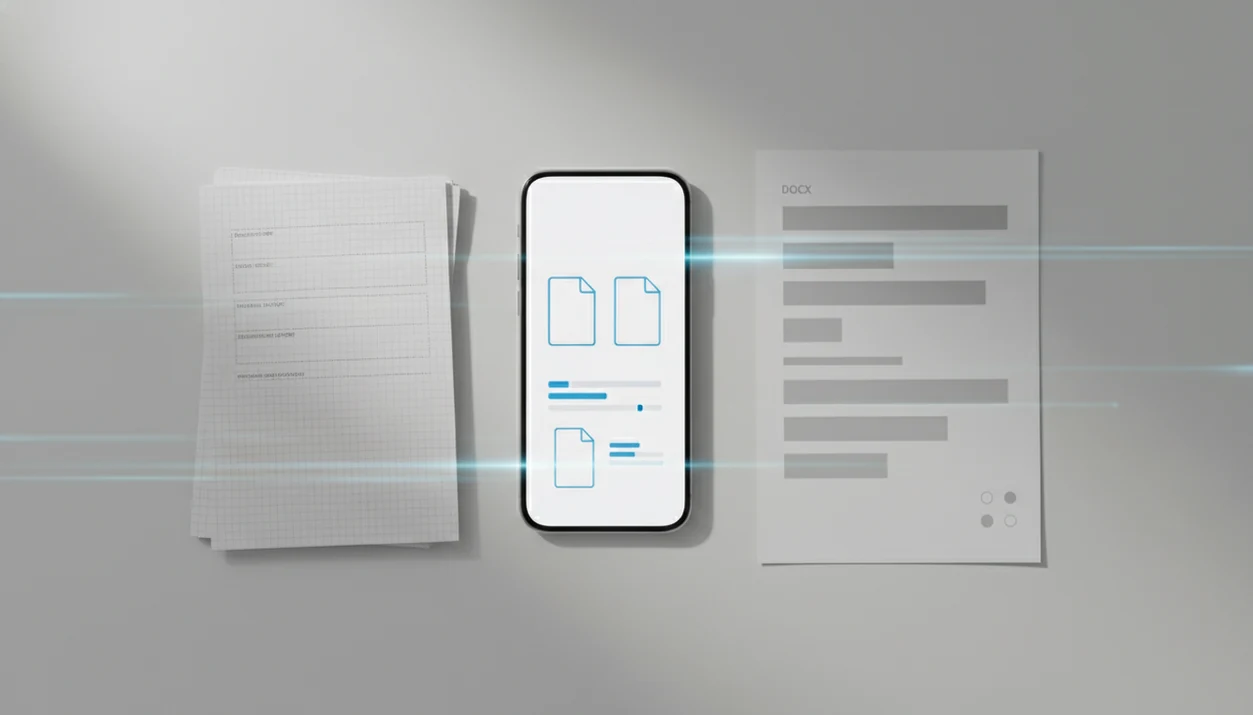
You can convert a PDF to Word with a phone by uploading the PDF to a mobile PDF to Word converter, running OCR if the file is scanned, and downloading the editable DOCX to Word, Google Docs, or your phone files. This guide shows how to convert PDF to Word with phone only, including iPhone, Android, privacy checks, and common cleanup steps.
> A mobile PDF converter can turn a phone-stored PDF into an editable DOCX file when the source file has selectable text or OCR is available.
- Use a dedicated app or mobile browser converter to turn a PDF into an editable.docx file without a computer.
- Scanned PDFs need OCR; normal digital PDFs usually convert faster and more accurately.
- Check privacy, file-size limits, formatting, and whether the final DOCX opens correctly in Word mobile before sharing.
What PDF To Word With Phone Means
Converting PDF to Word with a phone means using only an iPhone or Android device to create an editable DOCX file from a source PDF. No laptop, desktop app, USB cable, or file transfer through a computer is required.
The goal is editing, not just viewing. A PDF viewer lets you read, highlight, or annotate, but a Word conversion should give you selectable text, editable paragraphs, and a document you can open in Word or Google Docs. Good pdf to word converter app that converts pdf files to editable docx word documents on iphone and android deliver editable Word output, not a promise that every font, table, or signature block will survive untouched.
The file may start in Files, Downloads, email, Google Drive, WhatsApp, or a cloud folder that finally finished syncing before sending.
Phone PDF To Word Requirements Before You Start
You need a few things ready before converting a PDF on your phone, especially if the file came from a scan or message thread. According to Pew Research Center, 85% of U.S. adults owned a smartphone in 2023, so phone-only document work is no longer unusual: https://www.pewresearch.org/internet/fact-sheet/mobile/
- PDF file: Start with the source PDF from Files, Downloads, Drive, email, or a messaging app.
- Converter: Use a mobile app or browser-based PDF to Word tool that exports DOCX.
- Storage access: Grant file access only when selecting or saving the document.
- Editor: Install Microsoft Word mobile, Google Docs, or another DOCX-compatible editor.
- OCR check: Digital PDFs contain a text layer; scanned pages need OCR to recognize text.
A quick test helps. Long-press text in the PDF. If the whole page grabs like one image block, treat it as scanned.
How PDF To Word Conversion Works On A Phone
Phone PDF to Word conversion works by reading the PDF structure, extracting text, fonts, images, tables, and page geometry, then rebuilding those elements inside a DOCX file. The converter is trying to preserve layout while making the content editable.
Scanned PDFs work differently. They are usually page images, so the tool must run OCR, or optical character recognition. OCR guesses letters and words from pixels. A clean scan from a flat page often converts well; a tilted worksheet screenshot beside a coffee mug can produce broken words, odd line breaks, or missing punctuation.
Some converters process files on the device. Others upload the PDF to a cloud server and return a DOCX. Server conversion can handle bigger jobs, but it creates a privacy decision. Complex layouts still need a formatting check because PDF and Word store pages in different ways.
How To Use A Phone PDF To Word Converter
The basic phone PDF to Word steps are the same on most iPhone and Android tools: choose the PDF, pick Word output, convert, then inspect the DOCX before sharing. For simple digital PDFs, the whole flow often takes less time than finding a laptop charger.
- Open a PDF to Word converter app or mobile browser converter.
- Select the PDF from Files, Downloads, Drive, email, or your phone storage.
- Enable OCR if the PDF is scanned, photo-based, or not selectable.
- Convert the file to DOCX and wait for upload or processing to finish.
- Download the Word file, then open it in Microsoft Word mobile or Google Docs.
For routine forms and resumes, phone conversion usually works best when the PDF has selectable text, while OCR fits scanned pages that would otherwise need retyping.
Step 1: Select The PDF On iPhone Or Android
Where do I choose the PDF on my phone? Pick it from the same place you normally open the file, such as Files, Downloads, email attachments, cloud storage, or a messaging app.
Grant file access only when the converter asks for the document. If the PDF matters, duplicate or rename it first so the original stays untouched. We often see resume bullet points shifted right before an application deadline; keeping the source PDF avoids a small panic.
iPhone file locations
On iPhone, PDFs usually sit in Files, iCloud Drive, Mail, Safari downloads, WhatsApp, or another app’s share sheet. A more detailed iOS flow is covered in how to convert PDF to Word on iPhone.
Android file locations
On Android, check Downloads, Files, Google Drive, Gmail attachments, and chat apps. The same basic flow applies for PDF to Word no computer searches.
Step 2: Convert The PDF To Editable DOCX
After selecting the file, tap the option labeled Convert, PDF to Word, Word, or DOCX. The wording changes by tool, but the output should be an editable.docx file.
Turn OCR on for scanned PDFs, phone photos saved as PDFs, and image-only pages. If you are unsure, try selecting text in the PDF first. No selectable words usually means OCR is needed. For scan-heavy work, a dedicated scanned PDF to Word app can be easier than re-running failed conversions in a browser.
Online tools may show an upload bar, processing queue, or download timer. Wait until the DOCX is fully created before leaving the page. Free tools may also include ads, file-size limits, daily caps, or slower queues.
Annoying, but common.
Step 3: Open The Word File In A Mobile Editor
Once the DOCX is ready, download it, save it to Files or Downloads, or share it directly into Microsoft Word mobile, Google Docs, or another office app. Microsoft Word mobile is widely available on Android and iOS; the Google Play listing shows more than 1 billion installs for Word: https://play.google.com/store/apps/details?id=com.microsoft.office.word
Open the file before sending it. Check headings, tables, images, fonts, line breaks, and page order against the original PDF. We always look at the first page, the last page, and any table with tight borders. That is where drift shows up first.
Save the cleaned version as DOCX if more editing is needed. Export back to PDF when the layout is final. If Word is your main editor, the workflow for convert PDF to Word in Microsoft Word mobile is worth comparing.
Phone PDF To Word App Versus Online Converter
Phone apps and online converters can both produce DOCX files, but they differ in privacy, speed, limits, and repeat use. Online converters upload files to remote servers; apps may process locally or use their own servers depending on design.
| Factor | Phone app | Online converter |
|---|---|---|
| Privacy | May offer on-device or app-managed file handling | Usually uploads to a remote server |
| Internet need | May work partly offline, depending on the app | Requires internet for upload and download |
| OCR | Often built into dedicated tools | Varies by website and free tier |
| File limits | May depend on plan or device storage | Often has file-size or daily limits |
| Batch conversion | More likely in dedicated apps | Often restricted or paid |
| Convenience | Better for repeat conversions | Good for one-off tasks |
Tools like PDF To Word App, Adobe, Smallpdf, and iLovePDF can fit different cases. For Android-specific storage behavior, use a PDF to Word app for Android guide.
Common PDF To Word Phone Mistakes
Most bad conversion results come from a few predictable mistakes, not from the phone itself. Check these before blaming the DOCX.
- Skipping OCR on scans: A scanned page without OCR may become a Word file full of images, not editable text.
- Expecting exact formatting: Numbered contract clauses can shift by half a line after conversion, especially in dense agreements.
- Uploading sensitive files blindly: Unknown online converters may not be suitable for contracts, HR files, medical forms, or tax documents.
- Ignoring file caps: Large reports may fail, compress badly, or stop in a free queue.
- Skipping review: Tables, columns, signatures, forms, and graphics often need manual repair.
For contract edits, verify every clause number before emailing the file. Tiny errors travel fast.
How We Checked These Phone PDF To Word Steps
We checked these phone PDF to Word steps on both iPhone and Android using files saved in common phone locations. The goal was not to crown one tool, but to verify the practical steps a reader would follow from PDF selection to DOCX review.
- Test files from iPhone Files, iCloud Drive, Android Downloads, Google Drive, email attachments, and a messaging-app share sheet.
- Compare a normal PDF with selectable text against a scanned PDF that needed OCR before the words became editable.
- Convert each file to DOCX, then check whether paragraphs, headings, page order, tables, images, bullets, and line breaks still matched the source closely enough to edit.
- Open the converted files in Microsoft Word mobile, Google Docs, and Apple Pages where available to confirm the DOCX was not tied to one viewer.
- Review simple and complex layouts separately, because a one-page letter behaved very differently from a form with boxes, columns, and tight table borders.
Formatting results still vary. Clean digital PDFs usually convert with less cleanup, while scanned pages and crowded layouts often need manual repairs after conversion.
Limitations
Phone-only PDF to Word conversion is useful, but it has real limits. Set expectations before you rely on the converted document.
- Large PDFs can upload slowly, drain battery, or fail on weak mobile connections.
- Complex layouts with columns, sidebars, forms, graphics, or tight tables may convert imperfectly.
- Scanned PDFs need OCR, and OCR can still misread faint text, handwriting, stamps, or skewed pages.
- Online tools may create confidentiality risks because files are uploaded to remote servers.
- Free converters may show ads, add watermarks, restrict daily use, or block larger files.
- Small-screen editing can be tedious, especially when fixing tables or page breaks.
- Password-protected PDFs may need unlocking before conversion, if you have permission.
- Some fonts may be substituted if they are unavailable on the phone.
The quiet final step matters: delete local copies from Recents after handling a sensitive file.
FAQ
Can I make a Word file from a PDF on iPhone?
Yes. iPhone users can use a mobile app or browser converter, then save the DOCX to Files, Word, or Google Docs.
Can I convert a PDF to Word on Android?
Yes. Android users can select PDFs from Downloads, Files, Drive, Gmail, or messaging apps and convert them to DOCX.
Can I convert a PDF to Word without a computer?
Yes. The full workflow can be done on a phone, from PDF selection through DOCX editing and sharing.
Do scanned PDFs need OCR to convert to Word?
Yes. Scanned or photo-based PDFs need OCR before the text can become searchable and editable.
Is it safe to use an online PDF to Word converter on my phone?
It depends on the file and the service. Avoid uploading confidential documents to unknown converters unless you accept the privacy trade-off.
Why did the formatting change after converting my PDF?
PDF and Word store layout differently. Fonts, columns, tables, images, and line breaks can shift during conversion.
Which phone app opens DOCX files after conversion?
Common options include Microsoft Word mobile, Google Docs, Apple Pages, and compatible office apps. The converted DOCX should open in those editors.
Can I convert a PDF to Word for free on my phone?
Yes, free conversion is possible. Free tools may include ads, watermarks, file-size caps, queues, or daily limits.