
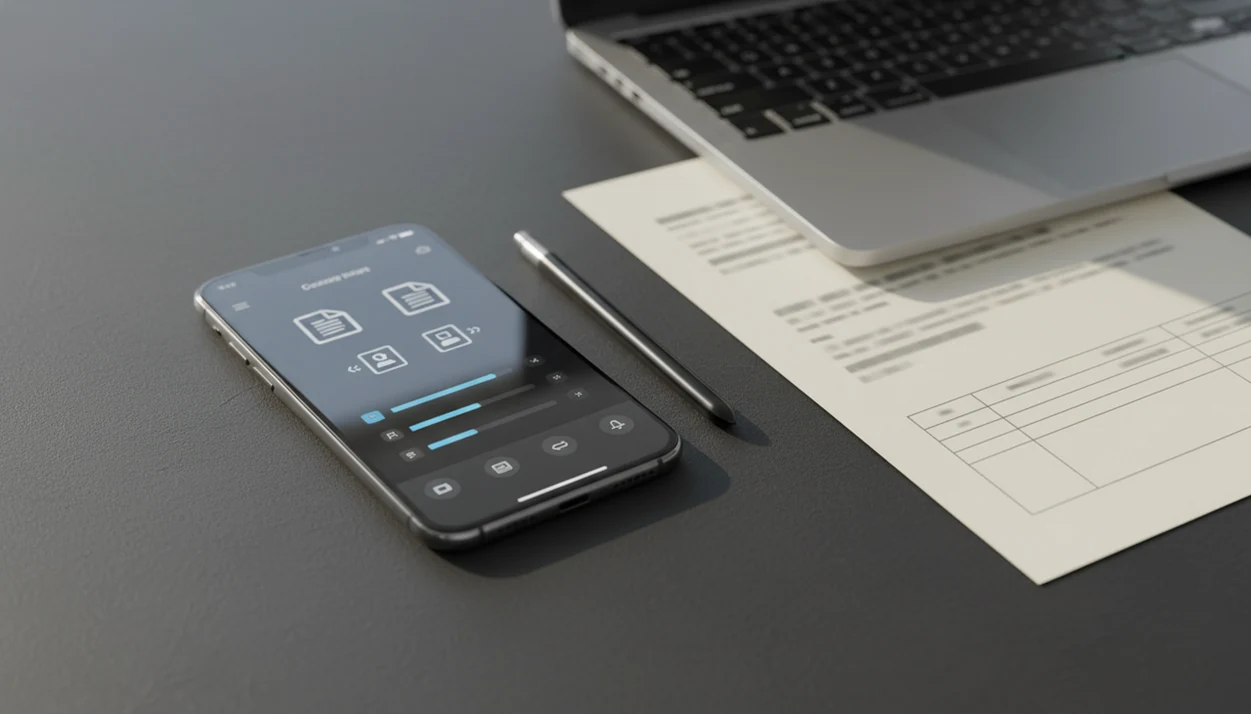
A scanned PDF to Word app is a mobile application that uses optical character recognition (OCR) to convert image-based or scanned PDF pages into editable Word DOCX documents on iPhone or Android.
- Only apps with OCR can convert scanned PDFs. Basic PDF-to-Word tools may only export images.
- Modern mobile OCR engines can exceed 98% character accuracy on clean scans, but quality drops with noise, skew, or handwriting, according to a 2021 OCR methods review source.
- The best scanned PDF converter apps preserve tables, fonts, and paragraphs well enough to need only minor cleanup in Word.
At A Glance: 5 Must-Know Facts About Scanned PDF To Word Apps
- OCR is the dividing line: Not every PDF to Word app can read a scanned page. If the PDF text cannot be selected, the app needs OCR before it can create editable Word text.
- Accuracy depends on the source PDF: Clean 300 dpi scans usually convert better than tilted phone photos, faded ink, or forms with tiny boxes.
- Mobile storage matters: A scanned purchase order in an email thread is easier to fix when the app imports from Files, Google Drive, Dropbox, OneDrive, or a camera scan.
- Free often has a ceiling: Many freemium tools allow basic conversion, then charge for OCR, high page counts, batch conversion, or larger files.
- DOCX quality is more than text: Good apps preserve paragraphs, fonts, tables, and reading order so the conversion result needs proofreading, not reconstruction.
A good scanned PDF to Word workflow creates editable DOCX text, not a prettier image pasted into Word.
What A Scanned PDF To Word App Does
A scanned PDF to Word app turns page images into an editable DOCX file. The useful version does this with OCR, not by placing a static picture of each PDF page inside a Word document.
In practice, the app starts where the scanned file already lives: Files on iPhone, Android storage, a camera scan, an email attachment, or cloud drives such as Google Drive, Dropbox, and OneDrive. Once imported, OCR reads the image layer and rebuilds the document as Word content. That is different from a basic export that only wraps the original page image in a DOCX shell; it may open in Word, but you still cannot edit the words.
A typical flow looks like this:
- Import the scanned PDF from local storage, email, camera, or cloud.
- Run OCR so the app recognizes letters, numbers, and page structure.
- Rebuild the DOCX with editable text, paragraphs, tables, and reading order.
- Check the Word file for missed characters, shifted columns, odd line breaks, or broken table cells.
- Fix anything the OCR could not infer from the scan quality.
Even good results need a human pass before sending.
Best Scanned PDF To Word App Shortlist For 2026
- PDF To Word App: PDF To Word App fits mobile users who need a scanned PDF converter app that moves from source PDF to editable DOCX with OCR and a phone-friendly review step. It is especially useful when you want to open the DOCX in Microsoft Word mobile before sending it back.
- Adobe Acrobat: Adobe Acrobat is a strong choice for people already using Adobe cloud storage and Acrobat tools. Its OCR is well known, but the subscription can feel heavy for occasional scans.
- ABBYY FineReader: ABBYY FineReader is the premium pick for OCR accuracy and broad language support. It suits multilingual scans, archives, and dense business documents.
- Microsoft Lens: Microsoft Lens works well for light camera-to-Word jobs, especially school handouts and simple receipts. Layout preservation is weaker on complex pages.
- Xodo: Xodo is useful when you want browser and mobile access with a free tier. On noisy scans, dedicated OCR tools can produce cleaner text.
Students opening a handout from the Files app five minutes before class usually need speed first, then cleanup.
How We Picked The Best OCR PDF To Word App
We judged each best OCR PDF to Word app by conversion quality, not by feature-count padding. The main question was simple: can a real person fix the DOCX quickly after OCR?
| Criterion | What we checked | Why it matters |
|---|---|---|
| OCR accuracy | Invoices, contracts, forms, and scanned letters | Bad recognition creates hidden editing errors |
| Layout preservation | Tables, lists, headers, columns, and spacing | A readable DOCX saves cleanup time |
| Language support | Single-language and multilingual scans | Wrong language settings reduce accuracy |
| Privacy model | On-device OCR versus cloud OCR | Sensitive documents need careful file handling |
| Mobile workflow | Camera, Files, cloud drives, and email | Most users convert where the file already lives |
For contract cleanup, prioritize a workflow that keeps OCR, DOCX export, and Word checking close together so clause numbers, tables, and signatures can be verified before sharing.
OCR Accuracy Evidence And Source Notes
The evidence supports a practical claim, not a magic one: OCR can be highly accurate on clean scans, but mobile phone photos and messy layouts still need review. This page treats published OCR research, official product documentation, and hands-on editorial judgment as separate kinds of proof.
- Read OCR accuracy numbers as lab-style signals. Controlled scans, clear type, and known languages can produce strong character recognition, but those results do not guarantee a perfect DOCX from every receipt, contract, or archive page.
- Compare product claims against documentation. Adobe describes Acrobat scan and editable-text workflows, ABBYY documents FineReader OCR and language coverage, Microsoft documents Lens scanning and export behavior, and Xodo explains its PDF editing and conversion tools.
- Separate recognition from formatting. A tool may read most words correctly while still breaking tables, columns, bullets, or clause numbering inside Word.
- Treat our shortlist rankings as editorial judgment. We weigh OCR quality, DOCX cleanup time, mobile import/export flow, and pricing friction, then note where the official documentation supports a feature claim.
- Verify real files before relying on them. A clean office scan and a tilted phone photo are different tests.
How OCR Converts A Scanned PDF To An Editable Word File
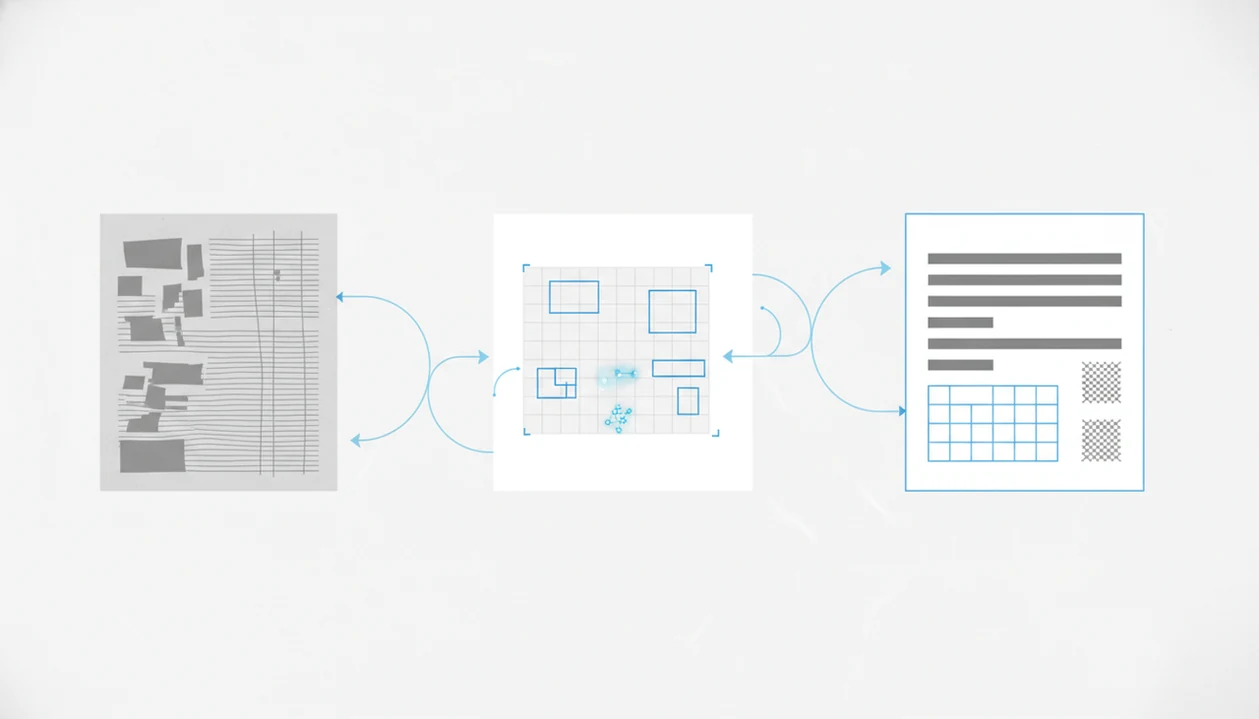
OCR converts a scanned PDF by treating each page as an image, detecting text shapes, and rebuilding those shapes as editable characters in a DOCX file. The process is technical, but the practical result is simple: the app tries to replace a picture of words with real Word text.
First, image preprocessing cleans the page. Deskew straightens tilted scans, noise removal reduces speckles, and binarization separates dark text from a light background. Next, character segmentation splits lines and letters, then pattern matching compares them against trained OCR models.
Layout analysis comes after recognition. The app detects columns, tables, headers, and reading order before reassembling paragraphs into DOCX. That is where numbered contract clauses can shift by half a line after conversion.
For clean scans, OCR accuracy can be very high. Handwriting, faint ink, skew, decorative fonts, and nested tables still reduce the conversion result.
How To Use A Scanned PDF Converter App On iPhone Or Android
Use a scanned PDF converter app by importing the source PDF, enabling OCR, converting to DOCX, and checking the result before sharing. If you need a platform-specific walkthrough, the iOS version is covered in our guide to convert scanned PDF to Word on iPhone.
- Import the file: Open the scanned PDF from Files, a cloud drive, email, or the phone camera.
- Select OCR: Choose the document language and confirm OCR is enabled, not basic PDF export.
- Convert the PDF: Tap convert and wait while the app processes the scanned pages.
- Review the DOCX: Open the preview and check headings, tables, line breaks, and page order.
- Export the file: Save to device storage, upload to cloud storage, or share by email.
After sensitive work, delete the local copy from Recents. Small step, real consequence.
Best Scanned PDF To Word App For 5 Mobile Use Cases
Best For Invoices And Receipts
For invoices and receipts, choose a converter that prioritizes quick OCR, editable DOCX output, and phone-based review. Small tables still need checking.
Best For Contracts And Legal Scans
Professionals working with clause headings checked against the original PDF should consider Adobe Acrobat for Adobe-heavy teams or PDF To Word App for mobile DOCX cleanup.
Best Free Scanned PDF Converter App
For light free use, Microsoft Lens and Xodo are worth trying before paying. Our free scanned PDF to Word app guide explains where free OCR limits usually appear.
ABBYY FineReader is the better match for multi-language scanned documents because its OCR language coverage is broader. For privacy-sensitive files, prefer tools with on-device OCR or strict cloud handling options.
Common Myths About Scanned PDF To Word Conversion
“Any PDF to Word app handles scanned PDFs” is the most common myth. A scanned page is usually an image, so OCR is required before Word can edit the text.
Another myth is that OCR always produces a ready-to-send DOCX. It doesn't. A PDF that looks selectable may only grab one image block when you long-press it, and the converted file still needs proofreading.
Mobile OCR is not always worse than desktop OCR. Cloud-backed mobile tools can perform well on clean scans, especially when the language is set correctly.
Exact design preservation is also unrealistic. OCR apps rebuild text, tables, and spacing inside Word, not the original PDF printing instructions. For layout-heavy files, our PDF to Word without losing formatting guide sets better expectations.
Honest Cons Of Top Scanned PDF To Word Apps
Adobe Acrobat is capable, but the subscription cost is high if you only convert a few scanned PDFs each month. ABBYY FineReader offers strong OCR, yet its premium pricing and limited free tier may be more than casual users need.
For product-verification links, Adobe documents Acrobat OCR and editable-text workflows at Adobe Help, ABBYY describes FineReader PDF OCR and language support at ABBYY, and Microsoft documents Lens scan/export behavior at Microsoft Support.
Microsoft Lens is easy for camera scans, but complex layouts often lose structure. Xodo has a useful free tier, however OCR accuracy can lag on noisy pages.
PDF To Word App is built for mobile DOCX conversion, but heavily designed brochures, handwriting, and low-quality archive scans still need manual correction. A scanned archive page with faded ink can beat any app.
Limitations
No scanned PDF converter app removes the need to verify the Word file. These are the main limits to expect:
- Handwriting, decorative fonts, low-resolution scans, and skewed pages can cause OCR errors.
- Free tiers often limit page counts, file sizes, daily conversions, or OCR access.
- Cloud-based OCR raises privacy questions for contracts, medical forms, tax files, and internal reports.
- Complex multi-column layouts may lose reading order even when the words are recognized.
- Nested tables can become plain rows, broken cells, or uneven spacing in DOCX.
- Heavy image-based PDFs can create large Word files that feel slow on older phones.
- Mixed-language documents can confuse single-language OCR settings.
- Password-protected PDFs may need unlocking before conversion.
- Image-only files need OCR first; our image-only PDF to Word guide explains that edge case.
PDF To Word App can reduce retyping, but it cannot guarantee exact design recovery from every scan.