
How To Convert PDF To Word On iPhone Without A Laptop
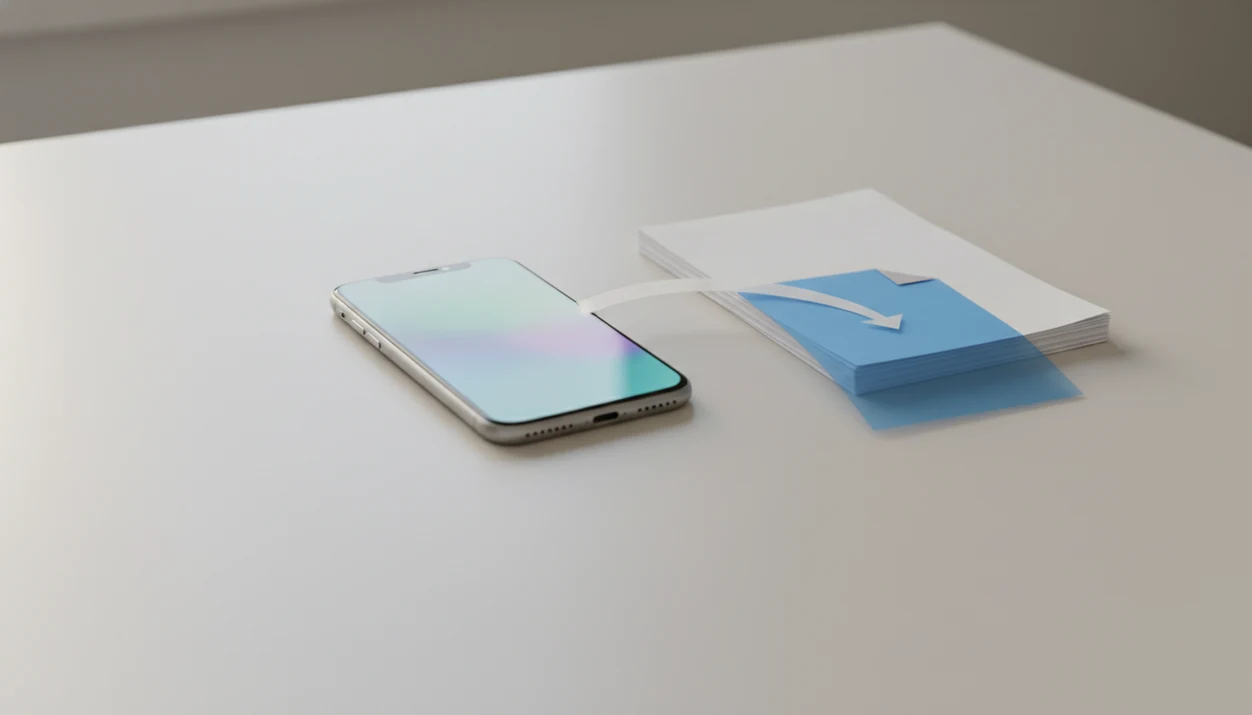
You can convert a PDF to Word on iPhone by opening the PDF from Files, Mail, WhatsApp, or iCloud Drive, sending it through the iOS Share Sheet to a PDF to Word converter, and saving the exported DOCX back to Files. The safest workflow for how to convert PDF to Word on iPhone is to confirm whether the PDF is digital or scanned, convert it to DOCX, then review the Word file before editing or sharing it.
> Converting PDF to Word on iPhone means turning a PDF stored on your phone into an editable DOCX document that can be opened in Microsoft Word, Pages, or another Word-compatible editor.
- Use Files or the Share Sheet to send the PDF into a converter app, Microsoft Word, or a Safari-based PDF to Word tool.
- Scanned PDFs need OCR; otherwise the DOCX may contain image-only text that cannot be edited.
- Always open the exported DOCX and check text, tables, page breaks, and fonts before making edits.
Requirements Before You Start On iPhone
- You need the source PDF saved somewhere your iPhone can reach, such as Files, iCloud Drive, Mail, WhatsApp, Downloads, or an app folder.
- You need a destination that can export DOCX, such as Microsoft Word, a Safari converter, or tools like PDF To Word App.
- Cloud-based converters usually need a stable internet connection for upload, processing, and download.
- Sensitive documents need a privacy check before upload, especially contracts, resumes, medical forms, or business paperwork.
- Adobe’s 2022 Future of Time study reported that 72% of surveyed workers said mobile document access and editing would make them more efficient (Adobe: https://blog.adobe.com/en/publish/2022/08/24/adobe-future-time-study).
That last point matches real use. A recruiter message asking for a Word file rarely arrives when you're sitting at a desk. Good PDF to Word converter apps deliver editable DOCX files on iPhone and Android, not a guarantee that every font, table, or signature block will survive unchanged.
How iPhone File Conversion Works
PDF to Word conversion on iPhone rebuilds the source PDF as a Word document; it does not simply rename the file extension. A digital PDF contains a text layer, images, and layout objects that a converter maps into DOCX paragraphs, tables, pictures, and page breaks.
A scanned PDF works differently. It is usually a page image, so the converter needs OCR, meaning optical character recognition, before the words can become editable. We often see PDFs that look selectable until a long-press only grabs one image block. That is the scan problem.
Most mobile converters process files in the cloud. Some app or Word workflows feel local, but account features or server-side conversion may still be involved. Complex forms, columns, embedded fonts, and chart-heavy reports can reduce layout preservation. For scanned documents, a scanned PDF to Word app is usually a better fit than a basic export tool because OCR is the main step.
How To Use An iPhone PDF To Word Converter
Follow these iPhone PDF to Word steps when you want a clean DOCX instead of a confusing preview loop:
- Open the PDF location in Files, Mail, WhatsApp, iCloud Drive, or another app.
- Tap Share and send the file to a converter, or choose it from the converter’s file picker.
- Choose Word, DOCX, or Convert to Word as the output format.
- Wait for the conversion to finish, then save the exported DOCX to Files.
- Open the DOCX in Microsoft Word, Pages, or another editor and confirm the text is editable.
Do the final check before you start rewriting. We have seen a student open a handout from the Files app five minutes before class, convert it, and only then notice every page was one flat image.
Step 1: Find The PDF In Files, Mail, Or WhatsApp
Where is the PDF on my iPhone before I convert it to Word? Start by checking Files under On My iPhone, iCloud Drive, Downloads, and app folders, because that is where most saved PDFs land.
For email attachments, tap the PDF, then use Share instead of only previewing it. In WhatsApp or Messages, open the attachment and choose Save to Files or Share. If you skip this location check, you may upload one copy and save the DOCX somewhere else, then wonder which version is current.
Tiny folders matter.
These iPhone PDF to Word steps are easier when the source PDF has a clear name, such as lease-original.pdf or resume-scan.pdf. If you regularly move files between devices, our guide to how to convert PDF to Word with phone covers the same location problem across mobile workflows.
Step 2: Send The PDF Through The iPhone Share Sheet
Use the Share Sheet to move the PDF from its current app into the conversion tool. The Share icon is usually the square with an upward arrow, and it appears in Files, Mail, WhatsApp, and many PDF previews.
- Tap the Share icon from the PDF preview or file location.
- Choose the PDF to Word converter app, Microsoft Word, or another destination.
- Tap More or Edit Actions if the target app is not visible.
- Use Save to Files first if the converter requires a file picker instead of direct sharing.
- Trigger conversion inside the tool; opening a PDF in Word does not automatically make it editable.
Share sends the file to another app. Open In hands the file to a compatible app. Save to Files stores a copy for later selection. That distinction helps when page thumbnails are sliding under your fingertip and the Wi-Fi icon is flickering in a classroom corner.
Step 3: Convert PDF To DOCX On iPhone
How do I convert PDF to DOCX iPhone without choosing the wrong format? Pick Word, DOCX, or Convert to Word when the converter asks for the output type.
Avoid DOC unless an older system specifically requires it. DOCX is the modern Word format and usually works better in Microsoft Word, Pages, Google Docs, and most mobile editors. Microsoft identifies DOCX as the modern Word document format used by current Word versions, while older DOC files are mainly for legacy compatibility: https://support.microsoft.com/en-us/office/file-formats-that-are-supported-in-word-3200acaa-7d3d-4f3d-9ff5-41a51b788f14. If the tool uses cloud processing, wait for both upload and conversion to finish before closing the app or browser tab.
Name the result before saving. contract-editable.docx is easier to trust than converted-file-7.docx, especially when a confidential folder is sitting beside a locked briefcase. For Word-specific behavior, the separate guide to convert PDF to Word in Microsoft Word mobile explains where Microsoft’s conversion option may appear.
Step 4: Check OCR Before Editing The Word File
- Open the converted DOCX and try selecting one word, not the whole page.
- If only the page image selects, the source PDF was likely scanned or OCR failed.
- OCR means optical character recognition, a process that turns image text into editable characters.
- Rerun the conversion with OCR enabled, or use an OCR-capable converter.
- Scans, photos, signatures, stamps, and handwritten notes may still need manual cleanup.
This check takes ten seconds. It prevents a longer repair later. We test by placing the cursor inside a sentence, deleting one letter, and undoing the change. If the whole page jumps instead, the DOCX is probably just a wrapper around an image. For scanned classroom packets and office scans, OCR quality often decides whether the file is useful.
Step 5: Review The Converted DOCX On iPhone
- Open the converted file in Microsoft Word, Pages, or another DOCX editor before sending it.
- Check headings, line breaks, tables, images, page numbers, and fonts.
- Compare the DOCX against the original PDF for missing content.
- Save a copy before heavy edits, especially for contracts, resumes, and forms.
- Share the reviewed DOCX from Files, Word, Mail, or a cloud drive.
For resumes, this review is not optional. An interview suit hanging near a desk chair is a bad time to find that bullet spacing shifted. The same applies to contracts, where numbered clauses can move by half a line after conversion. For iPhone-first users, a PDF to Word app for iPhone can be useful, but the formatting check still belongs to you.
Common iPhone Conversion Mistakes
Renaming a file from.pdf to.docx does not convert the document. It only changes the label, and Word may refuse to open it or show damaged content.
Another common mistake is opening a PDF in Word and assuming it is now editable. You still need a conversion command that creates a real DOCX. Scanned PDFs need OCR, not just export, or the Word file may contain flat page images. Large files can also fail on weak Wi-Fi, free plan limits, or browser timeouts.
Privacy is the quieter mistake. Do not upload sensitive files to unknown web converters without reading the privacy terms and file handling notes. After a sensitive conversion, we also remove local copies from Recents when the job is done. Small habit, big difference.
Evidence And Sources For This iPhone Conversion Workflow
This workflow is based on platform documentation, Word format guidance, OCR basics, and hands-on iPhone testing. The short version: Files and Share move the PDF, a converter rebuilds it as DOCX, and your review catches what automation misses.
- Check Apple’s Files, Share Sheet, and iCloud Drive support guidance to understand where iPhone documents live, how sharing hands a file to another app, and why the saved DOCX may land in a different folder than the original PDF.
- Use Microsoft’s Word support notes for DOCX compatibility and PDF conversion expectations, especially the warning that layout may change when a PDF is opened or converted into Word format.
- Treat scanned pages as images until OCR has recognized the letters. OCR authorities describe recognition as the step that turns picture text into machine-readable characters, which is why flat scans cannot be edited like normal paragraphs.
- Rely on the practical steps above as tested workflow behavior: opening PDFs from Files and app previews, sending them through Share, saving DOCX exports, and checking editability in Word-style editors.
- Read each converter’s privacy and file-handling policy before uploading sensitive documents, because retention, processing location, and deletion rules vary by provider.
Limitations
PDF to Word conversion on iPhone is practical, but it has real limits.
- Free converter apps may have file size limits, watermarks, queues, or daily caps.
- Cloud converters require uploading the PDF, which may not suit confidential documents.
- Complex layouts, forms, charts, columns, and embedded fonts can shift during conversion.
- Scanned PDFs without OCR may become image-only Word files.
- Batch conversion and advanced layout controls are often weaker on iPhone than desktop tools.
- Poor internet can interrupt upload, conversion, or DOCX download.
- Password-protected PDFs may need to be unlocked before conversion.
- Legal, academic, or business documents should be reviewed carefully before sharing.
If you also work across devices, the Android workflow has different file picker behavior. The companion guide on how to convert PDF to Word on Android covers those differences without assuming a desktop computer.
FAQ
Can an iPhone make an editable Word file from a PDF?
Yes. An iPhone can create an editable Word file from a PDF using a converter app, Microsoft Word or Microsoft 365, or a Safari-based DOCX export tool.
Where is my converted DOCX saved on iPhone?
The DOCX is usually saved in Files, Downloads, iCloud Drive, the Word app, or the converter app folder. Check the save screen during export so you know which copy you are editing.
Does the Files app convert PDF to Word?
No. Files can store, preview, share, and organize PDFs, but it does not natively export editable DOCX files.
Can Word for iPhone convert PDFs?
Microsoft Word or Microsoft 365 may convert PDFs to Word depending on your account, app version, and the file type. You still need to trigger the conversion, not just open the PDF.
Do scanned PDFs need OCR to become editable?
Yes. Scanned PDFs need OCR to turn page images into editable text inside a Word document.
Can I convert a PDF to Word offline on iPhone?
Some workflows may work partly offline, but many iPhone converters need internet because they process files in the cloud. Check the app’s offline behavior before relying on it.
Is DOCX better than DOC for iPhone editing?
Yes. DOCX is the modern Word format and is usually the better choice for editing and sharing on iPhone.
Why did my PDF formatting change after converting to Word?
PDF and Word use different layout models, so tables, fonts, columns, images, and page breaks may shift after conversion. Review the DOCX before editing or sending it.