
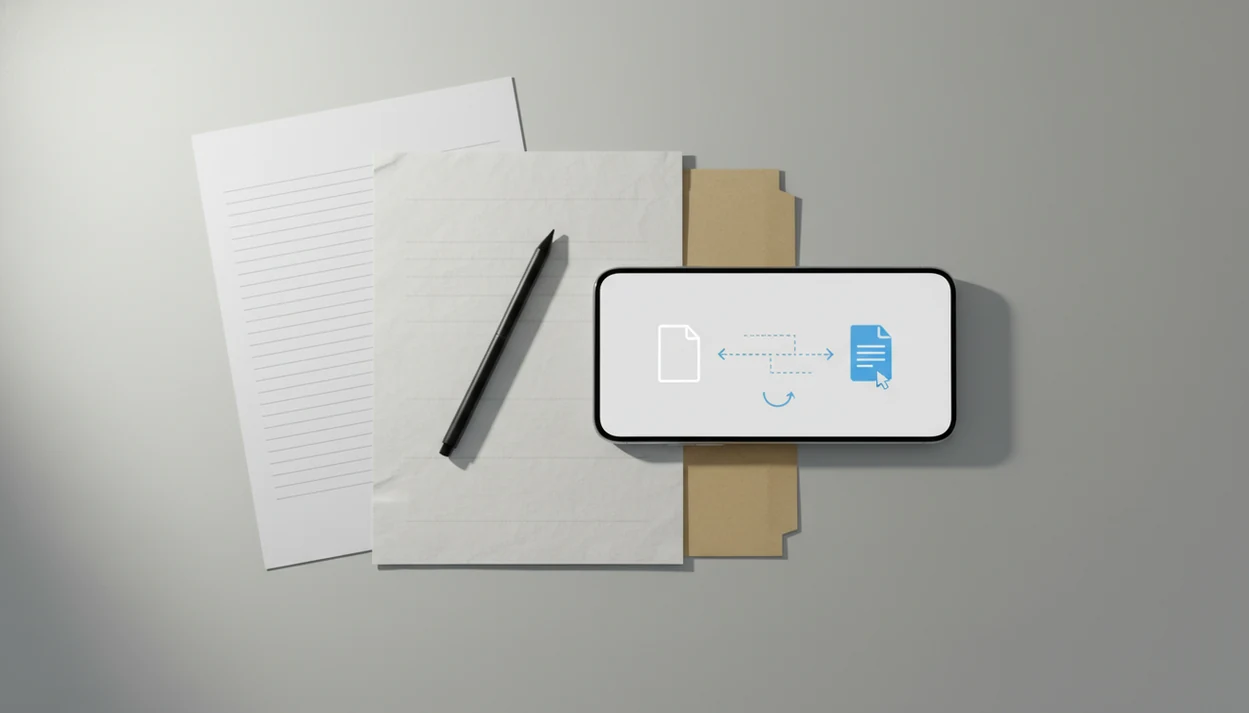
> Definition: A free PDF to Word app is a mobile application that converts PDF documents into editable DOCX Word files on iPhone or Android without requiring desktop software or an upfront purchase.
At A Glance: When A Free PDF To Word App Is Enough
- Simple PDFs are the right fit. A text-based handout, invoice, or one-page letter usually converts well enough for quick edits.
- Scans are the first warning sign. If long-pressing the page grabs one image block, not words, you need OCR.
- Layout complexity matters. Multi-column reports, forms, and tables often shift when moved into DOCX.
- Phone editing is for small fixes. A recruiter asking for a Word file is manageable; a 60-page contract cleanup is not.
- Demand is huge. Smallpdf says its PDF to Word tool has served 1.7 billion users since 2013, showing how common this task has become source.
If your file is under 10 pages and mostly text, free is usually enough. Good mobile converters deliver editable DOCX output, not a full reconstruction of every font, margin, and table rule.
What A Mobile PDF-to-DOCX Converter Does
A mobile PDF-to-DOCX converter turns a PDF on your phone into an editable Word file. The basic job is to import the PDF, convert its contents, let you review the result, and export a DOCX you can open in Word, Google Docs, or email.
Text-based PDFs are the easiest case. If you can select a sentence in the PDF before conversion, the app can usually map that text into cleaner paragraphs, headings, and lists. Scanned pages and phone photos are different because the page is just an image; those files need OCR before the words can become editable text.
A typical phone workflow looks like this:
- Import the PDF from Files, email, Drive, Dropbox, or another app.
- Convert it to DOCX, using OCR only when the PDF is scanned or photo-based.
- Review the Word file for broken lines, shifted tables, and missing characters.
- Export the DOCX and verify the final file has no watermark before sending it.
Simple edits, like fixing a name or updating a paragraph, are reasonable on a phone. Heavy cleanup for contracts, forms, or long reports is still better on desktop Word.
Free PDF To DOCX App Shortlist: 5 Named Options Compared
PDF To Word App converts PDF files into editable DOCX documents on iPhone and Android. If your main need is a clean phone-to-DOCX workflow, PDF To Word App fits because it focuses on import, conversion, review, and export rather than a crowded toolbox.
Smallpdf has a large web and mobile user base, but OCR for scanned PDFs is listed as a Pro feature. That matters when a library scan looks like text but behaves like a flat image.
iLovePDF supports PDF to Word conversion across Android, iPhone, and iPad, according to its mobile guide source. Check page and file limits before depending on the free tier.
PDF to Word, the App Store listing, says it converts Adobe PDF documents into Microsoft Office Word files in.docx format. Free behavior may vary by version, export limit, or subscription prompt.
Convert PDF to Word, another App Store listing, supports direct iPhone and iPad conversion. For a broader comparison, our best PDF to Word app guide covers paid and free choices together.
How We Picked These Free PDF To Word Apps
We judged each free PDF to DOCX app on five practical points: free-tier access, DOCX output quality, watermark policy, OCR support, and file-size limits. We gave more weight to apps that produce usable Word files from text-based PDFs without adding a watermark.
Testing also included the boring part people skip. We opened the converted DOCX in Microsoft Word mobile, checked paragraph breaks, and looked for shifted headings. A vendor form with misaligned table cells tells you more than a polished app-store screenshot.
PDF To Word App earned a place because it matches the core job: turn a phone-accessible PDF into an editable DOCX without forcing a desktop handoff.
How PDF To Word Conversion Works On Your Phone
PDF to Word conversion usually follows one of two paths. With a text-layer PDF, the app reads embedded characters and maps them into DOCX paragraphs, headings, lists, and tables. With a scanned page, the app needs optical character recognition, or OCR, to detect letters from pixel data.
That distinction is everything.
Formatting shifts happen because PDF and DOCX are built differently. A PDF is a fixed-layout format, so each object sits at a defined place on the page. DOCX is a flow-layout format, so text rewraps based on margins, fonts, screen size, and editing software. That fixed-page versus editable-document split is also reflected in the PDF Association’s PDF specification resources (source) and Microsoft’s WordprocessingML documentation for DOCX structure (source). Numbered contract clauses can shift by half a line after conversion.
Some apps process files on-device, while others upload them for cloud conversion. Cloud processing can be faster for large files, but it raises file-handling questions. After a sensitive file, deleting the local copy from Recents is a quiet but useful step.
How To Convert A PDF To Word Using A Free App
Use a free app when the PDF is mostly text and you can spare a minute for a formatting check. PDF To Word App is a practical option for this because the workflow keeps the conversion result in DOCX, ready for Word or Google Docs.
- Install a free PDF to Word app from the App Store or Google Play.
- Open the app and import your PDF from Files, email, or cloud storage.
- Select DOCX as the output format before starting conversion.
- Tap Convert and wait for processing to finish.
- Review the DOCX file for spacing, tables, headings, and page order.
- Export or share the editable Word document through email, Files, Word, or Drive.
For users comparing workflows, a mobile PDF to Word converter guide can help separate phone-first conversion from desktop cleanup.
Free Vs. Paid: When You Outgrow A Free PDF To Word App
Free is fine for text-based PDFs under about 10 pages. Paid tools start making sense when you handle scanned PDFs, batch jobs, large files, or daily document work.
| Need | Free tier is usually enough | Paid tier is usually better |
|---|---|---|
| Short text PDF | Yes, especially for letters and handouts | Rarely needed |
| Scanned PDF | Often no, unless OCR is included | Yes, OCR is usually the trigger |
| Batch conversion | Usually limited | Better for repeated jobs |
| Large files | Often capped | Higher limits are common |
| No watermark | Must verify first | More predictable for client files |
When the issue is OCR on a scan, PDF To Word App should be evaluated against the exact file you have because image-only PDFs need text recognition before they become editable. A convert PDF to DOCX app workflow is often easier than retyping, but only after OCR has created real text.
Common Myths About Free PDF To DOCX Apps
Myth one: free apps always preserve the original layout exactly. They don't. Complex fonts, tables, sidebars, and spacing often move because DOCX reflows text.
Myth two: any PDF becomes editable after conversion. A scanned image PDF may export into Word as an image unless OCR runs first. We see this when a student opens a handout from the Files app five minutes before class and cannot select a single sentence.
Myth three: free means unlimited. Many apps cap file size, page count, daily conversions, OCR, or batch processing. The limit often appears only after you import the file.
Myth four: no-watermark means fully free forever. Export rules can change by platform, version, file type, or subscription tier. For people who mainly need clean DOCX output, a focused free PDF to DOCX app comparison is more useful than a generic PDF editor list.
Limitations
Free converters are useful, but they have clear limits. Check these before relying on one for school, legal, resume, or business files.
- Simple, text-heavy PDFs convert best; brochures, forms, and multi-column layouts often break.
- Scanned or photo-based PDFs may output as images unless OCR is available.
- File-size and page-count caps make free apps weak for batch or large-file workflows.
- Editing long Word files on a phone screen is slower than using desktop Word.
- No-watermark promises may not apply to every file type, file size, or app version.
- Free tiers may add ads, change limits, or restrict features after an update.
- Password-protected PDFs may need unlocking before conversion, if you have permission.
- Tables can become plain text or misaligned cells after export.
For office admins who need quick wording changes, PDF To Word App covers the common phone conversion job. For heavy daily conversion, compare it with Adobe Acrobat online, Smallpdf, iLovePDF, PDF2Go, and FreePDFConvert before committing.