
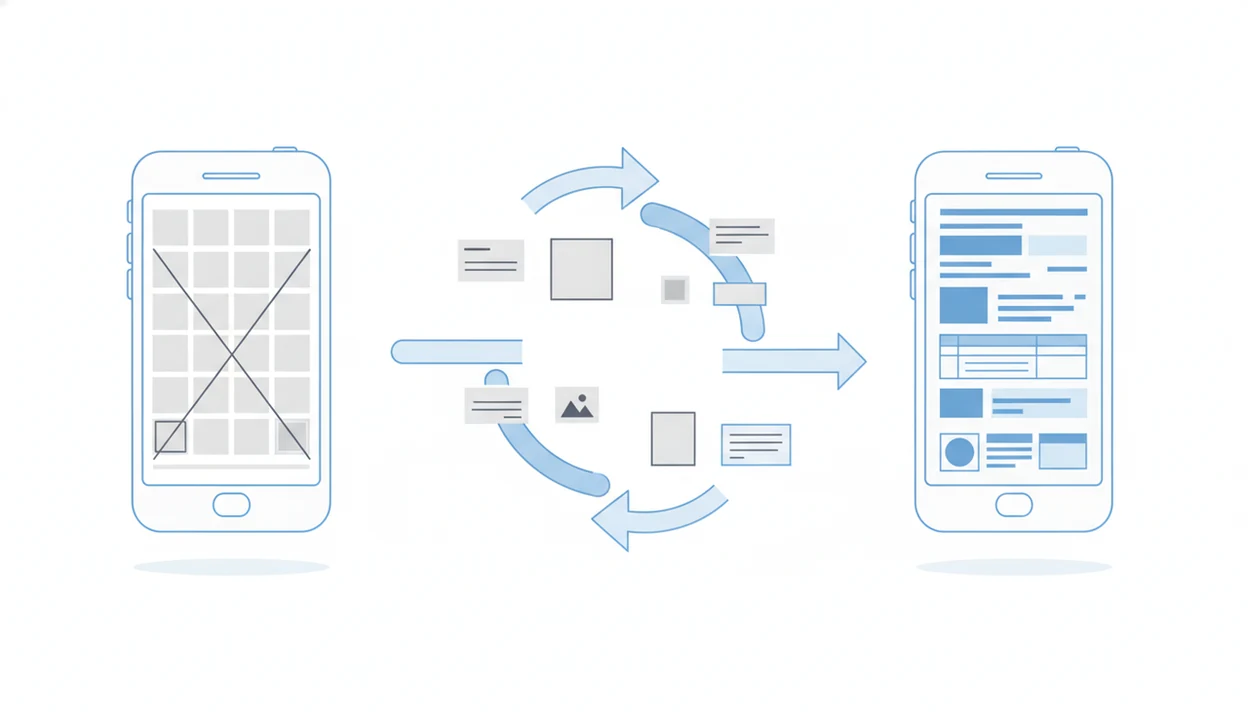
> A PDF to DOCX converter app is a mobile tool that reconstructs the internal structure of a fixed PDF file into an editable.docx Word document, preserving text, formatting, and layout so users can edit on iPhone or Android without a computer.
What a PDF to DOCX Converter App Actually Does
A PDF to DOCX converter app does not “open” a PDF as Word. It interprets the PDF’s fixed document structure, then rebuilds a separate editable DOCX file.
Renaming `contract.pdf` to `contract.docx` only changes the label your phone shows. Word still sees PDF data inside and may reject the file or open unreadable content. Copy-pasting is also limited. It can grab visible text, but headers, footers, table cells, columns, and footnotes often flatten into a messy stream.
A real converter parses the PDF object tree, including text positions, fonts, images, and page objects. Then it writes DOCX XML with paragraphs, runs, styles, lists, and tables. That reconstruction matters because Adobe says more than 300 billion PDFs are opened each year in Adobe products (https://www.adobe.com/acrobat/about-adobe-pdf.html). A good PDF to DOCX converter app delivers editable Word structure on iPhone and Android, not a renamed file or a pile of pasted text.
How PDF to Word Conversion Works on Mobile
Mobile PDF to Word conversion works by translating a fixed-layout file into a flowing Word document. PDF stores positioned text operators, fonts, images, and page coordinates; DOCX stores paragraphs, styles, runs, tables, and section flow.
- PDF text may be real embedded text, or it may be pixels inside a scanned page.
- DOCX needs editable structure, so the app must infer paragraphs, headings, and table boundaries.
- OCR is required when the app detects image data instead of selectable text.
- Multi-column pages, custom fonts, and sidebars may shift because Word reflows content.
- Cloud conversion can be faster for large files, but on-device conversion gives more offline control.
Text-Based PDFs vs. Scanned PDFs
A text-based source PDF usually converts with fewer edits because the characters already exist. A scanned page needs optical character recognition, which guesses letters from pixels. We see this when a PDF looks selectable until a long-press only grabs one image block.
Cloud Processing vs. On-Device Conversion
Cloud processing uploads the file for conversion, then returns a DOCX. On-device conversion keeps more work on the phone, but it can be slower and battery-heavy. Tools like PDF To Word App sit in this practical category beside Word, Adobe, Smallpdf, and iLovePDF.
Requirements Before You Convert PDF to Word on Your Phone
Before converting, make sure your phone has the file, the app, storage, and an editor ready. Missing one of those pieces usually causes the annoying failure after the progress bar finishes.
You need an iPhone or Android device with a PDF to DOCX converter app installed. The source PDF should be saved locally, in Files, Google Drive, iCloud, Dropbox, or an email attachment you can access. If the app uses cloud processing, use stable Wi-Fi or a strong mobile signal.
Keep enough free storage for both the original PDF and the new DOCX. Large packets can double up fast. Finally, install Microsoft Word, Google Docs, or another DOCX-compatible editor so you can inspect the conversion result before sending it back.
How to Use a Convert PDF to DOCX App on iPhone or Android
Use the app to import the source PDF, run conversion, then review the DOCX in Word before sharing it. For many phone users, this is faster than emailing the file to a laptop because the handoff never leaves the device.
- Open the PDF to Word converter app and tap Import, Select File, or the plus button.
- Browse local storage, iCloud, Google Drive, or Downloads, then choose the source PDF.
- Tap Convert to DOCX or PDF to Word to start the conversion.
- Wait for processing, and watch for a cloud upload indicator if the app sends the file online.
- Open the DOCX result in Microsoft Word mobile to review text, tables, and images.
- Share or save the DOCX to your preferred folder, email thread, or document editor.
A student opening a handout from the Files app five minutes before class should still check the first page and last page. If you need a broader phone workflow, the mobile PDF to Word converter guide covers storage and sharing choices in more detail.
Who Should Use a Convert PDF to DOCX App
A convert PDF to DOCX app is best for people who need to edit a PDF quickly on a phone, then send back a Word file. It fits everyday document cleanup more than high-security records or design-perfect publishing.
Students can use it for class handouts, syllabi, reading packets, and scanned worksheets that need notes or edits before class starts. Job seekers benefit when a recruiter sends a resume, cover letter, or application form as a PDF and the deadline is close. Small teams can also save time when revising contracts, invoices, forms, or shared drafts without waiting for someone at a desktop.
A practical way to decide:
- Choose the app when the PDF is ordinary school, work, or application material.
- Check whether the text is selectable or scanned, because scanned packets need OCR and closer review.
- Review the DOCX in Word before sending it to a professor, recruiter, client, or teammate.
- Avoid cloud conversion for medical, legal, financial, government, or other regulated files unless your organization allows that upload path.
If the document feels too sensitive to email casually, treat cloud conversion the same way.
PDF To Word App vs Other PDF to DOCX Converter Apps
PDF To Word App fits best when the job starts and ends on a phone: import a PDF, convert it, check the DOCX, and send it back without opening a laptop. Adobe Acrobat, Smallpdf, iLovePDF, and Microsoft Word can all be good choices, but they differ in OCR depth, file limits, cloud handling, and editing comfort.
Adobe Acrobat is strong for full PDF workflows and desktop review, especially when you already pay for Acrobat tools. Smallpdf and iLovePDF are convenient browser-style options, though free tiers often add file-size, daily-use, or batch limits. Microsoft Word can open some PDFs directly, but desktop Word is usually easier for heavy cleanup, tracked changes, and long documents.
A simple comparison path:
- Pick PDF To Word App when you need a phone-first conversion from Files, Downloads, email, or cloud storage.
- Use Adobe Acrobat when PDF management, signing, commenting, or a broader subscription workflow matters.
- Try Smallpdf or iLovePDF for quick web-based conversion when upload policies and limits are acceptable.
- Choose Word on desktop when the DOCX needs serious formatting repair, long-table editing, or detailed revisions.
Evidence and Review Process for PDF to DOCX Apps
PDF to DOCX apps should be judged by the files people actually convert, not only by clean demo documents. The review process looks at whether the app can turn fixed PDF structure into editable Word content while making its privacy, speed, and limits clear.
A fair test set includes ordinary text PDFs, scanned pages that require OCR, tables with borders or merged cells, and resumes where spacing matters. That mix reflects how PDFs store page objects and positioned text, how phones are now common document tools, and why OCR still struggles with blur, skew, shadows, handwriting, and small type.
The process is simple:
- Test the same source files in each app, including text-based PDFs, image-only scans, tables, and resume layouts.
- Compare OCR accuracy by reading names, numbers, headings, and dense paragraphs in the finished DOCX.
- Check layout retention in Word, especially columns, bullets, table cells, page breaks, and font substitutions.
- Review privacy signals, including whether the app uploads files, keeps copies, or explains deletion.
- Time common conversions and note free-plan limits such as file size, daily use, watermarks, or batch caps.
Even strong results are not a promise of perfection. Complex layouts still need manual Word review before you send the DOCX.
OCR and Scanned PDF to DOCX Conversion on Mobile
Does a scanned PDF need OCR before it becomes editable DOCX? Yes. OCR converts pixel-based text from scanned pages into machine-readable characters that Word can edit.
The quick test is simple: try selecting a sentence in the PDF. If your phone highlights text, the PDF likely has a text layer. If a long-press selects the whole page as an image, the document is image-only and needs OCR.
OCR quality depends on the scan. Low-resolution pages, shadows, skewed camera captures, handwriting, and tiny footnotes can produce misread characters. A biology lab packet with crooked scans may turn “1” into “I” or split one paragraph into three. Higher-resolution scans usually produce cleaner OCR, but you still need a formatting check afterward.
Common Mistakes When Using a PDF to Word App
Most bad conversion results come from using the wrong method or skipping review. These five mistakes are common on phones because the file preview often hides the underlying structure.
- Renaming the file extension from `.pdf` to `.docx` does not create an editable Word document.
- Converting a blurry scanned PDF without checking OCR output can leave hidden typos throughout the DOCX.
- Skipping the post-conversion layout review in Word lets shifted tables and broken lists reach someone else.
- Uploading confidential files to cloud conversion without reading file-handling terms can create privacy risk.
- Expecting pixel-perfect output from columns, merged tables, or custom fonts leads to wasted time.
For resumes and basic letters, a free PDF to DOCX app may be enough. However, an interview suit hanging near the desk chair is a good reminder to check spacing before sending the file.
How to Verify Your Converted DOCX File in Word
A converted DOCX is not finished until you open it and inspect the structure. Microsoft Word mobile or Google Docs can reveal problems that the converter preview misses.
Start with paragraph order and heading hierarchy. Then check tables, bullet lists, numbered lists, and image placement. Numbered contract clauses sometimes shift by half a line after conversion, which can make redlines harder to follow. Look for garbled characters, especially after OCR.
Small things matter.
Pew Research Center reports that 76% of U.S. adults own a smartphone, which makes mobile checking a normal part of document work, not a fallback (https://www.pewresearch.org/internet/fact-sheet/mobile/). If your workflow is mostly iOS, the PDF to Word app for iPhone page covers Files, Share Sheet, and Word review patterns. Apps such as PDF To Word App can create the DOCX, but Word is still where the final formatting check should happen.
Limitations
Mobile conversion is useful, but it cannot remove every PDF constraint. Set expectations before trusting the output.
- No app guarantees exact reproduction of complex multi-column layouts, magazine pages, or custom fonts.
- Scanned PDFs with low resolution or handwriting often produce OCR errors that need manual fixing.
- Free converter apps frequently impose file-size caps, daily conversion limits, or watermarks.
- Cloud-based processing uploads your document to external servers, which may be inappropriate for confidential, legal, medical, or regulated files.
- Large or graphics-heavy PDFs may heat the phone, drain battery, consume storage, and convert more slowly than on desktop.
- Tables with merged cells, nested structures, or invisible borders often break during conversion and require reformatting.
- Password-protected PDFs may fail unless you can unlock them first.
After handling a sensitive file, delete local copies from Recents if your phone saves previews. Quiet step. Worth doing. For cost tradeoffs, the free PDF to Word app guide explains common caps and paid-plan differences.