
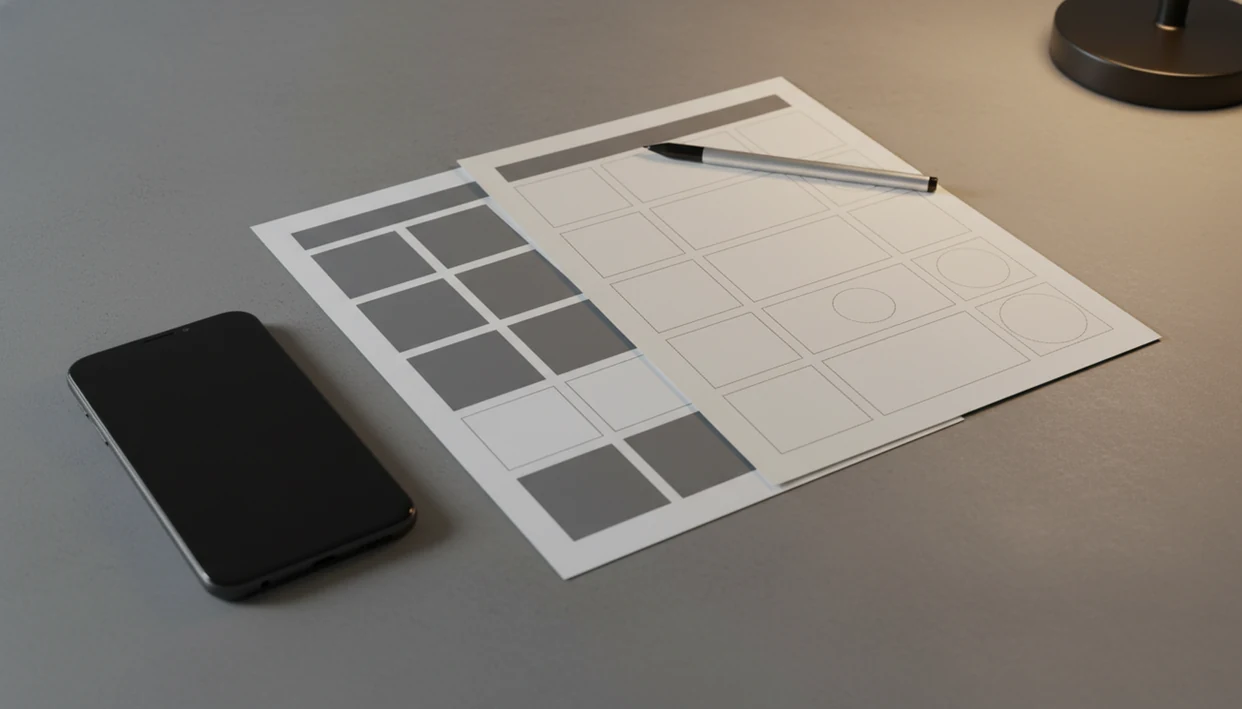
Definition: PDF to Word without losing formatting means converting a fixed-layout PDF into an editable DOCX file while preserving the original fonts, spacing, tables, images, and page structure so the document looks nearly identical when opened in Microsoft Word or another editor.
- Text-based PDFs convert with far better formatting than scanned or image-based PDFs, which need OCR.
- Mobile-specific factors like missing fonts and screen size affect how your DOCX looks after conversion.
- Expect minor manual cleanup on tables, columns, and spacing, no converter is 100% exact.
What 'PDF to Word Without Losing Formatting' Actually Means
PDF to Word without losing formatting means preserving fonts, spacing, images, tables, and page layout while turning a fixed PDF into an editable DOCX file. The practical goal is near-identical editing, not a pixel-perfect replica.
People search for this after a conversion goes sideways. Text boxes split into odd fragments. A logo jumps into the margin. Two-column text reflows into one long block. We see it often with resumes pulled from an email archive, where one shifted bullet point can make the whole page look careless.
A PDF is designed to look fixed. Word is designed to reflow. That mismatch is why “close and editable” is the realistic target.
Close is still useful.
5 Facts About Preserving PDF Layout in Word on Mobile
- No converter guarantees 100% identical formatting. Complex tables, layered graphics, forms, and multi-column pages can shift even when the conversion result is usable.
- Text-based PDFs preserve layout better than scans. A PDF with a real text layer gives the converter actual characters and positions; a scanned page needs OCR first.
- Font availability changes the DOCX. If iOS or Android lacks the original font, Word substitutes another font, which can change line breaks and spacing.
- Pre-conversion cleanup matters. Straight scans, good contrast, embedded fonts, and unlocked files improve PDF to DOCX formatting before the app does anything.
- Free tools differ in accuracy, privacy, and limits. A quick browser converter may work for a simple one-page form, but reputable apps usually give clearer file handling and fewer surprise caps.
For scanned files, the OCR workflow is covered more deeply in our scanned PDF to Word app guide.
What This Mobile PDF to Word Converter Does
This mobile PDF to Word converter turns a PDF into an editable DOCX file you can open in Word on your phone. It is built to keep the document close to the original by carrying over fonts, tables, images, and spacing wherever the source file allows it.
In a typical PDF To Word App workflow, the converter reads the PDF, uses OCR when pages are scanned, and hands the finished DOCX to Microsoft Word or another mobile editor. Real text helps preserve font choices and line spacing because the app can map characters into Word paragraphs. Table detection tries to rebuild rows, columns, borders, and merged cells. Image handling keeps logos, signatures, charts, and captions near their original positions. Page spacing, margins, headers, and footers are translated into Word structure so the file stays editable instead of becoming a flat picture.
- Select your file from Files, Drive, email, or your phone’s local storage.
- Enable OCR when the PDF is a scan or image-only page.
- Convert to DOCX and open the result in Word for editing.
- Review the layout for shifted tables, substituted fonts, broken columns, image movement, and odd line breaks.
Requirements Before You Convert PDF to DOCX on Mobile
Before converting, confirm what kind of PDF you have. Open it on your phone and try to select a sentence. If the whole page highlights as one image block, it is probably scanned or image-only.
That long-press test catches many failures.
For scans, aim for at least 300 DPI when possible, with straight pages and strong contrast. Crooked biology lab packets and faint copier pages make OCR guess more often. Also check whether the PDF is password-protected, restricted from copying, or saved from a system that blocks editing.
Make sure your phone has enough storage and a stable connection if the converter uses cloud processing. Finally, note unusual fonts. A contract set in a custom corporate typeface may reflow on Android if that font is missing.
How PDF to Word Conversion Works on Mobile
PDF to Word conversion works by translating fixed PDF objects into Word’s flowing DOCX structure. The hard part is that PDF stores page elements at set coordinates, while Word rebuilds the document as editable paragraphs, tables, images, headers, and styles.
Adobe describes PDF as a format built to preserve document presentation across software and devices, which is why converting it into Word requires rebuilding rather than simply unlocking the file: https://www.adobe.com/acrobat/about-adobe-pdf.html.
A converter engine maps text runs, image bounding boxes, table grids, and page regions into DOCX equivalents. In a scanned PDF, OCR adds another step: the app reads the page image, recognizes characters, then tries to rebuild words, lines, and structure.
Font substitution happens when the original typeface is not available on your phone or editor. The substitute may be slightly wider or taller, which pushes text onto a new line. Tables, headers, footers, and multi-column layouts break most often because they rely on tight positioning.
A good mobile converter should produce an editable DOCX you can review and repair, not a forensic copy of every pixel.
How to Convert PDF to Word Without Losing Formatting
To convert with the least formatting drift, prepare the file first, then inspect the DOCX before sharing it. Tools like PDF To Word App can help on iPhone or Android, but the review step still matters.
- Open PDF To Word App on your iPhone or Android device.
- Select your PDF and confirm it is text-based, or enable OCR if the pages are scans.
- Start the conversion and wait for processing to finish before closing the app.
- Open the DOCX in Microsoft Word or your preferred mobile editor.
- Review tables, images, and fonts for drift against the source PDF.
- Fix minor issues such as spacing, line breaks, table borders, and shifted captions.
For a student opening a handout from the Files app five minutes before class, this check can prevent submitting a DOCX with broken headings. For scanned class material, our PDF to Word for students page explains the school-file workflow.
Text-Based PDFs vs. Scanned PDFs: Which Preserves DOCX Formatting Better
Text-based PDFs usually preserve DOCX formatting better because they contain real text data. Scanned PDFs are page images, so OCR must reconstruct both the words and the layout.
| PDF type | What it contains | Formatting outlook | Quick test |
|---|---|---|---|
| Text-based PDF | Selectable text, embedded images, layout coordinates | Usually strongest for editable DOCX output | Try selecting and copying one sentence |
| Scanned PDF | A photo or scan of each page | Depends heavily on OCR, scan clarity, and language support | Long-press selects the page as an image |
| Mixed PDF | Some text pages, some scanned pages | Results vary page by page | Test several pages, not just page one |
OCR accuracy depends on resolution, contrast, skew, and language. The Library of Congress notes that OCR quality depends on source-image quality, resolution, typography, and page condition, which matches the mobile scan issues described here: https://www.loc.gov/preservation/digital/formats/fdd/fdd000534.shtml. If your file is image-only, the image-only PDF to Word guide explains why the first conversion may look more like reconstruction than transfer.
Common Mistakes That Break PDF to DOCX Formatting on Mobile
The fastest way to break formatting is converting a scanned PDF without OCR. The app may output a Word file that still behaves like an image, which means you cannot edit the text cleanly.
Low-resolution and skewed scans cause another common failure. We have seen page thumbnails slide under a fingertip while selecting a file, only for the converted DOCX to show stair-stepped lines because the original scan was tilted. Phone heat during a large PDF conversion is another warning sign; big image-heavy files can strain mobile processing.
Other mistakes are quieter. Users ignore font substitution warnings, assume the DOCX will look identical in every mobile editor, or trust a random free converter with a sensitive contract. After handling confidential files, delete local copies from Recents if your workflow requires it.
Myths About Preserving PDF Layout in Word
The biggest myth is that any PDF can become Word with zero formatting changes. That is not how the formats work. PDF is a fixed presentation format; DOCX is editable and reflowable.
Another myth says all apps preserve layouts equally well. They do not. OCR quality, table detection, font handling, file limits, and privacy practices vary widely across free web tools, office suites, and dedicated mobile converters.
Scanned PDFs create the third misconception. OCR can identify text, but it does not magically know every table border, bullet style, or caption position. If you are comparing OCR options, our guide on what app identifies text in scanned PDF explains the recognition layer.
Finally, a converted DOCX will not always look identical in every mobile editor. Fonts, screen width, and app rendering all affect the display.
Mobile vs. Desktop PDF Conversion for Best Formatting
Mobile conversion works well for standard business documents such as contracts, resumes, forms, and single-column reports. If the PDF is under 10 pages and mostly text, mobile is often enough because the layout has fewer moving parts.
Desktop conversion may be better for large files, graphic-heavy PDFs, brochures, complex tables, and documents with multiple columns. A merger agreement table with tiny borders, for example, deserves a larger screen before anyone sends redlines back.
Mobile wins on speed and location. You can convert a vendor form during lunch, open the DOCX in Word mobile, and send it back without returning to a laptop. For mostly text PDFs, mobile conversion usually works best when you need quick edits and immediate sharing.
How to Verify Your DOCX Kept the Original PDF Formatting
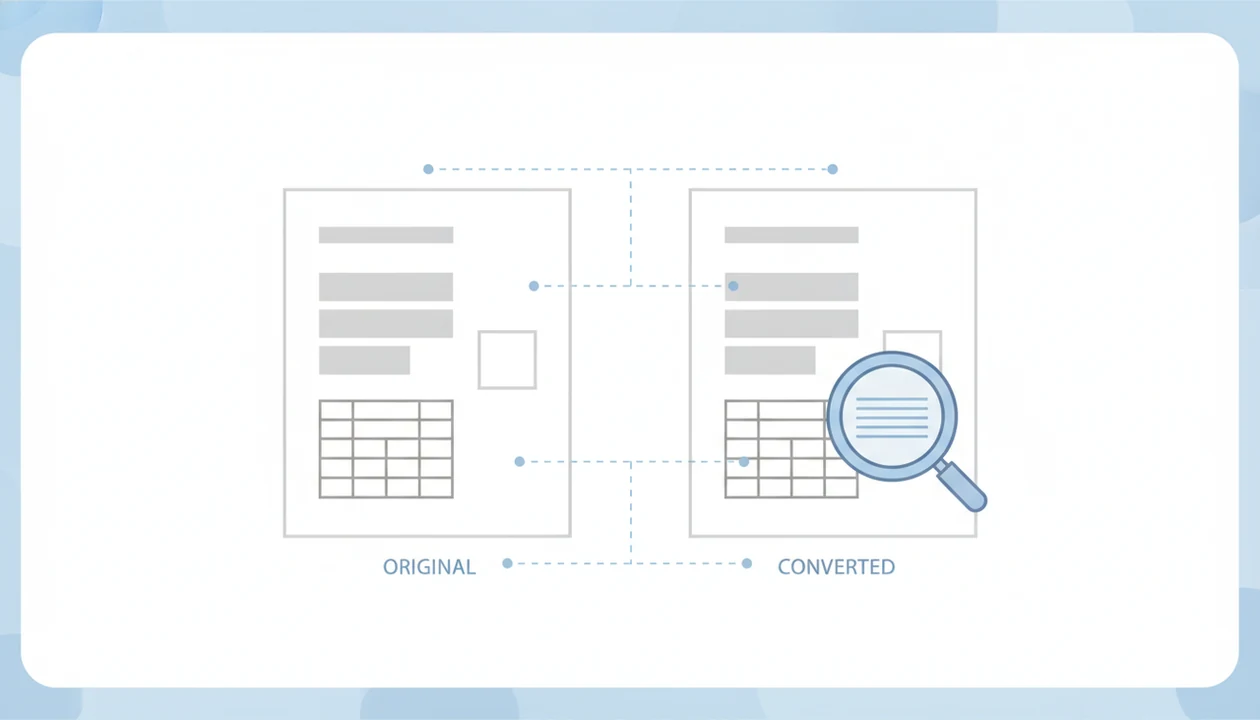
Verify the DOCX by opening it beside the source PDF and checking the parts most likely to drift. Do not trust the first page preview alone.
Start with fonts. Compare heading size, body text, bold text, and any unusual typeface. Then check tables for column widths, borders, merged cells, and cell alignment. A vendor form with misaligned table cells can look acceptable at first glance, then fail when someone tries to type into it.
Next, inspect images. Confirm their position, resolution, and captions. Check page breaks, headers, footers, and paragraph reflow. If numbered contract clauses shift by half a line, flag the section before sending the document.
For contract, resume, and admin files, this side-by-side review is often faster than fixing surprises later.
Evidence Behind These PDF Conversion Recommendations
These recommendations come from how PDF, OCR, and Word files behave, not from a promise that every conversion will match perfectly. The practical advice is based on format mechanics: fixed pages must be rebuilt into editable, reflowing content.
Adobe and ISO documentation treat PDF as a fixed-layout document format meant to preserve appearance across systems. That explains why a converter has to infer paragraphs, tables, images, and reading order instead of simply “opening” the PDF as Word. OCR guidance from preservation and digitization sources also points to the same weak spots users see on phones: low resolution, poor contrast, page skew, and unusual type can reduce recognition quality.
A careful workflow reflects those limits:
- Start with the cleanest source PDF or scan you can get.
- Check whether the file has selectable text before relying on OCR.
- Use stronger scan quality, straight pages, and visible contrast for image-only files.
- Open the DOCX in Microsoft Word, because Microsoft’s support documentation notes that Word rendering can change when fonts are unavailable and substitutes are used.
- Review the output as an editable draft, not a guaranteed replica.
Limitations
PDF to DOCX conversion has real limits, especially on mobile. Treat the converted file as a draft that needs a formatting check, not as a final document.
- Complex tables, multi-column layouts, and intricate forms often misalign after conversion.
- Large or graphic-heavy PDFs may process slowly or fail because of mobile memory limits.
- Missing fonts on iOS or Android can cause text reflow, spacing changes, and new line breaks.
- OCR-based conversions can produce character errors, broken bullets, and incomplete table borders.
- Free tools may impose file-size limits, daily caps, watermarks, slower queues, or unclear data practices.
- Cloud-based conversion uses data and raises privacy concerns for sensitive contracts, resumes, and business files.
- Heavily styled PDFs with gradients, watermarks, layered graphics, or background art often lose visual fidelity.
- Password-protected or restricted PDFs may not convert unless permissions allow extraction.
One more practical note: always review the DOCX in Microsoft Word mobile before sending it back.