
Image-Only PDF To Word Conversion With OCR
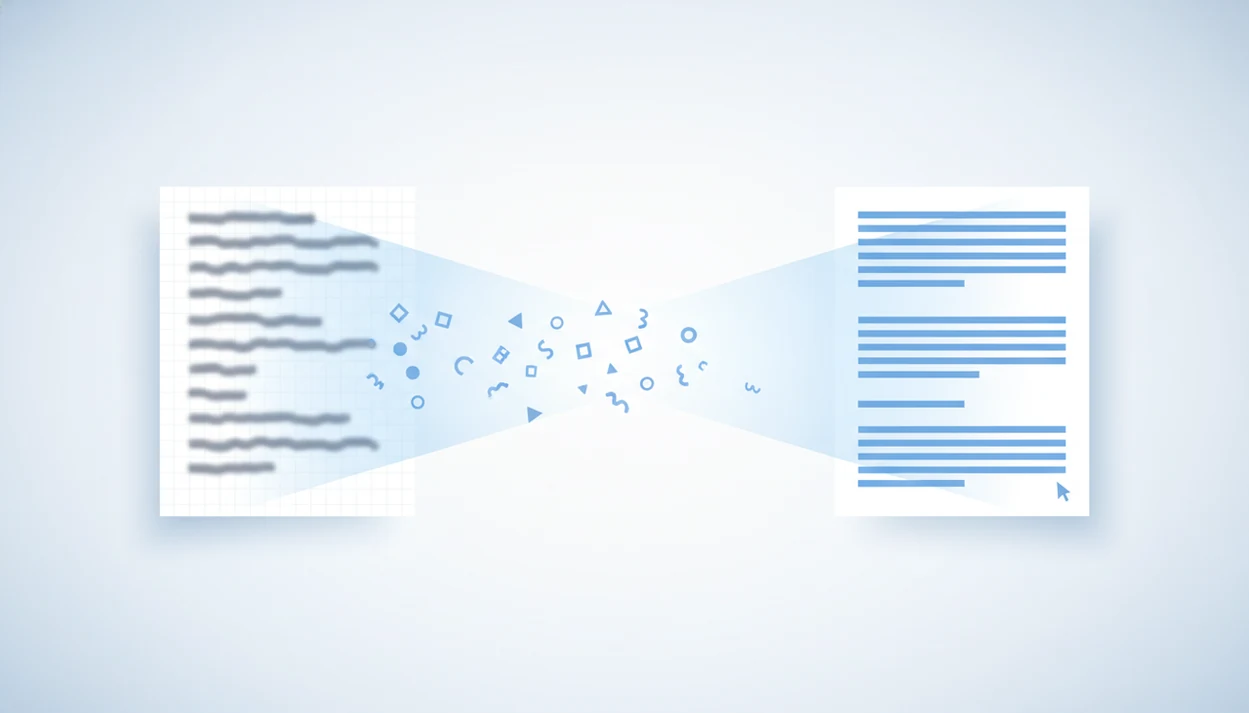
An image-only PDF to Word conversion needs OCR first because the PDF pages are pictures, not editable text. OCR reads the page images, rebuilds the words, and exports them into a DOCX file that you can edit in Word, with accuracy depending on scan quality and layout complexity.
> Definition: An image-only PDF is a scanned or photographed document saved as PDF pages with no selectable text layer, so OCR is required before it can become an editable DOCX.
TL;DR
- If you cannot select text in the PDF, treat it as an image PDF that needs OCR before Word conversion.
- Clean, straight, high-resolution scans usually create better DOCX text than blurry phone photos or skewed pages.
- OCR can make the Word file editable, but tables, forms, handwriting, multi-column layouts, and poor scans often need manual cleanup.
What an image-only PDF to Word conversion actually means
An image-only PDF to Word conversion means turning photographed or scanned page images into editable DOCX text with OCR. A normal PDF export cannot edit words that were never stored as text.
You may see the same problem described as image PDF to DOCX, PDF page images to Word, or scanned PDF to editable Word. The file can still look sharp on screen. But when you long-press a paragraph and the whole page grabs like one picture, the PDF has no usable text layer.
OCR is the bridge. It reads the page image, identifies letters and words, and rebuilds them inside a Word document. For a deeper scan-focused workflow, our scanned PDF to Word app guide covers the same issue from the mobile app side.
The page only looked editable.
5 facts about image PDF to DOCX accuracy
- Image-only PDFs have no hidden text layer. If search and text selection fail, Word conversion needs recognition before editing can start.
- OCR guesses text from page images. It compares shapes, spacing, and language patterns to decide whether a mark is “l,” “1,” or “I.”
- Clean printed text can convert very accurately. A NIST OCR benchmark found high character recognition on clean printed pages, with lower accuracy on degraded images source.
- Noise, skew, blur, and poor lighting reduce reliability. The tilted scan that looks “good enough” in a preview can create broken words in DOCX.
- Editable output still needs proofreading. The conversion result may be editable, but names, totals, dates, and section numbers need a human check.
For plain printed pages, OCR usually works best when the scan is straight, bright, and high contrast, while manual cleanup fits pages with tables, forms, or mixed layouts.
How OCR turns PDF page images to Word text
OCR-based conversion works by preparing each page image, recognizing text, then rebuilding that text inside a DOCX file. The technical parts are preprocessing, segmentation, recognition, and layout reconstruction.
First, the converter may deskew tilted pages, adjust contrast, remove noise, and split the page into text blocks. Segmentation means separating lines, columns, images, and possible table areas. Then OCR identifies characters and words. After that, the converter tries to restore reading order, paragraphs, line breaks, headings, and basic spacing.
The final DOCX contains editable text, plus retained images where the converter cannot safely turn content into words. This is why a scanned archive page with faded ink may produce editable paragraphs but still leave a stamp as an image.
Tables, forms, and multi-column pages are harder than plain paragraphs because OCR must understand structure, not just letters.
Before you start: prepare the PDF for OCR
Before converting, make sure the file is allowed to be processed and worth sending through OCR. A few checks up front can prevent privacy trouble, duplicate work, and a messy DOCX that could have been fixed with a better scan.
- Confirm your rights to use the file. Make sure you are permitted to convert, edit, store, or upload the PDF, especially if it belongs to an employer, client, school, court, or patient record.
- Test whether OCR is needed. Try selecting a sentence or searching for a distinctive word. If the text is already selectable, a standard PDF to Word export may be enough.
- Rescan weak pages before conversion. Replace pages that are crooked, clipped at the edge, shadowed, blurry, or too dark. OCR usually cannot fully rescue a bad photo.
- Choose the document language. Set the main language before recognition, and flag pages that mix languages, accents, symbols, or alphabets.
- Decide how sensitive the file is. For confidential documents, check whether cloud OCR is acceptable before uploading.
How to use an image-only PDF to Word converter
Use an image-only PDF to Word converter by running OCR before DOCX export, then checking the Word file before you rely on it. The workflow is short, but the review step matters.
- Open or upload the scanned PDF in a converter that clearly supports OCR.
- Choose the correct document language before recognition, especially for accents, symbols, or mixed alphabets.
- Run OCR and export to DOCX so the page images become editable Word text.
- Open the Word file and check text, layout, tables, headings, and page breaks.
- Save a corrected version after proofreading names, figures, and formatting.
A good PDF to Word converter app that converts PDF files to editable DOCX Word documents on iPhone and Android should deliver editable text from recognized pages, not a promise that every scan will preserve the original layout.
Five minutes saved can disappear in cleanup.
Step 1: Check whether your PDF page images need OCR
“Does my PDF need OCR before Word conversion?” Try selecting or searching for one unusual word in the PDF. If selection highlights the whole page, grabs an image block, or does nothing, the file is probably image-only.
Zoom in closely. If the letters become pixelated like a photo rather than staying smooth like digital type, you are looking at PDF page images. A student opening a handout from the Files app five minutes before class can check this in seconds by searching for a heading from the first page.
Digital PDFs usually convert more cleanly because the text already exists. The converter only has to map text, styles, and layout into DOCX. Scanned PDFs need OCR first, which adds recognition errors and layout guesses. If you are starting on iOS, the mobile steps in convert scanned PDF to Word on iPhone are a useful companion.
Step 2: Improve scan quality before image PDF to DOCX conversion
Cleaner source pages usually create cleaner image PDF to DOCX output. Before OCR runs, fix the scan if the text is dim, crooked, clipped, or blurred.
Use bright, even lighting for phone scans. Keep the page flat, straight, and fully inside the frame. Avoid shadows from your hand, folded corners, motion blur, and low-resolution screenshots. A progress wheel during an elevator ride is not the right moment to capture a contract page; wait until the phone is still and the page fills the camera view.
On iPhone and Android, mobile capture quality varies by app, camera, lighting, and how steady the device is. Studies of mobile document capture have found that poor lighting, blur, and camera angle can reduce OCR reliability compared with cleaner document images source.
Rescan bad pages when possible. Fuzzy text is harder to repair in Word than to recapture correctly.
Step 3: Review the editable Word output after OCR
OCR editability is not the same as finished formatting. After conversion, proofread the DOCX before you send, sign, submit, or reuse it.
Start with high-risk text: numbers, names, dates, punctuation, account details, legal terms, and financial figures. Then inspect tables, columns, headers, footers, page breaks, captions, and bullets. In a conference room marked by a pile of draft contracts, numbered clauses shifting by half a line can change how a redline reads.
Use Word styles for headings after OCR instead of only bolding larger text. If accessibility matters, add alt text for images and check reading order. OCR creates text, but it does not automatically create a screen-reader-ready document.
For formatting-heavy files, the separate PDF to Word without losing formatting guide explains why layout preservation is different from text recognition.
Common myths about image-only PDF to Word conversion
Image-only PDF to Word conversion has three separate jobs: text recognition, formatting repair, and accessibility cleanup. Confusing those jobs is why many converted DOCX files disappoint users.
- Myth 1: Every PDF to Word converter can edit scanned PDFs. Only converters with OCR can extract text from page images.
- Myth 2: OCR always creates a flawless DOCX. It may recognize the words but still break columns, spacing, or table structure.
- Myth 3: Changing the Word font fixes blurry scanned text. Blurry source images need better scans or stronger OCR, not a new font.
- Myth 4: OCR automatically makes a document accessible. Accessibility still needs headings, reading order, alt text, and manual structure checks.
A cafeteria tray beside class readings is a bad place to discover that a “converted” handout is just one pasted image per page.
Image-only PDF to Word decision table
Use the source PDF quality to decide whether to convert now, rescan first, or plan for manual cleanup. The better the page image, the less repair the editable DOCX usually needs.
| Source PDF condition | Recommended action | What to expect in Word |
|---|---|---|
| Clean printed scan | Convert with OCR, then proofread | Editable paragraphs with moderate formatting checks |
| Blurry phone photo | Rescan before conversion if possible | OCR errors, broken words, and missing punctuation |
| Dense table or form | Convert, but expect manual formatting work | Editable text with messy cells, labels, or alignment |
| Handwriting | Expect low accuracy and manual typing | Partial recognition at best |
| Sensitive document | Check privacy terms and processing method | Cloud OCR may be unsuitable for some files |
If you are comparing tools, test the same scanned page in Adobe Acrobat OCR, Microsoft Lens or Word, Google Drive OCR, and your mobile converter, then compare text accuracy, table structure, privacy terms, and DOCX cleanup time.
For students, editable text may matter more than exact visual layout. The practical tradeoffs are covered in PDF to Word for students.
Mobile image PDF to DOCX workflows
For mobile image PDF to DOCX work, the key requirement is OCR support because the source PDF may contain only page pictures. A useful converter should recognize text, export editable DOCX, and make it easy to review the result in Word on iPhone, Android, or desktop.
Mobile users often receive scanned contracts, forms, receipts, classroom handouts, and resume copies while away from a desktop. A forgotten DOCX missing from a laptop can turn into a phone-only repair job, especially when a cover letter tab is already open beside the converted resume.
Tools like PDF To Word App can help when the file needs to become editable, but the DOCX still needs review in Microsoft Word mobile or desktop Word before it goes back to a client, teacher, or hiring manager. The quiet last step is file handling: delete local copies from Recents when the document is sensitive.
Limitations
OCR conversion is useful, but it has real limits. Treat the DOCX as a draft that needs verification, not as a guaranteed replica of the source PDF.
- OCR is never guaranteed to be 100% accurate, even on clean printed pages. - Poor scans, skew, blur, low contrast, and page noise reduce output quality. - Handwriting, unusual fonts, stamps, and mixed-language files may perform poorly. - Tables, forms, multi-column layouts, and graphics can create messy DOCX structure. - Large mobile uploads may be slow or fail because of file size, connection quality, or app limits. - Cloud OCR may raise privacy, legal, or compliance concerns for sensitive documents. For regulated or confidential files, check whether processing involves cloud upload and review vendor retention terms; NIST’s privacy framework treats data processing context and risk management as part of privacy decision-making source. - Password-protected PDFs may need permission changes before OCR or export can run. - Accessibility still requires headings, reading order, alt text, and document structure review.
If you need help identifying whether OCR is the right tool, our guide on what app identifies text in scanned PDF explains that first diagnostic step.
FAQ
What is an image-only PDF?
An image-only PDF contains scanned or photographed page images rather than selectable text. It needs OCR before the words can become editable in a DOCX file.
Why does a scanned PDF need OCR?
A scanned PDF needs OCR because the computer sees each page as a picture. OCR recognizes letters and words from that picture so they can be exported as editable text.
Can image PDFs become editable Word files?
Yes, image PDFs can become editable Word files after OCR. The resulting DOCX may still need proofreading and formatting cleanup.
Is OCR conversion always accurate?
No, OCR accuracy depends on scan quality, page layout, language, fonts, and image defects. Blurry, skewed, or complex pages usually need more correction.
Can iPhone scans convert to Word?
Yes, iPhone scans can convert to Word if the converter supports OCR and the image is clear. Check the DOCX afterward for names, numbers, tables, and page breaks.
Can Android scans convert to Word?
Yes, Android scans can convert to Word when OCR is available and the page image is good enough. Review the exported DOCX before sending or filing it.
Why is my DOCX formatting messy after OCR?
OCR may recognize the words but misread columns, tables, forms, headers, or page structure. That is why editable DOCX output often needs manual layout repair.
Does OCR make PDFs accessible?
OCR helps by creating text from page images, but it does not complete accessibility work. Headings, reading order, alt text, and structure still need review.