
Convert Scanned PDF to Word on iPhone With OCR
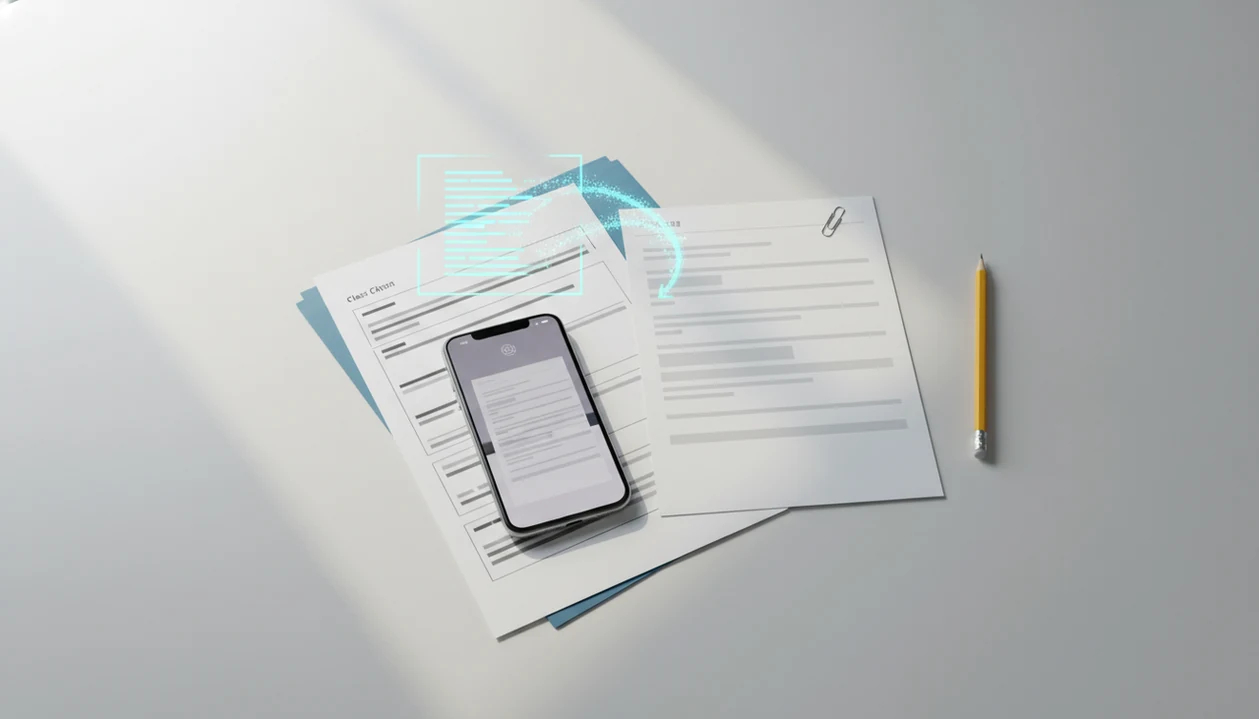
To convert scanned PDF to Word on iPhone, first confirm the file is image-only, then use an OCR-enabled PDF to Word workflow, export a DOCX file, and proofread the text before sharing or submitting it.
Definition: A scanned PDF to DOCX iPhone conversion uses OCR to read text from an image-based PDF and rebuild it as an editable Word document.
TL;DR
- If you cannot select or copy text in the PDF, you need OCR before Word conversion.
- A reliable iPhone workflow is: scan or open the PDF, run OCR, export DOCX, save to Files or Word, then proofread.
- OCR works best on sharp, straight, well-lit printed text and usually needs cleanup for tables, columns, forms, and handwriting.
Scanned PDF to Word on iPhone Requirements
A scanned PDF is an image of a page; a selectable text PDF contains an actual text layer. Scanned PDFs require OCR, not just a file format change from PDF to DOCX.
You can test this quickly on your phone. Open the PDF, press on a sentence, and see whether individual words highlight. We often see files that look selectable until a long-press only grabs one image block. That means the page is acting like a photo.
You need the PDF in Files, Photos, Mail, or a browser download, an OCR-capable converter, and enough storage for the Word file. Cloud-based tools also need internet access. Common source files include class handouts, signed forms, phone scans, receipts, and printed notes.
PDF To Word App is a PDF to Word app that converts PDF files into editable DOCX documents for people working from mobile devices.
At-a-Glance iPhone OCR PDF to Word Workflow
The fastest iPhone OCR PDF to Word workflow is to confirm the scan type, improve the image if needed, run OCR, export DOCX, and proofread the result. Don’t skip the first check; it prevents the common “Word file with a picture inside” problem.
| Stage | What to do | Why it matters |
|---|---|---|
| Check text | Press and drag over a sentence | Confirms whether OCR is needed |
| Improve scan | Rescan crooked or dim pages | Gives OCR cleaner text shapes |
| Run OCR | Choose scanned PDF or OCR mode | Creates editable text |
| Export DOCX | Select Word or DOCX output | Makes the file usable in Word |
| Proofread | Compare against the source PDF | Catches recognition errors |
Use a dedicated scanned PDF to Word app for image-only files, multi-page scans, or repeated phone work. Microsoft Word or Microsoft 365 for iOS may be enough for simple PDFs opened from Files. Safari converters are convenient, but free tools may include page caps, queues, ads, or daily limits. Pew Research Center reports that 15% of U.S. adults are smartphone-only internet users, which helps explain why mobile document repair is now a routine workflow: https://www.pewresearch.org/internet/fact-sheet/mobile/
How iPhone OCR PDF to Word Conversion Works
OCR means optical character recognition, a process that detects letter shapes in a scanned image and turns them into machine-readable text. DOCX reconstruction is the separate step that rebuilds that text into paragraphs, lists, tables, and pages.
- OCR first analyzes the scanned page as an image, not as a normal Word document.
- The system segments the page into regions, such as body text, headings, tables, and margins.
- Character recognition then predicts letters, numbers, punctuation, and spaces from the image.
- Layout preservation tries to rebuild the Word file, but it is different from text accuracy.
- High-quality printed scans can produce very accurate text, but skew, blur, shadows, and low contrast reduce performance.
Good PDF to Word converter apps that convert PDF files to editable DOCX Word documents on iPhone and Android deliver editable text and usable structure, not a guaranteed replica of every scan. Tools like PDF To Word App, Microsoft Word, Adobe Acrobat online, and Smallpdf can fit different jobs, depending on OCR support and file sensitivity.
Step 1: Check Whether the Scanned PDF Has Selectable Text
“Does my iPhone PDF need OCR before Word conversion?” Open the PDF and press on a sentence, then drag as if you were copying text from a webpage.
If words highlight and you can copy a phrase, the file may already contain a text layer. In that case, conversion is usually simpler because the converter can reuse existing text. If the whole page shifts, or only a large image box moves, the PDF is likely scanned.
That small test saves time.
A normal PDF to Word button can still create a DOCX, but the DOCX may contain only a picture of the original page. It looks like a Word file until you try to edit a word and nothing happens. For an iPhone OCR PDF to Word job, choose a workflow that explicitly says OCR, scanned PDF, or image text recognition. If the file is image-only, our image-only PDF to Word guide covers the same problem in more depth.
Step 2: Improve the Phone Scan Before OCR
A cleaner scan usually gives a cleaner Word file. Before OCR, aim for bright even lighting, flat pages, straight edges, high contrast, and no finger shadows along the margins.
Skewed, blurry, low-resolution, or poorly cropped pages make OCR guess. Those guesses show up later as broken words, missing punctuation, or strange line breaks. If one page looks bad, rescan it before conversion rather than correcting dozens of errors in Word.
The classroom version is familiar: a student photographs a worksheet from a desk, under fluorescent light, five minutes before class starts. If the page curls near the spine or the answer boxes are faint, the DOCX will need more repair. Handwriting, math notation, stamps, and unusual fonts are harder for consumer OCR than printed paragraphs. For student-specific cleanup patterns, the PDF to Word for students workflow is often more realistic than a generic office guide.
Step 3: Convert the Scanned PDF to DOCX on iPhone
Use an OCR-enabled iPhone workflow when the PDF is scanned or image-only. The exact labels vary by app, but the order is usually the same.
- Open the scanned PDF from Files, Mail, Photos, or a shared folder on your iPhone.
- Choose OCR, scanned PDF mode, or a tool that identifies text in scanned pages.
- Select Word, DOCX, or editable Word document as the output format.
- Start the conversion and keep the app or browser active if the tool requires it.
- Save or share the DOCX to Files, the Word app, OneDrive, Mail, a classroom portal, or a messaging app.
Microsoft Word or Microsoft 365 for iOS may convert PDFs opened from Files, but scanned pages still need OCR-capable handling. If the app only imports the page image, the text will not be editable. For recurring scans, it helps to understand what app identifies text in scanned PDF before relying on one button.
Step 4: Proofread the Word File After iPhone OCR
Proofreading is part of scanned PDF to DOCX conversion, not an optional extra. OCR can misread characters even when the page looks clear on the iPhone screen.
Check names, dates, totals, checkbox labels, tables, headers, footers, and line breaks. Similar shapes cause common errors: O and 0, l and 1, rn and m, curly quotes, periods, and commas. We also look for page order mistakes after multi-page scans, especially when a document was built from separate phone photos.
Compare the DOCX beside the source PDF when accuracy matters. On iPhone, that may mean switching between Files and Microsoft Word mobile, or using split view on iPad if available. Students should verify answer boxes, assignment instructions, and page numbers before submitting. A contract clause that shifts by half a line can change how someone reads a section, even if the text itself is mostly correct.
Privacy Choices for Scanned PDF to DOCX iPhone Tools
Privacy depends on how the tool handles your file, not just whether you started on an iPhone. Many OCR conversions upload files to servers, including some workflows that begin inside an app.
| Option | Good fit | Privacy tradeoff |
|---|---|---|
| Dedicated app | Repeated OCR and DOCX export | May use cloud processing; check policy |
| Microsoft Word or Microsoft 365 | Files already stored in Microsoft services | Account and cloud settings matter |
| Safari online converter | Occasional quick conversion | Upload, retention, ads, or limits may apply |
Read App Store privacy labels, retention policies, and file deletion claims before uploading IDs, medical paperwork, HR forms, tax documents, or legal forms. Apple explains that App Privacy details can show categories such as data linked to you, data not linked to you, and data used to track you, but users still need to read the app’s full policy for file handling and retention details: https://support.apple.com/en-us/102399 Cloud OCR may be faster for large files, but it requires network access and file transfer. For sensitive work, the quiet final step matters too: delete local copies from Recents if the file should not remain visible on the phone.
Common iPhone OCR PDF to Word Mistakes
Most failed scanned PDF to Word jobs come from choosing the wrong conversion path, not from the iPhone itself. Fix the input and the tool choice before blaming Word.
- Using a non-OCR PDF to Word button. Choose OCR or scanned PDF mode, or the DOCX may contain only page images.
- Converting blurry scans. Rescan tilted, dim, or cropped pages before conversion.
- Expecting exact formatting from complex pages. Worksheets, multi-column articles, and dense tables often need manual cleanup; our PDF to Word without losing formatting guide explains why.
- Uploading confidential forms too quickly. Check privacy practices before sending IDs, HR files, medical records, or legal forms.
- Treating handwriting like printed text. Expect heavy correction, especially with cursive, cramped notes, or mixed symbols.
Small fixes first. They save bigger edits later.
Limitations
Scanned PDF to Word conversion on iPhone is useful, but it has real boundaries. Treat the DOCX as a draft that must be checked against the source PDF.
- Complex layouts can break in DOCX, especially tables, columns, forms, stamps, and answer boxes.
- Handwriting, math notation, mixed languages, and non-Latin scripts may convert poorly.
- Large scanned PDFs can be slow or fail on weak networks.
- Free apps may impose watermarks, page limits, daily quotas, queues, ads, or subscriptions.
- Sensitive files may not be appropriate for third-party upload-based OCR.
- OCR is not a legal, academic, financial, or medical guarantee of correctness.
- Password-protected or restricted PDFs may block conversion unless you have proper access.
- Layout preservation and text recognition are separate tasks, so one can succeed while the other needs repair.
When a file carries legal or compliance consequences, verify the converted text with the original document and the appropriate professional process.
FAQ
Can an iOS device convert a scanned document to DOCX?
Yes. An iOS device can convert a scanned PDF to Word when the workflow includes OCR and exports an editable DOCX file.
Do scanned PDFs need OCR?
Yes. Image-only scanned PDFs need OCR because they contain pictures of text, not selectable text.
Is iPhone OCR PDF to Word accurate?
It can be accurate on sharp printed scans, but results depend on lighting, blur, page angle, font, and layout complexity. Always proofread the DOCX against the original PDF.
Can Word iPhone convert scanned PDFs?
Microsoft Word or Microsoft 365 for iOS may convert PDFs opened from Files, but scanned pages still need OCR-capable recognition. If OCR is not applied, the Word file may remain image-only.
How do I save DOCX on iPhone?
Save the converted DOCX to Files, Microsoft Word, OneDrive, Mail, a classroom portal, or a messaging app. Choose a location you can reopen before sending.
Can handwriting convert to Word?
Handwriting can sometimes be recognized, but it is less reliable than printed text. Expect heavy correction after OCR.
Is online PDF OCR private?
Online PDF OCR privacy depends on upload handling, encryption, retention, deletion options, and the service policy. Sensitive documents should be reviewed carefully before upload.
Why is my DOCX not editable?
The most likely causes are no OCR, image-only conversion, failed recognition, or restrictions on the original PDF. Run an OCR-enabled conversion and check whether the text can be selected afterward.