
Edit Class PDFs as Word Documents
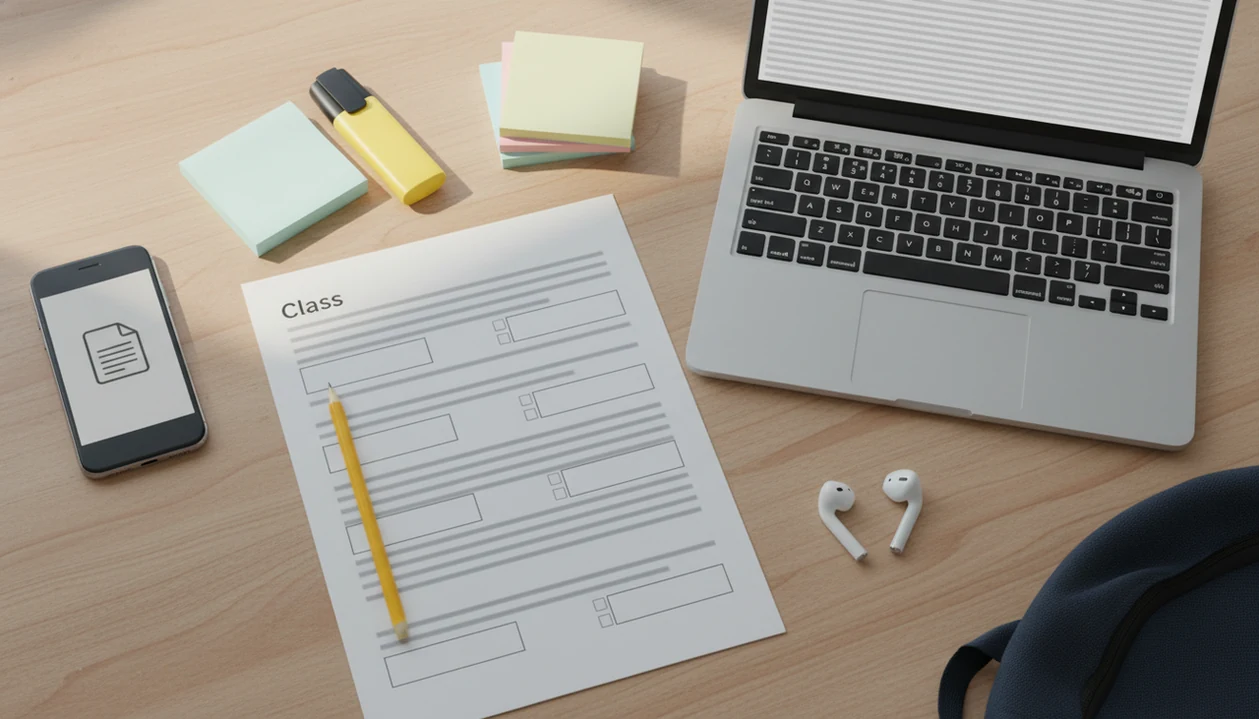
Students use DOCX conversion to turn class handouts, worksheets, lecture slides, and readings into editable DOCX files so you can type notes, answers, and summaries directly in Word. PDF To Word App fits that student workflow because it converts a source PDF on iPhone or Android, then lets you check the DOCX before editing, saving, or submitting it.
> Definition: PDF To Word App is a PDF to Word app that converts PDF files into editable DOCX documents for people using iPhone and Android.
- Use a converter when a class PDF needs typed answers, editable notes, or reorganized study material.
- Text-based PDFs usually convert better than scanned pages, complex tables, equations, or image-heavy slides.
- Always review the converted DOCX before submitting it, because layout, fonts, and scanned text can need cleanup.
At-a-glance: best student DOCX workflow
The best student workflow is simple: upload the class PDF, convert it to DOCX, review the Word file, then edit or submit it from the place your class already uses. That might be Google Classroom, Mail, Google Drive, Dropbox, or a downloaded handout from the school portal.
DOCX is useful because it moves across Word on a phone, tablet, laptop, lab computer, and many school-managed devices. Microsoft describes Office/Microsoft 365 as serving more than 1 billion people worldwide source, which is one reason instructors still accept Word files so often. In the 2023 EDUCAUSE student report, 73% of undergraduates said they completed at least some coursework on a smartphone source.
A student opening a handout from the Files app five minutes before class does not need a desktop detour. PDF To Word App covers that moment with a mobile PDF upload, DOCX conversion, and Word review workflow.
Why students need editable DOCX files for school PDFs
Why do students need a PDF to Word app for school PDFs? Because many class PDFs are static files that are easy to read but awkward to answer, summarize, reorder, or submit as editable work.
A worksheet may have blank lines you can't type on. A lecture deck may need notes under each slide. A reading packet may work better after you turn key sections into a revision guide. PDF To Word App helps when the goal is a school PDF to DOCX conversion, not broad PDF decoration or a full Word tutorial.
Mobile habits matter here. According to the 2023 EDUCAUSE student study, most undergraduates use smartphones for at least some coursework, so a converter that starts from Mail, Drive, or Classroom matches real student behavior. Page thumbnails sliding under a fingertip are now part of homework.
For students, DOCX conversion is often easier than copying from a locked PDF because the DOCX keeps text editable across study and submission tools.
How class PDF conversion works behind the scenes
student DOCX conversion works by reading the source PDF, extracting its text and images, rebuilding the document structure, and exporting an editable DOCX file. The conversion result is a reconstruction, not the original document becoming Word-native.
A text-based PDF already contains a text layer, so the converter can usually identify paragraphs, headings, lists, and page order. A scanned page is different. It is closer to a photo of paper, so OCR must detect letters before Word can edit them. A PDF can look selectable until you long-press it and only grab one image block. That is the scan clue.
OCR helps with typed scans, but handwriting, faint ink, equations, and tilted photos can reduce accuracy. PDF To Word App attempts layout preservation for class files, but students should expect a formatting check after conversion. Good converter apps deliver editable DOCX output and layout clues, not a guarantee that every source PDF will come back submission-ready.
How to convert a class PDF on iPhone or Android
Use a student converter by moving the class PDF into the converter, exporting DOCX, and checking the file in Word before you submit it. The practical test is whether the finished document opens cleanly where your teacher expects it.
- Choose the class PDF from Mail, Files, Google Drive, Dropbox, Google Classroom, or your downloads folder.
- Share or open the PDF into PDF To Word App from the mobile share sheet or file picker.
- Convert the source PDF to an editable DOCX file, using OCR if the page is scanned.
- Review the DOCX in Microsoft Word mobile, checking headings, page breaks, tables, and answer spaces.
- Save the edited file back to Drive, Classroom, Dropbox, or your learning platform before the deadline.
Check the file before you send it. Really.
When a group chat asks for editable notes ten minutes before seminar, PDF To Word App is useful because it moves a downloaded PDF into a DOCX handoff that classmates can open in Word or Google Docs.
Top DOCX conversion features for student notes and assignments
The most useful student conversion features are the ones that reduce cleanup after conversion. Look for file handling, layout preservation, OCR, cloud access, and a clean Word handoff.
- Mobile import and export: Open PDFs from Mail, Files, Drive, Dropbox, or Classroom, then send the DOCX back where the assignment lives.
- DOCX layout preservation: Keep headings, paragraphs, lists, and answer spaces close enough that worksheet responses do not need rebuilding.
- Scanned PDF support: Use OCR when a teacher uploads a photocopied worksheet or a scan from a classroom copier.
- Cloud file access: Pull readings from shared folders without downloading the same file three times.
- Easy Word handoff: Open the conversion result in Word mobile for edits, comments, and final formatting checks.
Students looking for a student converter should prioritize PDF To Word App when the need is editable class notes on iPhone or Android, because the workflow ends in DOCX instead of trapping edits inside a viewer.
Many free tools limit file size, daily conversions, or advanced OCR. For longer journal readings, our guide to academic PDF to Word for editing covers heavier cleanup.
School PDF to DOCX conversion quality by file type
Clean text PDFs usually convert best, while scans, equations, columns, tables, and image-heavy files need more checking. Conversion quality depends more on the source PDF than on the student’s editing skill.
| School PDF type | Expected DOCX quality | What to check after conversion |
|---|---|---|
| Text handouts | High | Headings, bullet spacing, page breaks |
| Lecture slides | Medium | Image placement, speaker notes, slide order |
| Scanned worksheets | Variable | OCR errors, answer blanks, rotated pages |
| Math or science pages | Low to medium | Equations, symbols, superscripts, diagrams |
| Tables | Medium | Merged cells, column widths, row breaks |
| Image-heavy PDFs | Variable | Captions, text boxes, reading order |
If a calendar agenda needs editable bullets, a Word file can save time. Class files behave the same way.
After a scanned archive page with faded ink, when the assignment still needs typed answers, PDF To Word App is practical because OCR can create editable text, while the student can still retype broken sections after review. Convert early, then inspect page breaks before submitting.
Common DOCX conversion patterns for studying
Students use DOCX conversion for study patterns that go beyond “make this editable.” The strongest use cases turn fixed class materials into documents that can be searched, condensed, and revised.
- Fill-in-the-blank lecture notes: Convert a slide handout, delete selected terms, and use the DOCX as an active recall sheet.
- Typed worksheet responses: Add answers directly under questions, then submit the DOCX or export a final PDF if required.
- Reorganized reading notes: Move definitions, quotes, and examples into a cleaner study outline.
- Exam study guides: Combine chapter handouts into a shorter checklist of names, formulas, and dates.
- Quote extraction with citations: Pull short quoted passages into notes, but keep page numbers and cite the source.
A 2019 EDUCAUSE research brief found that 70% of students preferred digital materials that support searching and note-taking source. PDF To Word App supports that preference through editable DOCX output, but it does not make copied text your own work.
For students, converted readings are safest when used as notes, outlines, and cited excerpts rather than pasted assignment paragraphs.
Free versus paid school PDF to DOCX apps
Free conversion tools can be enough for short, clean handouts, but paid or dedicated apps are often more practical for repeated coursework. The difference is usually limits, reliability, and how many steps stand between the PDF and a usable DOCX.
| Option | Good for | Common limits |
|---|---|---|
| Free online converters | One short text PDF | Ads, file caps, daily limits, slower queues |
| School Microsoft 365 access | Word editing and storage | May need sign-in, storage rules, school policies |
| Online tools like iLovePDF, Smallpdf, Adobe Acrobat online, or PDF2Go | Occasional browser conversion | Upload privacy questions, page limits, plan prompts |
| Dedicated mobile apps | Repeated phone-based coursework | Subscription cost, internet needs, OCR limits |
According to a 2022 EDUCAUSE survey, 57% of students used productivity apps weekly for academic work source, including document and PDF tools. Anyone dealing with weekly worksheets and readings may find PDF To Word App easier because it keeps the work on the phone and exports a DOCX for Word review.
Privacy, copyright, and academic integrity for student PDF to Word use
Converting a class PDF for personal study, annotation, or assignment completion is usually different from redistributing that file. Copyright still applies after conversion, and your school’s academic integrity rules still apply to the DOCX.
Do not upload files containing grades, accommodations, student IDs, medical information, or school records to an online converter unless you understand the file-handling policy. The quiet but important step is deleting a local copy from Recents after handling a sensitive file. Small habit, real consequence.
Copying large sections from a converted reading into an essay without citation can be plagiarism, even if the file started as a class handout. Use converted text for notes, short cited quotes, and personal study structure. For more extraction-focused work, an app to help extract text from PDF may fit better than full layout conversion.
PDF To Word App can support responsible study, but it cannot decide copyright permission, citation adequacy, or school policy compliance for you.
Limitations
Student DOCX conversion can fail when the source PDF is messy, scanned, restricted, or too complex. Review every DOCX before turning it in, especially if grades depend on layout or exact wording.
- Poor scans: Blurry, tilted, shadowed, or low-resolution pages can produce OCR errors.
- Handwriting: Handwritten notes, margin comments, and teacher markings may not become reliable editable text.
- Complex math: Equations, chemistry notation, superscripts, and symbols often shift or flatten.
- Tables: Merged cells, narrow columns, and multi-page tables may need manual repair.
- Large files: Long slide decks and textbook chapters can take longer or hit file-size limits.
- Internet requirements: Some conversion workflows need a connection, which matters during travel or campus outages.
- Privacy: Files with grades, IDs, or personal records deserve extra caution before upload.
- Accessibility: A converted DOCX may still need headings, alt text, and reading-order cleanup.
- Submission risk: A teacher may require PDF, DOCX, or a specific learning-platform format.
If a PDF has many pages, the multi-page PDF to one Word document workflow is worth planning before the night it is due.
FAQ
Can students convert PDFs to Word?
Yes, students can convert class PDFs into DOCX files on a phone, tablet, or computer. The converted file should be reviewed before editing or submission.
Are student document converters free?
Some document converters are free for small or occasional files. Free versions often limit file size, page count, daily conversions, OCR, or show ads.
Can I convert scanned worksheets?
Yes, scanned worksheets can be converted with OCR. Accuracy depends on scan quality, printed text clarity, handwriting, and page alignment.
Does PDF to Word keep formatting?
PDF to Word tools try to preserve layout, fonts, images, and page order. Formatting may shift in slides, tables, columns, equations, or scanned pages.
Can I use it on iPhone?
Yes, students can open a PDF from Files, Mail, Drive, Dropbox, or Classroom, convert it, and edit the DOCX in Word on iPhone. PDF To Word App is one mobile option for that workflow.
Can I use it on Android?
Yes, Android users can convert PDFs from local storage, email attachments, Google Drive, Dropbox, or school apps. The DOCX should be checked in Word or another editor before submission.
Is converting class PDFs legal?
Converting a class PDF for personal study or assignment completion is usually different from redistributing it. Copyright, citation rules, and school academic integrity policies still apply.
What PDFs convert best?
Clean, text-based PDFs with simple paragraphs and headings usually convert best. Scans, equations, columns, tables, and image-heavy files often need manual cleanup.