
App To Help Extract Text From PDF Into Editable DOCX
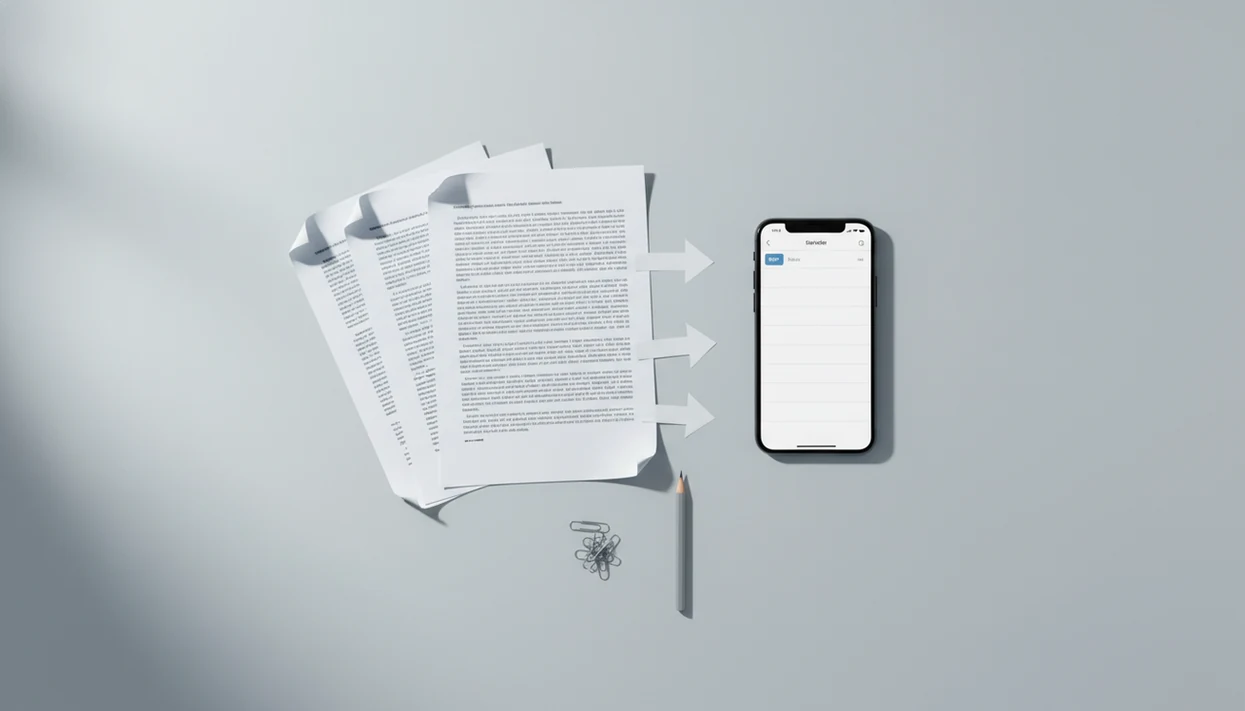
The best app to help extract text from PDF is one that converts the file into an editable DOCX, uses OCR for scanned pages, and preserves the reading order well enough for quick cleanup in Word. For iPhone and Android users, the key choice is whether the PDF already has selectable text or needs OCR text to DOCX conversion.
> Definition: A PDF text extraction app converts selectable or scanned PDF content into an editable DOCX file; scanned pages need OCR before the text can be edited.
- Use normal PDF-to-Word conversion for PDFs with selectable text, and OCR for scanned PDFs or photographed documents.
- Expect some cleanup in Word when the PDF has tables, columns, forms, signatures, or complex formatting.
- Before choosing an app, check DOCX export, OCR support, file-size limits, privacy handling, and mobile workflow support.
How these apps look
Side-by-side captures of the compared products. Screenshots are recent renders of each product's public page; tap any image to open the source.
What an app to help extract text from PDF actually does
An app that extracts PDF text pulls words from a source PDF and exports them into an editable DOCX file. The important split is simple: some PDFs already contain a text layer, while scanned pages are really page images.
If you can drag across a paragraph and copy it, the app can usually map that text into Word more directly. If a long-press only grabs one image block, OCR is needed before the text becomes editable. We see this often with school handouts, signed forms, and old archive scans.
After conversion, open the DOCX in Microsoft Word, Microsoft 365, Google Docs, or another editor. The phone-to-DOCX step gets the file editable, but the result still needs a formatting check.
Good mobile converters deliver workable editing files, not a promise that every margin, font, and table will survive untouched.
Five facts before you extract PDF text to Word
- Text-based PDFs usually convert faster. A PDF with selectable text skips the slowest recognition step and often exports cleaner paragraphs.
- Scanned PDFs require OCR text to DOCX. OCR reads page images and turns recognized characters into editable Word text.
- OCR accuracy depends on the scan. Low resolution, skew, faded ink, unusual fonts, mixed languages, and glare all raise the error rate.
- Free apps often have limits. Check page count, file size, daily conversions, queue delays, and whether batch conversion is included.
- Complex layouts need cleanup. Tables, columns, forms, footnotes, and signatures can shift after conversion.
A scanned archive page with faded ink may look fine in a PDF viewer, then produce broken line breaks in Word. For students, the same issue appears when opening a handout from Files five minutes before class; our PDF to Word for students guide covers that workflow in more detail.
Before you start: check the PDF and output needs
Before converting, decide what kind of PDF you have and what kind of Word result you actually need. That quick check prevents choosing plain copied text when you need a DOCX, or skipping OCR when the pages are only images.
- Test the PDF by trying to select a few words. If the text highlights line by line, standard PDF-to-Word conversion may be enough; if the whole page behaves like one picture, plan on OCR.
- Choose the output based on the job. Use DOCX when headings, lists, tables, or comments matter, and use copied plain text only when layout is unimportant.
- Check the practical limits before upload, including file size, page count, supported languages, and whether OCR is included in the tool or plan.
- Decide whether the file is safe for an online converter. Contracts, IDs, invoices, transcripts, and HR files may need stricter privacy handling.
- Keep the original PDF unchanged until the exported Word file opens, edits, and saves correctly.
How PDF text extraction to DOCX works on mobile
PDF text extraction to DOCX works by importing the PDF, inspecting whether it has a text layer, running OCR when needed, rebuilding document structure, and exporting a Word file. The hard part is not only reading words; it is reconstructing order.
Selectable text can often be mapped into Word paragraphs with fewer recognition errors. OCR is different. It converts page images into characters first, then the app guesses where paragraphs, headings, tables, and images belong.
Reading order is where conversions get messy. Two columns may become one long paragraph. A table may turn into tabbed text. Numbered contract clauses can shift by half a line after conversion, which matters if someone is preparing contract PDF to Word for redlining.
For clean source PDFs, direct extraction usually works best because the text layer already exists, while OCR fits scanned or photographed pages that have no selectable text.
How to use an app to extract PDF text to Word
Use this mobile workflow when you need editable Word text from a PDF on iPhone or Android.
- Choose the PDF from Files, email, cloud storage, messages, or your downloads folder.
- Select Word or DOCX as the output format, not plain text, if you need formatting preserved.
- Enable OCR when the PDF is scanned, photographed, or impossible to select line by line.
- Convert the file and keep the phone awake if the PDF is large or image-heavy.
- Review the DOCX in Word, Microsoft 365, Google Docs, or another editor before sharing.
- Save a corrected copy after fixing headings, tables, bullets, and obvious OCR errors.
A small detail matters here: check the file name before export. We have seen clean conversions lost in a downloads folder because one typo made the DOCX hard to find later.
Best app features for OCR text to DOCX conversion
Useful OCR-to-DOCX features are the ones that reduce retyping and make the Word file easier to verify. Dedicated PDF-to-Word apps, Microsoft Office-style apps, and browser converters can all work; the right choice depends on scan quality, privacy needs, and how often you convert.
| Feature | Why it matters | What to check |
|---|---|---|
| DOCX export | Creates an editable Word file | Real.docx output, not only copied text |
| OCR | Handles scanned pages | Language support and scan quality warnings |
| Reading-order detection | Keeps paragraphs logical | Columns, headers, and footers |
| Table handling | Reduces manual rebuilding | Editable rows and cells |
| Batch conversion | Saves time on repeated files | File count and paid-plan limits |
| Cloud/file import | Fits mobile workflows | Files, Drive, OneDrive, Dropbox, email |
| Privacy controls | Helps with sensitive files | Upload handling, deletion, retention notes |
For confidential workflows, compare features against a secure PDF to Word app checklist before uploading anything sensitive.
Common mistakes when extracting PDF text to Word
- Expecting a flawless Word clone. A PDF is a fixed-layout format, so DOCX reconstruction can move spacing, headers, and table borders.
- Skipping OCR on scans. If the page is only an image, non-OCR conversion may produce blank output or a picture inside Word.
- Ignoring privacy. Uploading a contract, invoice, transcript, or HR file to an online converter may send it to third-party processing.
- Trusting OCR without proofreading. Recognition errors can change names, totals, dates, citations, and clause numbers.
- Choosing free tools without checking limits. Some free converters stop at a page cap, compress quality, add wait times, or block large PDFs.
The invoice PDF waiting in a shared inbox may look routine, but it can contain bank details and customer data. Admin teams doing repeated conversions may need a more deliberate process, as covered in PDF to Word for admin assistants.
How to verify editable DOCX text after PDF conversion
Does the converted DOCX contain real editable text? Open it in Word or another editor, click into a paragraph, and test whether you can select, copy, delete, and reformat individual words.
Compare the DOCX against the original source PDF. Check headings, tables, columns, bullets, page order, captions, and any text near images. If the converted resume header spacing looks off, fix it before sending the file back.
For OCR output, search for common recognition errors. Look for 0/O swaps, 1/l swaps, missing accents, broken line breaks, and words split across lines. Legal and academic files need extra care because one wrong character can change meaning.
Save a corrected copy after cleanup. Small edits get lost fast when the phone screen is crowded. For research papers, our academic PDF to Word for editing page goes deeper on citations, abstracts, and scanned journal pages.
Mobile document workflow reasons to extract PDF text to Word
Phone-based PDF-to-Word conversion matters because documents now arrive through email, cloud drives, messaging apps, and shared folders. A desktop is not always nearby when a cover letter tab is open beside a converted resume, or when a courthouse hallway redline request comes in.
A 2020 Adobe and Forrester study reported that employees spend about 1.8 hours per day searching for and gathering information source. Hard-to-edit PDFs add friction to that search-and-fix loop.
Pew Research Center reported in 2023 that 76% of U.S. adults own a smartphone source. That does not prove every person edits Word files on mobile, but it explains why users expect conversion tools to work from the phone already in their pocket.
For mobile users, extracting PDF text to Word is often easier than retyping because the DOCX can be opened, corrected, and resent from the same device.
Limitations
PDF text extraction is useful, but it has real limits. Treat the DOCX as a draft conversion result, not a final document.
- OCR may fail on low-resolution scans, handwriting, skewed pages, unusual fonts, unsupported languages, or pages with glare.
- Complex tables, multi-column layouts, forms, signatures, stamps, and vector graphics may not survive cleanly in DOCX.
- Free apps may limit file size, page count, conversion count, batch processing, or conversion speed.
- Online conversion may upload sensitive files to third-party servers, so review privacy handling before using confidential PDFs.
- Large or graphics-heavy PDFs may process slowly, drain battery, or fail on low-end phones.
- Manual proofreading and formatting cleanup are often still required after OCR or layout reconstruction.
- Password-protected PDFs may need the correct password before conversion can begin.
After handling a sensitive file, delete local copies from Recents if your workflow requires it. Quiet step. Important step.
FAQ
Which type of app extracts PDF text into Word?
A PDF-to-Word app with DOCX export is the right category for extracting PDF text into an editable Word document. OCR support is needed when the PDF is scanned or image-only.
Can scanned PDFs become editable Word documents?
Yes, scanned PDFs can become editable Word documents if the app uses OCR. The result should still be proofread for recognition errors.
What does OCR to DOCX mean?
OCR to DOCX means the app reads text from scanned page images and saves the recognized text in a Word document. It turns image-based text into editable content.
Can an iPhone extract PDF text into a DOCX file?
Yes, an iPhone can extract PDF text into a DOCX file using a PDF-to-Word app, office app, or browser converter. PDF To Word App is one mobile option for this workflow.
Can an Android phone extract PDF text into Word?
Yes, Android phones can convert PDFs into editable Word files with DOCX export. Scanned PDFs require OCR before the text becomes editable.
How accurate is PDF text extraction?
Accuracy depends on the source PDF, scan quality, fonts, language, and layout complexity. Text-based PDFs usually convert cleaner than scanned or heavily designed files.
What limits do free PDF converters usually have?
Free PDF converters may limit file size, page count, daily conversions, batch processing, speed, or OCR access. Some also show ads or add waiting periods.
Is online PDF to Word conversion private?
Online PDF to Word privacy depends on upload handling, encryption, retention policies, and document sensitivity. Avoid uploading confidential files unless the service’s file-handling terms fit your risk level.