
Contract PDF To Word For Redlining In DOCX
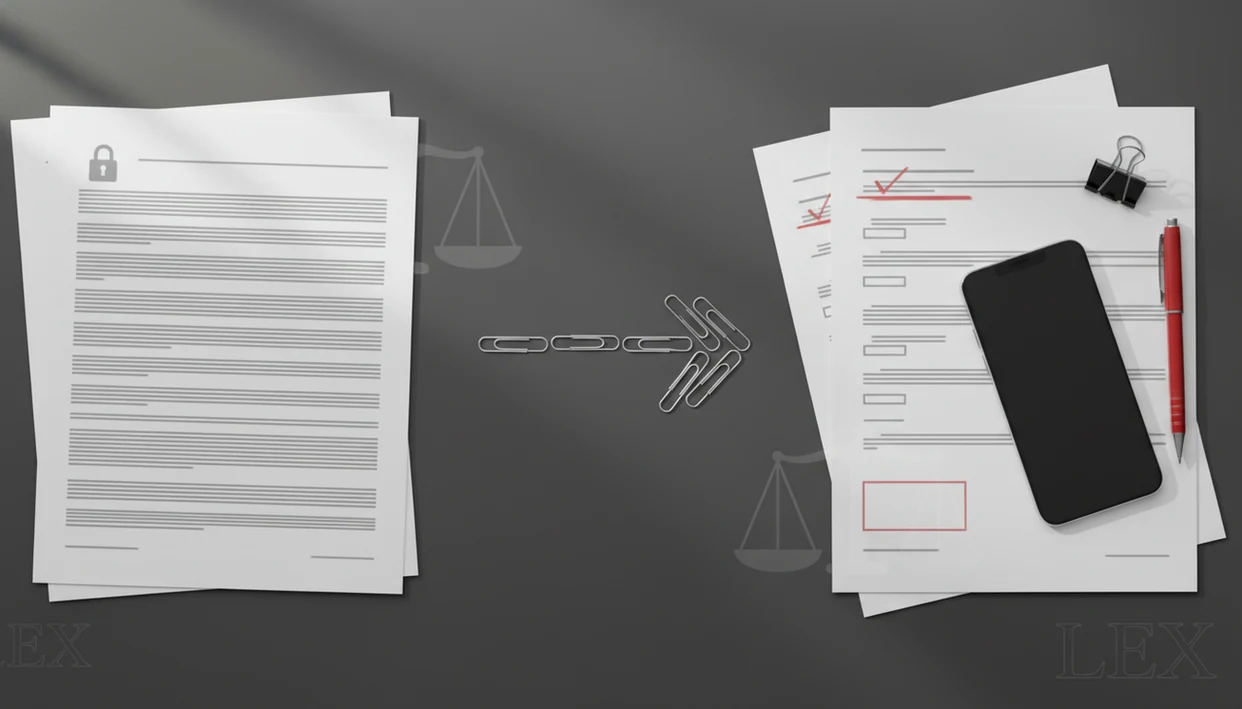
Use a trusted converter to turn the PDF into an editable DOCX, then open it in Word and enable Track Changes before negotiating edits. A contract PDF to Word for redlining workflow should include OCR checks, numbering review, table cleanup, version naming, and privacy safeguards.
> Definition: Contract PDF to Word for redlining means converting a PDF contract into an editable DOCX file so the parties can review, comment, and track changes in Word or a Word-compatible editor.
TL;DR
- Born-digital contract PDFs usually convert more cleanly than scanned contracts, which need OCR and extra proofreading.
- Always check clause numbering, defined terms, cross-references, tables, headers, footers, signature blocks, and exhibits before sending a redline.
- PDF To Word App is a PDF to Word app that converts PDF files into editable DOCX documents for people using iPhone and Android.
Contract PDF To DOCX Redlining Requirements Before You Start
A redline-ready contract conversion needs four things: the source PDF, a PDF to Word converter, a Word-compatible editor, and a secure file location. Without those, the workflow turns into file repair instead of review.
A born-digital PDF usually has a text layer, so the converter can rebuild paragraphs and clauses into DOCX. A scanned page is different. It may look selectable until you long-press and only grab an image block. That file needs OCR before Word can edit the text.
Contract review is also a legal operations issue, not just a formatting chore. In a 2021 Deloitte survey, 62% of in-house legal departments said contract management and review processes were a high or very high priority for legal technology investment source. For deeper legal workflow context, our PDF to Word for lawyers guide covers attorney-facing review needs.
At-A-Glance Workflow To Redline PDF Contract In Word
To redline PDF contract in Word, first decide whether the PDF has selectable text. If it does, convert normally; if it is a scan, use OCR and proofread the DOCX before editing.
| Stage | What to do | What can go wrong |
|---|---|---|
| Inspect PDF | Try selecting a clause or defined term | Image-only scans need OCR |
| Convert to DOCX | Use a PDF to Word converter | Tables and lists may shift |
| Open in Word | Use Microsoft Word or a compatible editor | Comments may not appear the same everywhere |
| Enable Track Changes | Turn it on before edits | Early edits may go untracked |
| Verify formatting | Compare against the source PDF | Cross-references can break |
| Save version | Use a clear file name | Negotiation copies get mixed |
On iPhone and Android, files often move from email, Files, Drive, OneDrive, or a mobile PDF to Word app into Word. The thumb-hover moment over “Upload” matters when the file is an NDA.
Five Facts About Contract PDF To Word For Redlining
- A contract PDF must become editable DOCX before Word Track Changes can capture insertions and deletions properly.
- Scanned PDFs require OCR before meaningful redlining because the text starts as an image, not editable words.
- Track Changes should be enabled before making edits, not after the first clause revision.
- Tables, headers, footers, clause numbering, columns, and custom formatting often need cleanup after conversion.
- File naming, version control, and secure storage reduce negotiation confusion when several parties exchange drafts.
Speed matters, but not at the cost of a bad record. World Commerce & Contracting has reported that faster contract negotiation and review are major priorities for many contracting teams; add the exact report URL here before using the 81% figure. For contract teams, converting to DOCX usually works best when the source PDF is clean, while OCR fits scanned contracts that would otherwise need retyping.
How Contract PDF To Word Conversion Works For Redlining
PDF and DOCX are built for different jobs. A PDF stores page appearance, while a DOCX stores editable text, paragraphs, styles, lists, tables, and other Word objects.
A converter tries to reconstruct the contract’s text flow, fonts, spacing, tables, headers, images, and page order. That reconstruction is an approximation. A merger agreement table with tiny borders can become several Word tables, or one table with odd merged cells. Numbered contract clauses can also shift by half a line after conversion.
For scanned contracts, OCR reads letter shapes from the image and turns them into text. That helps, but OCR can misread section symbols, initials, numbers, party names, and defined terms. No converter can guarantee perfect legal formatting on complex contracts. A good converter should deliver a usable editing file, not a legal guarantee.
How To Use Contract PDF To Word For Redlining On Mobile
Use mobile conversion as a controlled handoff from PDF to DOCX, then from DOCX to reviewed redline. Tools like PDF To Word App can be part of that iPhone or Android workflow, but Word review still matters.
- Save the PDF securely in a trusted folder, such as OneDrive, Drive, Files, or an approved workspace.
- Convert the PDF to DOCX using a converter that can handle selectable text or OCR when needed.
- Open the DOCX in Microsoft Word mobile or another Word-compatible editor and confirm the file opens normally.
- Enable Track Changes before revising clauses, adding comments, or deleting language.
- Review formatting against the source PDF, especially numbering, tables, signature blocks, and exhibits.
- Save a named version such as `VendorAgreementv1toClientRedline2026-05-27.docx`.
A practical app to help edit PDF contract should support this kind of handoff, not hide the review step.
DOCX Redline Checks For Numbering, Tables, And Clauses
Converted contracts should be checked before negotiation edits begin. Legal accuracy matters more than visual similarity, because a pretty DOCX can still contain a broken reference.
Numbering check: Confirm article, section, subsection, and exhibit numbering against the source PDF.
Defined terms check: Search key definitions and party names, especially terms with quotation marks or unusual capitalization.
Cross-reference check: Verify references such as “Section 4.2,” “Exhibit A,” and “Schedule 1.”
Layout check: Inspect section breaks, columns, tables, headers, footers, page references, and signature blocks.
Attachment check: Review exhibits, schedules, appendices, and signature pages separately.
Adobe’s 2021 Future of Time report found that knowledge workers spend an average of 3.2 hours per week dealing with document issues, including conversion and formatting problems. source The expense form balanced on a keyboard is annoying; a shifted indemnity clause is worse.
Common Contract PDF To DOCX Redlining Mistakes
A common mistake is assuming every free PDF to Word tool creates a clean DOCX ready for legal review. Most tools can produce editable text, but complex contracts may need cleanup before anyone should rely on the redline.
The second mistake is editing before Track Changes is enabled. Those early wording changes may not appear as tracked insertions or deletions, which creates a negotiation record problem.
OCR adds another trap. It can make a scanned contract editable, but it can also turn “§ 5.1” into “S 5.l” or misread initials in a signature block. Proofread the OCR result before sending it.
Do not send a redline until it has been compared with the original PDF. Gartner has estimated that poor contract management can cause 5 to 10% annual revenue loss through missed savings and value leakage source. Also, avoid uploading confidential contracts to unknown cloud tools without checking retention and access terms.
Privacy Safeguards For Contract PDF To Word Redlining
Does converting a contract PDF to Word expose confidential information? It can, depending on where the file is processed, stored, and transmitted.
Before using any converter, check whether conversion happens on-device or in the cloud. Also review file retention, account access, encryption claims, and whether the app has a clear privacy policy. NDAs, client engagement terms, data residency rules, regulated information, and internal legal policy may all limit where the file can go.
Use a secure device lock, trusted cloud folders, and controlled sharing links. After handling a sensitive contract on mobile, there is also a quiet but important cleanup step: delete local copies from Recents if your policy requires it. If privacy is the main concern, compare options through a secure PDF to Word app lens before uploading.
Limitations
PDF-to-DOCX redlining is useful, but it has hard limits. Treat the converted DOCX as a working draft that needs verification.
- Complex layouts may not convert perfectly, especially contracts with columns, nested tables, stamps, or unusual fonts.
- Scanned PDFs require OCR and careful proofreading before edits are made.
- OCR can misread legal terms, section symbols, numbers, initials, party names, or defined terms.
- Locked, password-protected, corrupted, or very large PDFs may fail or require permission from the document owner.
- The converted DOCX is not automatically legally equivalent to the original PDF.
- Some mobile tools process files in the cloud, which may conflict with confidentiality, data residency, or client obligations.
- Exhibits, schedules, appendices, and signature pages may need separate review.
- Comments and tracked changes can display differently across Word, Google Docs, and other editors.
Small errors travel fast.
When the deadline is close, checking the converted DOCX in Microsoft Word mobile before sending it back is still worth the minute.
FAQ
Can I redline a PDF contract?
You can comment on a PDF, but Word-style redlining usually requires converting the contract to an editable DOCX first. Then Word Track Changes can record edits.
How do I redline in Word?
Open the DOCX, enable Track Changes, make edits, add comments, and save a versioned copy. Do this before changing contract text.
Does a scanned contract need OCR?
Yes. Image-only scanned contracts need OCR before the text can be edited and redlined.
Is contract PDF conversion to DOCX accurate?
Accuracy depends on PDF quality, layout complexity, scan quality, tables, and post-conversion review. Always compare the DOCX with the source PDF.
Can I convert contracts on iPhone?
Yes. iPhone users can convert a contract PDF to DOCX with a mobile PDF to Word app, then open it in Word.
Can I convert contracts on Android?
Yes. Android users can use a mobile converter app, save the DOCX, and edit it in Word or another compatible editor.
What should I check after conversion?
Check numbering, defined terms, cross-references, tables, headers, footers, signature blocks, exhibits, and page references. Formatting checks should happen before redline edits.
Is online contract conversion secure?
Security depends on processing location, file retention, encryption, access controls, and the app’s privacy policy. Sensitive contracts may require approved tools only.
Can locked PDFs be converted?
Password-protected or restricted PDFs may require the password, owner permission, or an unlocked authorized copy. Do not bypass restrictions without authorization.