
What App Identifies Text in Scanned PDF Files?
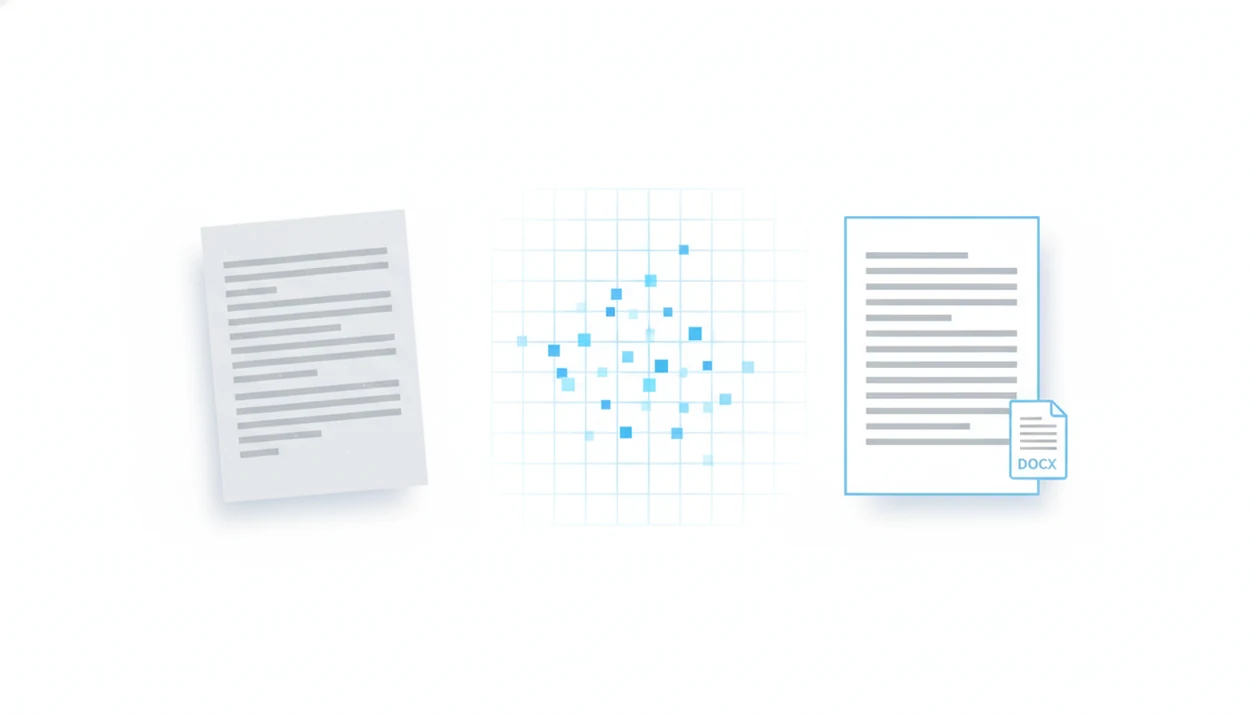
An OCR app is what app identifies text in scanned PDF files: it recognizes words inside a picture-only PDF and turns them into selectable, searchable, editable text. For mobile users, the most useful choice is a PDF to Word app with OCR because it can recognize the scan and export an editable DOCX file.
Definition: An OCR-capable PDF converter identifies text in scanned PDFs and can export recognized text as an editable DOCX on iPhone or Android.
TL;DR
- Scanned PDFs need OCR before their text can be copied, searched, or converted cleanly to Word.
- OCR works by analyzing the page image, recognizing characters, and adding a text layer behind the scan.
- Clear scans, correct language settings, and a DOCX export option matter more than the app name alone.
What App Identifies Text in Scanned PDF Files?
What app identifies text in scanned PDF files? An OCR app does. A scanned PDF is usually a page image, not live text, so your phone may show the words without letting you select them.
OCR, short for optical character recognition, adds usable text where the file only had pixels. After OCR runs, you can highlight text, copy a paragraph, search for a phrase, and export the result into an editable Word file. We see this most often when a PDF looks selectable until someone long-presses and only grabs one image block.
PDF to Word conversion from scans requires OCR, not only file format conversion. If your document is image-only, an image-only PDF to Word workflow is the better match.
Scanned PDF OCR App Requirements Before You Start
Before using an OCR app for scanned PDF conversion, make sure the file actually needs recognition. A camera scan, photo-based document, or old copier scan usually does. A normal digital PDF may already contain a text layer.
You need OCR or “text recognition,” not just a basic PDF viewer. If the end goal is editing, the app also needs DOCX export so the conversion result can open in Microsoft Word, Google Docs, or another editor.
Start with the cleanest page you can get. Straight alignment, even lighting, readable resolution, and the correct document language all improve the result. A tilted scan from a phone can still work, but the cleanup takes longer.
Privacy matters here. Cloud OCR may upload sensitive documents for processing, so check file handling before sending contracts, medical forms, or financial records.
How an OCR App for Scanned PDF Recognition Works
OCR, or optical character recognition, is software that analyzes a scanned page image and converts recognized character shapes into machine-readable text.
The app studies pixels on the page, detects lines and letter-like shapes, then maps those shapes to characters, words, and paragraphs. In plain terms, it is guessing which printed marks represent text. Better scans give it fewer bad guesses.
After recognition, many tools place a hidden text layer behind the original page image. That layer is what lets you search the PDF, copy-paste a sentence, preserve reading order, or export the content as DOCX. Without that layer, the page still behaves like a picture.
For scanned documents, OCR usually works best when the page is sharp, upright, and set to the correct language, while manual cleanup fits files with dense tables, stamps, or mixed scripts.
How to Use an OCR App to Identify Text in a PDF Scan
Use this mobile-first workflow when you need to identify text in a PDF scan and turn it into an editable DOCX file.
- Open or import the scanned PDF from Files, Drive, email, or your Android file picker.
- Select OCR or text recognition instead of a basic “open PDF” or “share PDF” action.
- Choose the correct document language and enable scan enhancement or de-skew if the app offers it.
- Review the recognized text and reading order before export, especially in columns, tables, and numbered clauses.
- Export as DOCX so you can edit the file in Word, Google Docs, or another document editor.
A student opening a handout from the Files app five minutes before class needs the short version: recognize first, export second, proofread before submitting. For iPhone-specific steps, the convert scanned PDF to Word on iPhone guide covers the same workflow in more detail.
Five Facts About Identifying Text in PDF Scans
- OCR is required for image-only scanned PDFs. If the scan has no embedded text layer, a converter must recognize the page before it can create editable words.
- Without OCR, the file behaves like a picture. You may zoom, crop, or share it, but copying text will not work reliably.
- OCR can make scanned PDFs searchable and selectable. Once the text layer exists, search, copy-paste, and Word export become possible.
- Scan quality, language, fonts, and layout affect accuracy. Tesseract’s OCR guidance notes that skew, borders, resolution, and image quality affect recognition results (https://tesseract-ocr.github.io/tessdoc/ImproveQuality.html), and NIST OCR evaluation work has documented accuracy differences across source quality and scripts (https://www.nist.gov/itl/iad/mig/ocr-evaluation).
- A PDF to Word app with OCR can create an editable DOCX from a scan. The output still needs a formatting check, especially when the source PDF has tables or tight spacing.
A reliable OCR converter should deliver editable text and usable structure, not promise to rebuild every scan exactly.
Evidence and Sources for Scanned PDF OCR
The evidence is straightforward: OCR quality depends on the scan, and “searchable” does not mean “perfect.” Tesseract’s image-quality guidance explains why resolution, skew, borders, and noise change recognition results, while NIST OCR evaluation work shows that accuracy varies by source condition and writing system.
Archival guidance from the U.S. National Archives also treats OCR as a way to make scanned records searchable at scale, not as a guarantee that every character is correct. That is why the workflow above includes both recognition and review. Privacy guidance from consumer protection and cloud-security sources makes the same practical point: if an OCR tool uploads files for processing, sensitive documents deserve extra caution before you tap convert.
- Start with the cleanest scan available, because blur, skew, shadows, and low resolution create more bad guesses.
- Choose the correct OCR language and any de-skew or enhancement option before recognition runs.
- Review the searchable layer by comparing key names, numbers, clauses, and table values against the original scan.
- Export to DOCX only after that check, then proofread again before sharing or filing the edited document.
- Confirm whether processing is local or cloud-based before uploading contracts, tax records, medical forms, or IDs.
Best OCR App Features for Scanned PDF to Word Conversion
The best OCR app for scanned PDF to Word conversion is not just a scanner; it must recognize text and create editable Word output. PDF To Word App fits this use case when the goal is PDF-to-DOCX conversion on iPhone and Android, while apps such as Adobe Scan, Microsoft Lens, and Google Drive OCR may be better for scanning, note capture, or Drive-based search.
| Feature | Why it matters |
|---|---|
| OCR text recognition | Identifies words inside image-only pages. |
| DOCX export | Turns recognized text into an editable Word file. |
| Reading order preservation | Keeps paragraphs, lists, and columns in a usable sequence. |
| Language selection | Reduces errors in accented text, symbols, and non-English documents. |
| Batch pages | Handles multi-page scans without rebuilding each page manually. |
| Privacy handling | Helps you decide whether cloud processing is appropriate. |
For longer documents, a dedicated scanned PDF to Word app is usually easier than copying recognized text page by page because it keeps export, page order, and formatting checks in one workflow.
Common OCR Mistakes When You Identify Text in PDF Scan Files
Avoid these mistakes before you trust the DOCX file.
- Assuming every converter handles scans. Some PDF to Word tools convert only existing text and cannot identify text in PDF scan files without OCR.
- Using poor source images. Blurry, skewed, low-resolution, or shadowed scans create more recognition errors.
- Choosing the wrong OCR language. A French invoice processed as English may turn accents, totals, and names into strange text.
- Skipping proofreading. A merger agreement table with tiny borders can look fine at first, then shift values into the wrong cells.
- Expecting full reconstruction. Tables, columns, handwriting, stamps, and decorative fonts often need manual repair.
The U.S. National Archives has noted that OCR reduces the labor needed to make scanned records searchable, but searchable does not mean error-free.
How to Verify OCR Text Before Editing the DOCX File
Verification matters when the document has legal, academic, financial, or business consequences. OCR can turn “0” into “O,” drop punctuation, or move a line break in a way that changes meaning.
Start by searching for a phrase you know appears in the scan. Then copy one paragraph and compare characters, punctuation, and line breaks against the source PDF. It is boring work. It catches real problems.
Check page order, columns, tables, headers, footers, and totals before you edit heavily. Numbered contract clauses can shift by half a line after conversion, which makes later redlines harder to review. For layout-sensitive files, the PDF to Word without losing formatting guide explains what can and cannot be preserved.
Limitations
OCR-based scanned PDF text recognition is useful, but it has clear limits.
- Low-resolution, noisy, skewed, or shadowed scans cause recognition errors.
- Complex tables, columns, forms, and mixed layouts can break reading order.
- Handwriting, decorative fonts, stamps, and unusual symbols are difficult to recognize.
- Mixed-language documents may need manual language selection and close review.
- Cloud OCR can raise privacy concerns for sensitive files, especially contracts, resumes, tax records, and medical documents.
- Even good OCR usually requires proofreading before the DOCX is final.
- Password-protected PDFs may need permission changes before OCR or export can run.
- Layout preservation is approximate when the source PDF was built from photos rather than digital text.
After handling a sensitive file, we also recommend deleting local copies from Recents if your phone keeps previews. Small step. Worth doing.
FAQ
What app reads scanned PDFs?
An OCR app reads scanned PDFs by recognizing text inside page images. A PDF to Word app with OCR can also export that recognized text as DOCX.
Can OCR convert scans to Word?
Yes. OCR can convert scans to Word when the app supports text recognition and DOCX export.
Why can’t I copy scanned PDF text?
You probably have an image-only PDF with no OCR text layer. The words are visible, but the file stores them as part of a picture.
Is OCR accurate on phone scans?
OCR accuracy depends on scan clarity, resolution, document language, fonts, and layout. Clear, straight phone scans usually work better than blurry or shadowed photos.
Does iPhone support scanned PDF OCR?
Yes. iPhone users can use OCR-capable apps to identify text in scanned PDFs and export editable files.
Does Android support scanned PDF OCR?
Yes. Android users can use OCR apps to identify text in scanned PDFs and create editable DOCX files.
Can OCR read handwriting?
OCR is less reliable on handwriting than printed text. Handwritten notes usually need manual correction after recognition.
Is scanned PDF OCR private?
Scanned PDF OCR privacy depends on whether the app processes files locally or uploads them to the cloud. Check the app’s file handling policy before using PDF To Word App or any OCR tool for sensitive documents.