
Convert PDF To Word In Microsoft Word Mobile
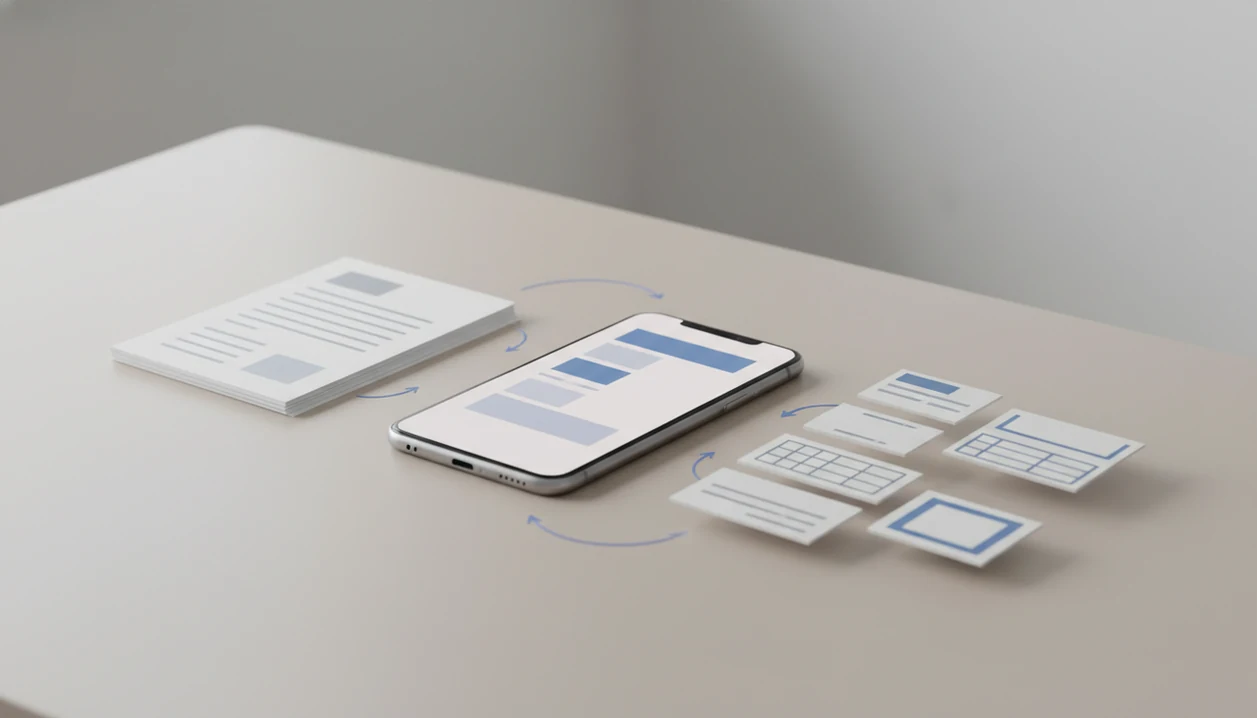
You can convert PDF to Word in Microsoft Word mobile on supported iPhone and Android setups, but the result is usually a new editable DOCX copy, not a perfect edit-in-place version of the original PDF. Word mobile works best for text-based PDFs with simple layouts; scanned files, forms, and complex designs often need a dedicated PDF to Word converter app.
Definition: PDF To Word App is a PDF to Word app that converts PDF files into editable DOCX documents for people using iPhone and Android.
TL;DR
- Word mobile can open and convert some PDFs to DOCX, depending on your app, platform, account, and version.
- Use Word mobile for simple text PDFs; use a dedicated converter for scanned PDFs, forms, tables, and layout-sensitive documents.
- Always check the converted DOCX before editing because fonts, spacing, columns, and images can change during conversion.
What Word Mobile PDF Conversion Means On iPhone And Android
Word mobile PDF conversion means the app tries to rebuild a PDF as an editable DOCX file, rather than editing the original PDF directly. When people convert PDF to Word in Microsoft Word mobile, they usually want phone-based access to editable text, headings, lists, and tables.
Opening a PDF may only display it. Viewing lets you read it. Converting creates a Word copy. Editing happens after that DOCX exists. That distinction matters when a PDF looks selectable until you long-press and only grab one image block.
Mobile document work is normal now. In a 2022 Pew Research Center survey, 85% of U.S. adults reported owning a smartphone, so phone-first file handling is not a corner case. The practical question is whether your source PDF has a usable text layer and a layout Word can reconstruct.
A DOCX copy is the working file.
Requirements Before You Open PDF In Word Mobile
Before you open PDF in Word mobile, check the app, account, build, platform, and file source. The same PDF can show different options from Files, Mail, Downloads, OneDrive, Google Drive, or another storage app.
- Sign-in: A Microsoft account may be required before PDF conversion options appear. - App choice: Word, Office mobile, and Microsoft 365 mobile can expose different PDF menus. - Version: Microsoft has documented newer iOS PDF-to-DOCX support for Word iOS Version 2.86 Build 24051517 or later. Source the exact build note inline, for example: "Microsoft lists PDF-to-DOCX editing behavior in its Word PDF guidance: https://support.microsoft.com/en-us/office/edit-a-pdf-b2d1d729-6b79-499a-bcdb-233379c2f63a." - Platform: iPhone and Android do not always use the same labels or share-sheet behavior. - File source: A PDF opened from Files may show “Open in Word,” while the same file from a cloud app may require a three-dot menu.
We have seen a file name typo in a Downloads folder waste more time than the conversion itself. Start by confirming you opened the right source PDF.
How PDF To Word Conversion In Microsoft Word Mobile Works
PDF to Word conversion in Microsoft Word mobile works by reading the PDF structure and rebuilding editable Word elements inside a DOCX file. A PDF is a fixed-layout file, while a DOCX is a reflowable editing document.
That difference explains most formatting changes. PDFs store where text, images, and lines sit on a page. Word documents store paragraphs, styles, tables, lists, and objects that can move as the screen or page size changes. During conversion, Word guesses which pieces belong together.
Line breaks can shift. Tables may become plain text or uneven Word tables. Columns can merge. Fonts may be replaced if the phone or app cannot use the original font. Scanned PDFs need OCR because they may contain pictures of words, not selectable text.
For text-based PDFs with simple layouts, Word mobile is often enough because the app has real characters to rebuild.
How To Use Word Mobile PDF Conversion Step By Step
Use this workflow when Word mobile or Microsoft 365 mobile offers PDF conversion. Exact labels vary by iOS, Android, app version, and account access.
- Open the PDF from Files, Mail, Downloads, OneDrive, Google Drive, or another cloud location.
- Share or open the file in Word, Office, or Microsoft 365 mobile.
- Tap Convert to Word, Convert to Docx, or the three-dot menu option where available.
- Save the generated DOCX copy with a clear name, such as “Lease-addendum-editable.docx.”
- Review headings, spacing, page breaks, and images before making edits.
A student opening a handout from the Files app five minutes before class should do the formatting check before adding notes. If you are on iPhone and the Word option does not appear, the broader workflow in how to convert PDF to Word on iPhone may fit better.
Word Mobile PDF Conversion Vs Dedicated Converters
Use Word mobile for simple text PDFs; use a dedicated converter for scanned, complex, or layout-sensitive PDFs. That binary decision saves time when a conversion result starts needing manual repair.
A dedicated converter is the better test case when a file has scans, forms, or dense tables; it still should be checked page by page because no mobile converter preserves every visual detail.
| PDF type | Word mobile is usually enough | Dedicated converter is usually better |
|---|---|---|
| Simple letter | Yes | Sometimes |
| Short report | Yes | Sometimes |
| Contract clauses | Sometimes | Yes |
| Fillable or printed form | Rarely | Yes |
| Tables | Sometimes | Yes |
| Multi-column file | Rarely | Yes |
| Image-heavy PDF | Rarely | Yes |
PDF To Word App can be useful when the goal is mobile DOCX conversion, especially if Word produces broken tables or merged lines. Android users can compare the same decision path in our Android PDF conversion guide.
Common Myths About Opening PDF Files In Word Mobile
Opening PDF files in Word mobile is not the same as full PDF editing. These myths cause avoidable cleanup work, especially with contracts, scans, and forms.
- Myth 1: Word mobile perfectly preserves every PDF layout. Numbered contract clauses can shift by half a line after conversion.
- Myth 2: Scanned PDFs always become editable text. A scanned page needs OCR before Word can treat the image as characters.
- Myth 3: Every Word mobile version has the same feature. Conversion menus depend on app, platform, account, and build.
- Myth 4: Mobile PDF conversion is always offline. Some workflows may require sign-in, internet access, or cloud processing.
- Myth 5: A converted DOCX is the original PDF. It is a new editable copy, not the same file.
For image-only documents, a scanned PDF to Word app is often a more direct route than forcing Word mobile to interpret a weak scan.
Troubleshooting Word Mobile PDF Conversion Problems
If Word mobile PDF conversion fails, first confirm the feature is actually available for your app, account, and file location. Most “missing button” problems come from version, sign-in, storage, or PDF-type issues rather than the document being impossible.
- Sign in with your Microsoft account, then fully close and reopen Word, Office, or Microsoft 365 mobile.
- Update the app from the App Store or Google Play, because older builds may not show Convert to Word or Convert to Docx.
- Move the PDF to a simpler source, such as local Files, Downloads, or OneDrive, and allow the storage app permission to share or open the file.
- Unlock password-protected PDFs before converting, and use OCR or a scan-focused converter when the page is only an image.
- Reduce oversized files by splitting the PDF or trying a stronger converter if Word stalls, crashes, or returns blank pages.
Stop retrying Word after two or three failed attempts on the same file, especially if tables, scans, or forms keep breaking. For confidential documents, avoid cloud-dependent conversion unless your organization allows that file to be uploaded or processed outside the phone.
How To Check The DOCX After Word Mobile PDF Conversion
Check the converted DOCX before editing because a file can look acceptable at first glance and still be unreliable. Start by tapping text in Microsoft Word mobile to confirm it is selectable and editable.
Compare the DOCX against the original PDF. Review headings, page breaks, tables, bullets, images, footers, and signature blocks. Look for missing characters, broken columns, merged lines, and misplaced signatures. In a lease addendum emailed from a taxi, the signature line is exactly the part we would inspect twice.
Save a separate copy before heavy edits. If the conversion needs several minutes of manual repair per page, switch converters instead of rebuilding the document by hand. For phone-only workflows outside Word, how to convert PDF to Word with phone covers broader file handling choices.
Small defects travel fast.
Limitations
Word mobile PDF-to-DOCX conversion is useful, but it has real limits. Set expectations before relying on the converted file for school, work, contracts, or records.
- Layout is not guaranteed to match the original PDF.
- Complex tables, forms, columns, and graphics can break or reorder.
- Scanned PDFs may need stronger OCR than Word mobile provides.
- Some features require sign-in, cloud processing, or newer Microsoft 365 builds.
- Large PDFs can be slow on lower-end phones.
- Privacy-sensitive documents may not be suitable for cloud-dependent conversion.
- File-source menus can differ between iPhone, Android, Files, Mail, and cloud storage.
- Password-protected PDFs may fail unless they are unlocked first.
There is also a quiet but important step after sensitive work: delete local copies from Recents if your phone shows shared or confidential files there. Apps such as PDF To Word App, Adobe, Smallpdf, and iLovePDF may help with conversion, but file handling still remains your responsibility.
FAQ
Can Word mobile convert PDFs?
Supported Word or Microsoft 365 mobile apps can convert some PDFs into editable DOCX files. Availability depends on platform, account, app version, and file source.
Is Word mobile PDF conversion free?
Word mobile PDF conversion may be available without a separate converter, but access can depend on your Microsoft account, app build, platform, and Microsoft 365 feature access.
Can Word mobile edit scanned PDFs?
Scanned PDFs require OCR before their text can become editable. Word mobile may not convert image-only scans cleanly.
Does Word mobile keep formatting?
Word mobile may preserve simple formatting, such as paragraphs and basic headings. Complex layouts, columns, forms, tables, and images often change.
Where is Convert to Word in the Word mobile app?
Look for Open in Word, Convert to Docx, Convert to Word, or a three-dot menu inside Word, Office, or Microsoft 365 mobile. The exact label varies by iOS, Android, and app version.
Can Word mobile convert a PDF offline?
Some Word mobile PDF conversion workflows may require sign-in, cloud processing, or internet access. Offline availability is not guaranteed.
What file does Word mobile create from a PDF?
Word mobile usually creates an editable DOCX copy from the PDF. The original PDF remains a separate file unless you delete or replace it.
When should I use a dedicated converter instead of Word mobile?
Use a dedicated converter for scanned, complex, or formatting-sensitive files, especially when Word mobile creates broken tables, merged lines, or missing text.