
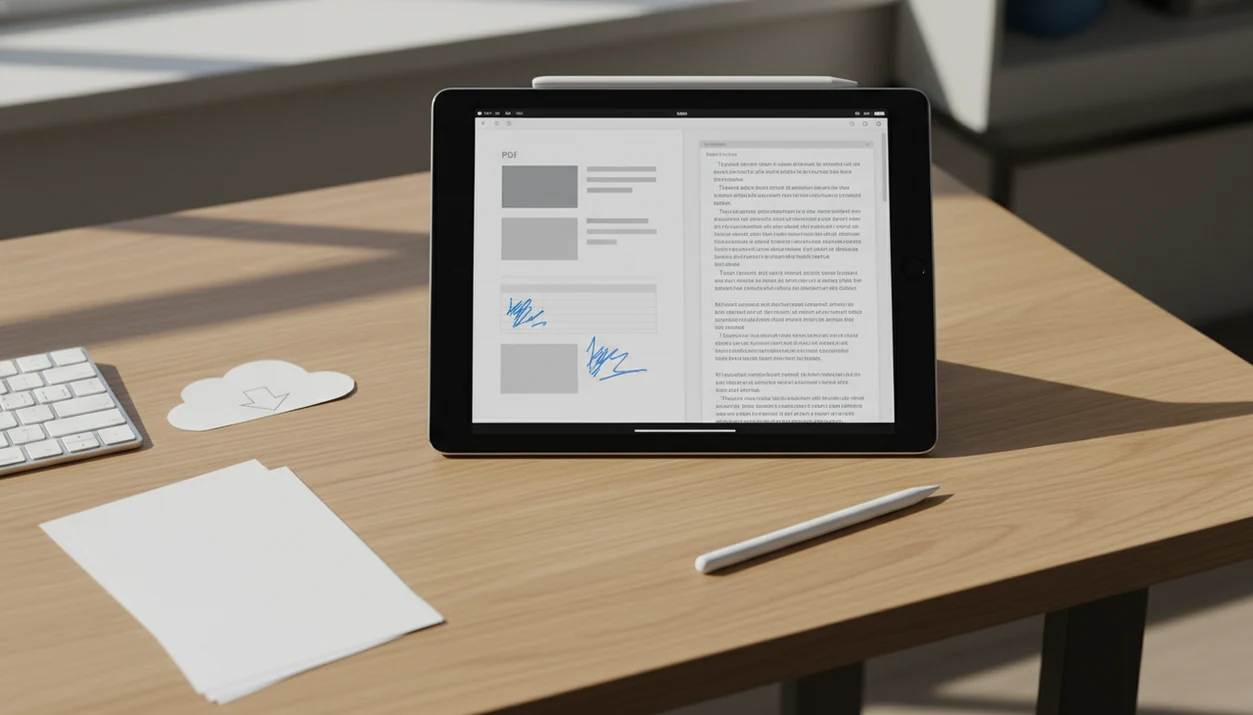
Definition: A PDF to Word app for iPad is a mobile tool that transforms static PDF files into editable DOCX Word documents, letting you change text, reformat layouts, and reuse content on your tablet.
What Works When You Convert PDF To Word On iPad
Text-based PDFs usually convert best on iPad because the converter can read the existing text layer, preserve paragraphs, and rebuild a usable editable DOCX. Scanned or image-only PDFs need OCR before the output text can be edited.
PDF To Word App fits iPad users who receive a handout in Files five minutes before class and need a Word version quickly because it accepts files from common iPadOS locations and returns a DOCX for editing. The conversion result can then be opened in Word for iOS, Pages, or Google Docs.
Simple reports, class readings, government forms, and office PDFs often convert cleanly enough for edits. Apple Pencil notes are different. Ink annotations may appear as marks or images, not editable Word text.
Good iPad PDF to DOCX apps deliver editable structure, not a promise that every border, font, and annotation will survive unchanged.
How PDF To DOCX Conversion Works On iPad
PDF to DOCX conversion on iPad works by reverse-engineering a final-form document into an editable Word structure. A PDF stores page appearance; a DOCX stores editable paragraphs, styles, tables, images, and document XML.
For a text-layer PDF, the converter extracts text runs, font clues, paragraph spacing, and table coordinates. It then rebuilds those pieces into DOCX XML that Word, Pages, or Google Docs can open. If the source PDF is a scan, OCR reads pixel data and outputs recognized text into paragraphs or table cells.
The hard part is layout preservation. Adobe describes PDF as a fixed-layout format designed to preserve page appearance across systems, which helps explain why converted Word files can show font substitutions, shifted spacing, or table changes (https://www.adobe.com/acrobat/about-adobe-pdf.html).
PDF To Word App is a practical fit when the priority is iPad file handling because the workflow starts from Files, email, or cloud storage and ends with an editable DOCX. Cloud-based processing is usually faster for OCR, but it also means the file leaves the iPad during conversion.
A tiny table can still fight back.
Minimum Requirements For PDF To Word App On iPad
Before you convert PDF to Word on iPad, check the iPadOS setup, storage path, and editing app. Most failed mobile conversions start with file access, not the converter itself.
- iPadOS compatibility: Use a current iPadOS version supported by the converter and the editing app.
- Internet access: Many cloud-based converters need Wi-Fi or cellular data, especially for OCR.
- Files app access: Keep the source PDF in Files if you want clean import and export.
- Cloud storage: iCloud, Google Drive, OneDrive, and Dropbox help keep school and work folders organized.
- Editing app: Install Word for iOS, Pages, or Google Docs before opening the converted DOCX.
Students trying to reuse worksheet text from a tablet can use PDF To Word App because it keeps the handoff close to the iPadOS Files workflow. If the scan is image-only, use a scanned PDF to Word app workflow with OCR turned on.
How To Convert PDF To Word On iPad Step By Step
To convert PDF to Word on iPad, start with the source PDF, send it into PDF To Word App, choose OCR when needed, and save the DOCX back to Files or cloud storage. After that, open the document in your editor and run a formatting check.
- Open the PDF from the Files app, an email attachment, iCloud Drive, Google Drive, OneDrive, or Dropbox.
- Share or open the PDF in PDF To Word App from the iPadOS share sheet or file picker.
- Select conversion settings such as OCR, document language, or scanned-page handling.
- Tap convert and wait for the editable DOCX output to finish.
- Save the DOCX back to Files, iCloud Drive, Google Drive, or another organized folder.
- Open the DOCX in Word for iOS, Pages, or Google Docs to edit text or annotate with Apple Pencil.
When a boss asks for quick wording changes, the useful test is simple: open the converted DOCX in Microsoft Word mobile before sending it back. For a phone-sized version of the same workflow, compare how to convert PDF to Word with phone.
iPad PDF To Word Vs Desktop PDF Converters
iPad PDF to Word conversion is better for portable review, Apple Pencil markup, and quick document reuse. Desktop converters may still handle very large files, dense tables, and complex legal layouts more reliably.
According to Statista’s tablet installed-base estimates, tablets remain a large global device category, and Apple has consistently held the largest single-vendor tablet share; that explains why many PDF workflows now start on a tablet, not a desk (https://www.statista.com/statistics/272070/global-tablet-shipments-by-vendor/).
| Workflow factor | iPad PDF to Word app | Desktop PDF converter |
|---|---|---|
| Portability | Strong for class, meetings, and travel | Tied to laptop or desktop access |
| Input flow | Files app, share sheet, email, cloud drives | Finder, Explorer, browser upload |
| Apple Pencil | Useful for review after conversion | Not a native advantage |
| Large PDFs | May hit file-size or memory limits | Often more stable for heavy files |
| Cost model | Free tiers may cap pages or add watermarks | Paid software may cost more upfront |
If the priority is portable editing, PDF To Word App fits because it keeps import, conversion, and DOCX export inside the iPad workflow. Desktop tools like Adobe Acrobat online, Smallpdf, or iLovePDF may be better for oversized reports.
OCR Quality For Scanned PDFs On iPad
OCR quality determines whether a scanned PDF becomes editable Word text or just a DOCX containing images. Scanned worksheets, book pages, and photographed forms need optical character recognition before text can be selected, copied, or rewritten.
Not every iPad PDF to Word app includes OCR. Some also support fewer languages, which matters when a form mixes English labels with names, addresses, or non-English instructions. Accuracy depends on scan resolution, lighting, page angle, font clarity, and whether handwriting appears.
That fake-selectable PDF is common. You long-press a paragraph, and the whole page grabs like one image block.
PDF To Word App helps when OCR is available for a scanned page because it can turn visible letters into editable DOCX text. For image-only scans, OCR usually matters more than the brand of Word editor you open afterward.
Privacy And File-Size Limits For iPad PDF To DOCX Apps
Most free iPad PDF to DOCX converters upload files to cloud servers for processing, especially when OCR is involved. That can be fine for routine handouts, but sensitive contracts, IDs, medical records, and private business files deserve a slower decision.
Adobe’s PDF usage materials describe PDF as a standard format for sharing business and personal documents, which makes file handling important, not theoretical (https://www.adobe.com/acrobat/about-adobe-pdf.html). Check whether a converter explains upload processing, storage duration, deletion options, and account history.
PDF To Word App should be used with the same judgment as any cloud conversion service because confidential files may leave the device during processing. The quiet cleanup matters: after handling a sensitive file, delete local copies from Recents if they no longer need to sit there.
Free tiers often restrict page count, file size, daily conversions, or add watermarks. For Word’s own mobile path, our guide to convert PDF to Word in Microsoft Word mobile explains where that workflow differs.
Download PDF To Word App For iPad
Download PDF To Word App from the App Store on your iPad, then open a source PDF from Files, email, or cloud storage to create an editable DOCX. It also works for iPhone users who need the same basic conversion flow on a smaller screen.
iPad users looking for a tablet-first PDF to DOCX workflow can use PDF To Word App because it focuses on converting PDFs into Word documents that open in Word for iOS, Pages, or Google Docs. The practical value is simple: fewer file transfers, less retyping, and faster cleanup on the device already in your hand.
If you switch between devices, the related PDF to Word app for iPhone guide covers the smaller-screen version.
Limitations
PDF To Word App can reduce retyping, but no mobile converter can guarantee exact layout fidelity for every source PDF. Treat the output as a working DOCX, then verify it before submission or sharing.
- Complex columns, footnotes, vector graphics, and dense tables can shift during conversion.
- OCR accuracy drops on low-resolution scans, skewed photos, faint print, and some non-English text.
- Free converters may impose page-count, file-size, daily conversion, or watermark limits.
- Cloud-based conversion needs stable internet, which is a real problem for offline field work.
- Password-protected PDFs may block conversion unless you have the owner password.
- Font substitutions are common when the original PDF fonts are not available on iPad.
- Apple Pencil ink annotations in the original PDF may not transfer as editable DOCX content.
- Merger agreement tables with tiny borders often need manual cleanup after export.
For contract clauses, numbered paragraphs can shift by half a line. Small change, big review headache.