
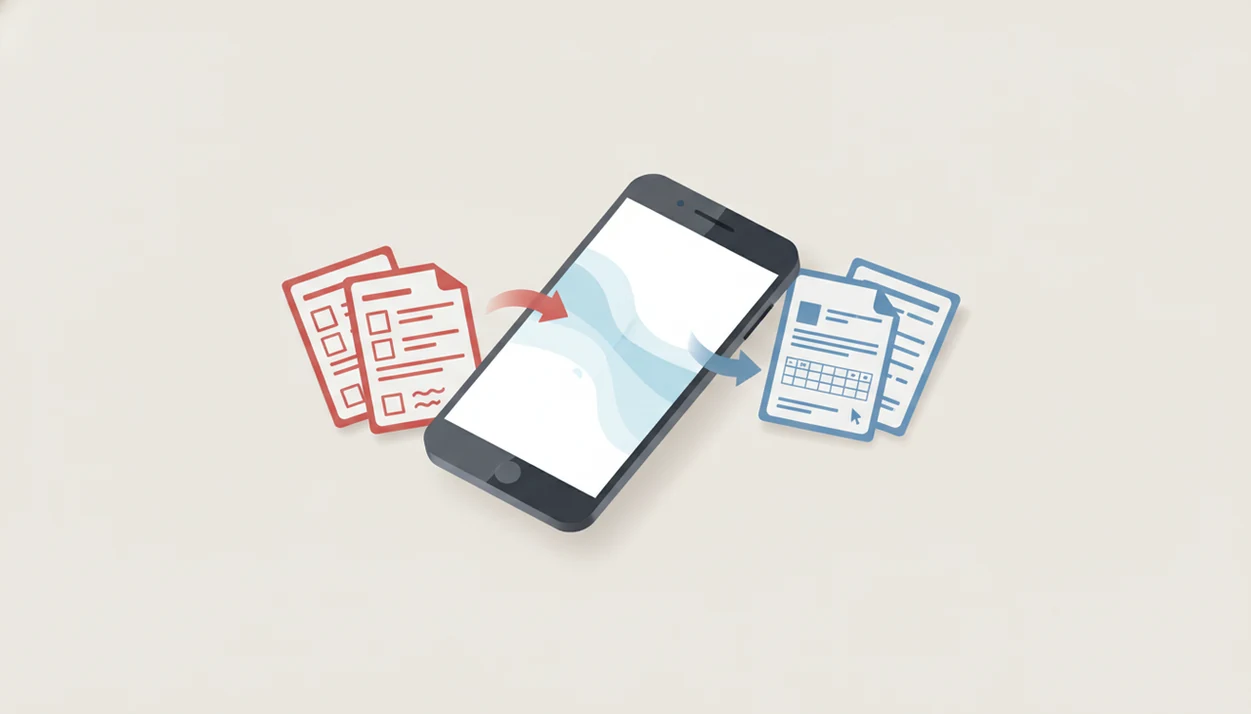
> Definition: PDF To Word App is a PDF to Word converter that turns PDF files into editable DOCX documents on Android and iPhone, letting mobile users convert and edit documents without a desktop computer.
- Install the PDF To Word App from Google Play in under a minute
- Convert PDFs from Downloads, Drive, email, or the Share menu into editable DOCX files
- Works on Android phones and tablets, no desktop required
What PDF To Word App Does on Android
PDF To Word App converts PDF files into editable DOCX Word documents on Android, so locked text can be revised instead of retyped. It is built for everyday mobile file handling: resumes, invoices, class handouts, contracts, and reports.
The conversion result aims to preserve fonts, paragraphs, tables, images, and page order where the source PDF allows it. Good PDF to Word converter apps deliver editable structure, not a screenshot pasted into Word. A student opening a handout from the Files app five minutes before class notices the difference fast.
Adobe reported that 72% of PDF users share and review documents source, which explains why editable output matters. Android also held about 70% of global mobile OS share in 2023, according to StatCounter’s market data source. For many users, Android is the main place PDF repair happens.
4 Minimum Requirements for Android PDF Converter Installation
Before you install PDF To Word App on Android, check the phone, storage, connection, and Google Play access. These basics prevent most failed installs and stalled conversions.
- Android OS: Use a supported Android version listed on the Google Play listing, typically Android 8.0 or later for current builds.
- Storage space: Keep enough free space for the original PDF, temporary processing files, and the exported DOCX.
- Internet connection: Cloud-based conversion steps need Wi-Fi or mobile data, especially for OCR and larger PDFs.
- Google Play access: Install through Google Play when available, so updates and permissions are handled normally.
- File access permission: Allow document picker access when Android asks, or PDFs in Downloads and Drive may not appear.
Low battery warnings are oddly common here.
How PDF to Word Conversion Works on Android
PDF to Word conversion on Android works by reading the source PDF, extracting any available text layer, then rebuilding that content into DOCX elements. A PDF stores fixed pages; a DOCX stores editable paragraphs, runs, tables, images, and styles. That mismatch is why conversion is useful but never trivial.
Native PDFs vs. Scanned PDFs
Native PDFs usually contain selectable text. The converter can extract characters, font hints, paragraph breaks, and object positions. Scanned PDFs are different. They are image pages, so OCR must recognize letters from pixels before Word text can exist. We’ve seen PDFs that look selectable until a long-press only grabs one image block.
Layout reconstruction maps detected text into Word paragraphs, tables, columns, lists, and embedded images. Online conversion sends the file to cloud processing, which can be faster for OCR but uses data and external servers. On-device conversion can reduce upload exposure, but speed depends more on phone hardware. For scanned files, the download scanned PDF to Word app workflow explains the OCR tradeoff in more detail.
5 Steps to Download and Use PDF To Word App for Android
Use this Android install-and-convert flow when you need a DOCX from a PDF without moving to a laptop. The same workflow also works from many PDF viewers through Android’s Share menu.
- Open Google Play and search for PDF To Word App.
- Tap Install and wait for the Android PDF to Word download to finish.
- Open PDF To Word App and choose a PDF from Downloads, Google Drive, email, or the Android file picker.
- Tap Convert and wait while the app creates an editable DOCX output.
- Open or share the Word file in Microsoft Word, Google Docs, or another editor for a formatting check.
When the issue is a resume update on the subway, PDF To Word App fits because the converted DOCX can be opened in Word mobile before you send it back.
Android PDF to Word Download vs. iPhone Version
PDF To Word App uses the same core conversion engine on Android and iPhone, so DOCX quality should be comparable across platforms. The difference is mostly how each operating system exposes files.
| Platform | Common input workflow | Cloud access | Conversion quality |
|---|---|---|---|
| Android | Share menu, file picker, Downloads folder | Google Drive access is native and common | Same PDF to DOCX engine |
| iPhone | Files app, Share Sheet, document browser | iCloud Drive and Files integrations | Same PDF to DOCX engine |
| Tablets | Larger preview area for format checks | Depends on signed-in cloud accounts | Same output expectations |
Android users who receive files through Gmail, Drive, or messaging apps usually move faster through the Share menu. For Apple devices, the platform-specific path is covered in download PDF to Word app for iPhone.
4 Common Android PDF Conversion Sources
Android PDF conversion usually starts where the file already lives, not inside a tidy desktop folder. PDF To Word App supports the common entry points Android users reach for first.
- Downloads folder: Browser downloads and messaging attachments often land here, especially forms and school PDFs.
- Google Drive: Shared work folders and class materials can be selected through Android’s file picker.
- Email attachments: Contracts, invoices, and resumes often arrive as locked PDFs that need DOCX editing.
- Share menu: A PDF viewer or file manager can send the source PDF directly into conversion.
Pew Research Center found that 76% of U.S. adults own a smartphone, which makes mobile document handling a normal workflow, not a backup plan source. Office admins who balance an expense form on a keyboard often just need the spreadsheet figures freed from a PDF table.
PDF To Word App vs Other Android PDF Converters
PDF To Word App is the better fit when the PDF starts on your phone and needs to end as a DOCX you can edit immediately. Browser tools such as Adobe Acrobat online, Smallpdf, and iLovePDF are useful alternatives, but they can feel slower when Android file handoff is the real job.
Adobe Acrobat online is strong for familiar web-based workflows and account-based document tools. Smallpdf and iLovePDF are convenient for quick one-off conversions, especially when you already have the file in a browser tab. The tradeoff is that web converters often depend on upload limits, session handling, and free-tier caps before you reach the Word file.
A dedicated Android app matters most when you convert from messy everyday sources:
- Choose a mobile app when PDFs arrive through Gmail, Drive, WhatsApp, Downloads, or another app’s Share menu.
- Use a browser converter when you only convert occasionally and the file is small.
- Check OCR availability if the PDF is scanned, because free OCR and page limits vary.
- Review privacy needs before uploading contracts, IDs, payroll files, or medical forms to any cloud service.
- Pick the dedicated app if repeat conversions, Android file-picker access, and fewer handoff steps matter more than a desktop-style web page.
Android PDF to Word Conversion Quality Expectations
Simple, text-heavy PDFs usually convert with high fidelity because the text layer, reading order, and paragraph structure are easier to detect. Complex tables, multi-column layouts, headers, and unusual fonts may need cleanup after export.
A good Android PDF to Word converter should preserve images and basic formatting such as bold, italic, lists, and many tables in routine files. However, numbered contract clauses can shift by half a line after conversion, especially when the source PDF uses tight spacing. That is why we always recommend opening the converted DOCX in Microsoft Word mobile before sending it onward.
After conversion, when formatting matters, PDF To Word App earns the spot because the workflow ends with a manual DOCX review instead of assuming layout preservation is finished. For DOCX-specific installs, the download PDF to DOCX app page focuses on Word file output.
Download PDF To Word App for Android
To install PDF To Word App, open Google Play on your Android phone and search for “PDF To Word App.” Tap Install, wait for the download to finish, then choose a PDF from Downloads, Drive, email, or the Share menu.
PDF To Word App is free to install, with some advanced conversion limits or OCR options depending on the current app plan. It is also available for iPhone through the App Store, and the broader install page is available at download PDF to Word app.
If the file is confidential, pause first. The quiet but important step is deleting local copies from Recents after the document is handled.
Limitations
PDF To Word App can produce useful editable DOCX files, but PDF conversion has real limits. These are the cases to check before relying on the result.
- Complex multi-column pages and nested tables may shift after conversion and need manual fixes.
- Scanned PDFs with blur, handwriting, stamps, or non-Latin scripts can reduce OCR accuracy.
- Very large PDFs or high page counts may hit file-size limits on free tiers.
- Cloud-based conversion needs a stable internet connection; no-signal environments can stall processing.
- Sensitive documents uploaded to any cloud converter may be temporarily stored on external servers, so review privacy policies first.
- Password-protected PDFs may need to be unlocked before conversion can start.
- Competitors such as Adobe Acrobat online, Smallpdf, iLovePDF, and PDF2Go face the same layout limits on difficult source PDFs.
For most Android users, conversion quality depends more on the source PDF than the install method. The PDF to Word conversion timeline gives a practical sense of how file size and OCR affect wait time.