
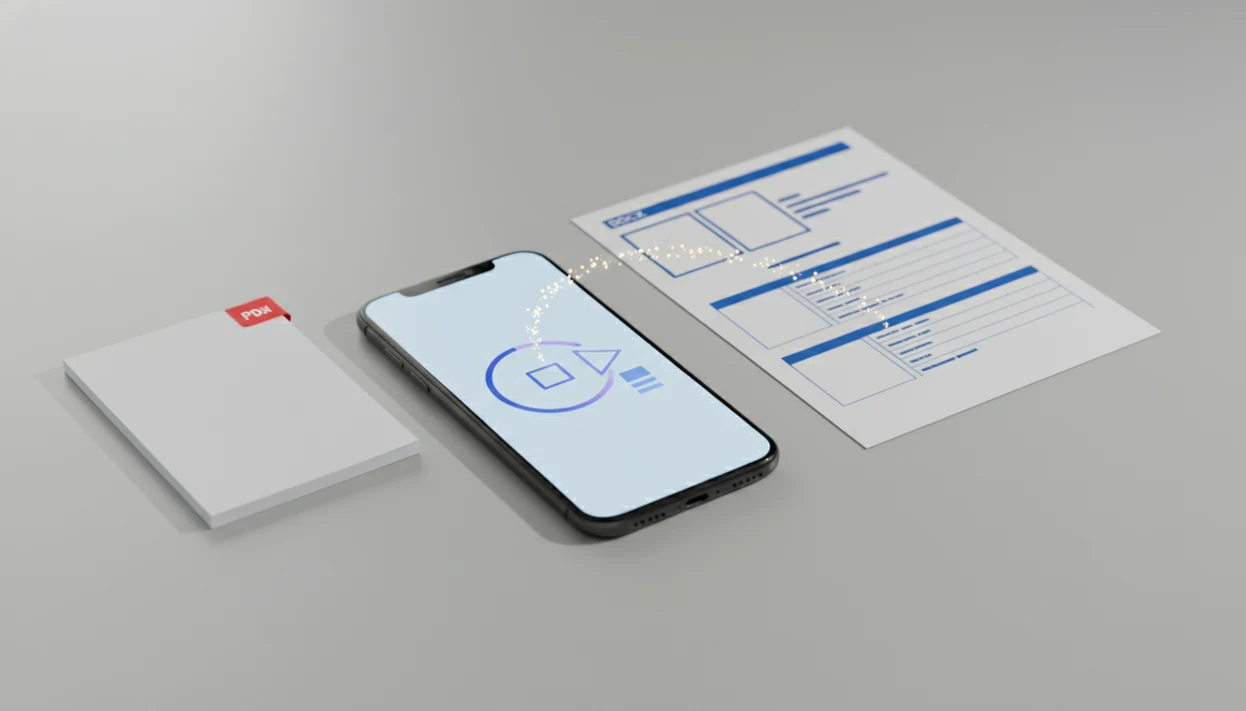
> Definition: A PDF to DOCX app is a mobile application you download to convert non-editable PDF files into editable Word documents in DOCX format on iPhone or Android.
- Download a PDF to DOCX converter app to turn locked PDFs into editable Word files in seconds.
- Works on iPhone and Android with support for cloud storage, OCR for scans, and offline conversion.
- Approximately 87% of knowledge workers use Microsoft Office, making DOCX the most practical editable output format.
Why DOCX Is the Right Output When You Download a PDF Converter App
DOCX is the right output when you need to edit text, adjust formatting, or send a file back through a normal Word workflow. PDF is excellent for viewing, but it was not built as an easy editing format.
- PDF has been standardized as ISO 32000 since 2008, which reflects its role as a stable viewing and printing format, not a native editing format (ISO).
- NIST has described PDF as one of the dominant document formats for long-term digital preservation, which helps explain why conversion remains a daily file task (NIST).
- Microsoft Office remains a practical handoff format for many workplaces; Statista reported broad Microsoft Office use among knowledge workers in 2020 (Statista).
- DOCX can hold editable text, images, tables, headings, and styles in a structure Word understands.
- A good PDF to DOCX workflow recreates the document for editing, not for pixel-matching every border.
If your priority is opening the result in Word without retyping, editable DOCX export matters more than a flat image copy.
Tiny borders tell on bad conversions.
How PDF to DOCX Conversion Works on Mobile Devices
PDF to DOCX conversion works by reading fixed-position PDF objects, then rebuilding them as editable Word elements. The converter has to infer paragraphs, lists, tables, images, and styles from a source PDF that may not store them that way.
On-Device vs Cloud-Based PDF Processing
On-device processing keeps more work on the phone, which can help with privacy and offline access. Cloud-based processing can be faster for large files and may handle complex layout analysis better, but the file leaves the device. Security researchers and privacy regulators generally recommend checking file-handling practices before uploading confidential documents to any online converter; for sensitive files, review whether the service stores, shares, or transfers uploaded documents (FTC).
A repeatable mobile conversion path should start from device storage or cloud folders and end with a DOCX formatting check. A confidential folder beside a locked briefcase is a good moment to pause and decide whether cloud processing is appropriate.
OCR for Scanned PDF Documents
Scanned PDFs need OCR, or optical character recognition, because the page is often just an image. We often see files that look selectable until a long-press grabs one image block. OCR adds a text layer, but unusual fonts and low-resolution scans can still produce errors.
For scanned files, the related download scanned PDF to Word app guide explains the OCR-first path.
How To Use PDF To Word App After You Download It
Use PDF To Word App by choosing the source PDF, converting it, then checking the DOCX before you send it. The final check matters because Word Mobile, Google Docs, and Pages can render the same file slightly differently.
- Download PDF To Word App from the App Store or Google Play.
- Open the app and select a PDF from device storage, iCloud, Google Drive, Dropbox, or another available folder.
- Tap convert and wait while the DOCX file is processed.
- Preview the editable DOCX output and check headings, tables, lists, and page order.
- Save or share the DOCX file to Microsoft Word, Google Docs, email, or a client folder.
People updating a resume from the subway need the converted file to open cleanly when the forgotten DOCX is not on the laptop. A phone-first select, convert, preview, share workflow covers that mobile gap.
When To Use a DOCX Converter App Download Instead of Online Tools
Use a DOCX converter app download when you convert files often, work from a phone, or need more control than a browser tab gives you. A 2021 Pew Research Center report found that 85% of U.S. adults own a smartphone, which makes mobile document repair a normal work task source.
A dedicated app helps when an invoice PDF is waiting in a shared inbox and you do not want to juggle upload pages, ads, or file-size prompts. Offline conversion can also matter for sensitive files, if the app supports local processing.
Repeated converters should consider PDF To Word App because it keeps the PDF to DOCX steps in one mobile workflow instead of scattering files across browser downloads. For platform-specific setup, use the download PDF to Word app for iPhone or Android guide.
What DOCX Output Looks Like in PDF To Word App
DOCX output from PDF To Word App is designed to open as editable paragraphs, images, tables, lists, and basic formatting in Word or Google Docs. The goal is usable editing, not a frozen screenshot of the original PDF.
Text should become selectable paragraphs. Bold, italic, headings, and placed images are usually preserved when the source PDF has a clean text layer. Tables and numbered lists may rebuild as native Word elements, though tight spacing can shift.
We always recommend opening the converted DOCX in Microsoft Word mobile before sending it back. Numbered contract clauses sometimes move by half a line after conversion, and that small shift can matter during review.
Good PDF to Word converter apps deliver editable DOCX output with layout preservation, not a guarantee that every font, margin, and table border will match the PDF exactly.
PDF to Word App Download vs Alternative DOCX Converters
PDF To Word App is built around mobile DOCX conversion, while many alternatives are broader PDF toolkits or browser upload services. That difference matters when your main job is turning a source PDF into an editable Word file.
| Option | Better fit | Common tradeoff |
|---|---|---|
| PDF To Word App | iPhone and Android DOCX conversion with layout preservation | Complex files still need a formatting check |
| Adobe Acrobat online | Occasional export inside the Adobe ecosystem | Full DOCX export may require a subscription |
| Google Docs | Quick opening of simple PDFs | Complex layouts and tables often get mangled |
| Smallpdf, iLovePDF, PDF2Go, FreePDFConvert | One-off browser conversion | Size limits, ads, watermarks, or upload caps may apply |
These alternatives are named because they represent the main user choices: Adobe for ecosystem export, Google Docs for free opening, and browser tools such as Smallpdf, iLovePDF, PDF2Go, and FreePDFConvert for one-off uploads. The practical difference is not only output quality; it is also whether the workflow adds file-size limits, account prompts, ads, watermarks, cloud upload risk, or subscription friction.
Office teams who handle the same vendor form every month often save time with PDF To Word App because the conversion path is consistent on the phone. For a broader install page, the download PDF to Word app overview covers the general Word workflow.
Evidence Behind PDF to DOCX Conversion Claims
The evidence is strongest when format facts, workplace context, and product expectations are kept separate. PDF is a fixed-layout standard, DOCX is the common editable handoff format, and any converter’s result still depends on the source file.
- Start with the format facts. PDF is standardized under ISO 32000, which supports the claim that it is designed for consistent viewing and printing. DOCX belongs to the Office-style editing workflow many teams already use, which is why Word output is usually the practical target.
- Separate adoption context from app promises. Microsoft Office and DOCX usage explain why users ask for Word files, but that does not prove every conversion will be perfect.
- Check the privacy path. If a converter uploads files to the cloud, treat legal, medical, financial, HR, and client documents with extra care. Privacy guidance from consumer regulators points to the same habit: know what an app collects, stores, and shares.
- Set conversion expectations. Clean text PDFs usually rebuild better than scans, brochures, forms, or dense tables. The product claim is editable DOCX output; the realistic expectation is a Word file you should preview before sending.
Related PDF To Word App Features for Mobile DOCX Workflows
PDF To Word App supports adjacent workflows that matter after the first conversion. These features are practical when the source PDF comes from email, Files, a scanner app, or a shared drive.
- Batch conversion: Convert multiple PDFs when you have a research folder full of renamed PDFs.
- Cloud storage integration: Pick files from iCloud, Google Drive, Dropbox, or device folders.
- OCR toggle: Use OCR when a scanned page has no embedded text layer.
- Share sheet integration: Send a file from iPhone or Android into conversion without hunting through folders.
Students who open a handout from the Files app five minutes before class need a short path from PDF to editable notes. PDF To Word App handles that by connecting mobile file picking with DOCX export.
For timing expectations, the PDF to Word conversion timeline explains what affects speed.
What This PDF to DOCX App Does
This PDF to DOCX app converts mobile PDFs into editable Word files on iPhone and Android. It is built for people who need to fix text, reuse tables, update forms, or send a document back as a DOCX without retyping it from scratch.
- Import your PDF from device storage, iCloud, Google Drive, Dropbox, or another available folder so the source file starts in the same place your phone already keeps it.
- Use OCR when needed for scanned pages that behave like photos instead of selectable text, turning image-based content into words Word can edit.
- Preview the conversion before sharing so you can catch shifted headings, broken lists, or tables that need a quick cleanup.
- Export the DOCX to Microsoft Word, Google Docs, email, or a client folder for normal editing and handoff.
The conversion aims to rebuild an editable document structure, not duplicate every pixel of the original PDF. Clean text PDFs usually convert more smoothly; scans, dense tables, and designed brochures may need a final Word check.
Limitations
PDF to DOCX conversion has real limits because PDF and DOCX describe documents in different ways. No converter can guarantee pixel-perfect output for every source PDF.
- Complex multi-column layouts, detailed forms, and heavy graphics often need manual cleanup after conversion.
- Scanned PDFs without embedded text require OCR, which may be inaccurate for blurry pages, skewed scans, or unusual fonts.
- Cloud-based conversion means files may leave your device, which raises privacy concerns for sensitive contracts, HR files, and client documents.
- Free versions of many converter apps impose file size limits, page count caps, slower processing, or watermarks.
- DOCX and PDF are fundamentally different formats, so exact spacing, fonts, and pagination can change.
- The same DOCX file may render differently in Microsoft Word, Google Docs, and Apple Pages across iPhone, Android, and desktop.
- Password-protected PDFs may not convert unless you can legally open and unlock the source file first.
After handling a sensitive file, delete any local copy from Recents if your workplace requires it. Quiet step. Important step.