
PDF To Word Conversion Timeline: From Upload To Editable DOCX
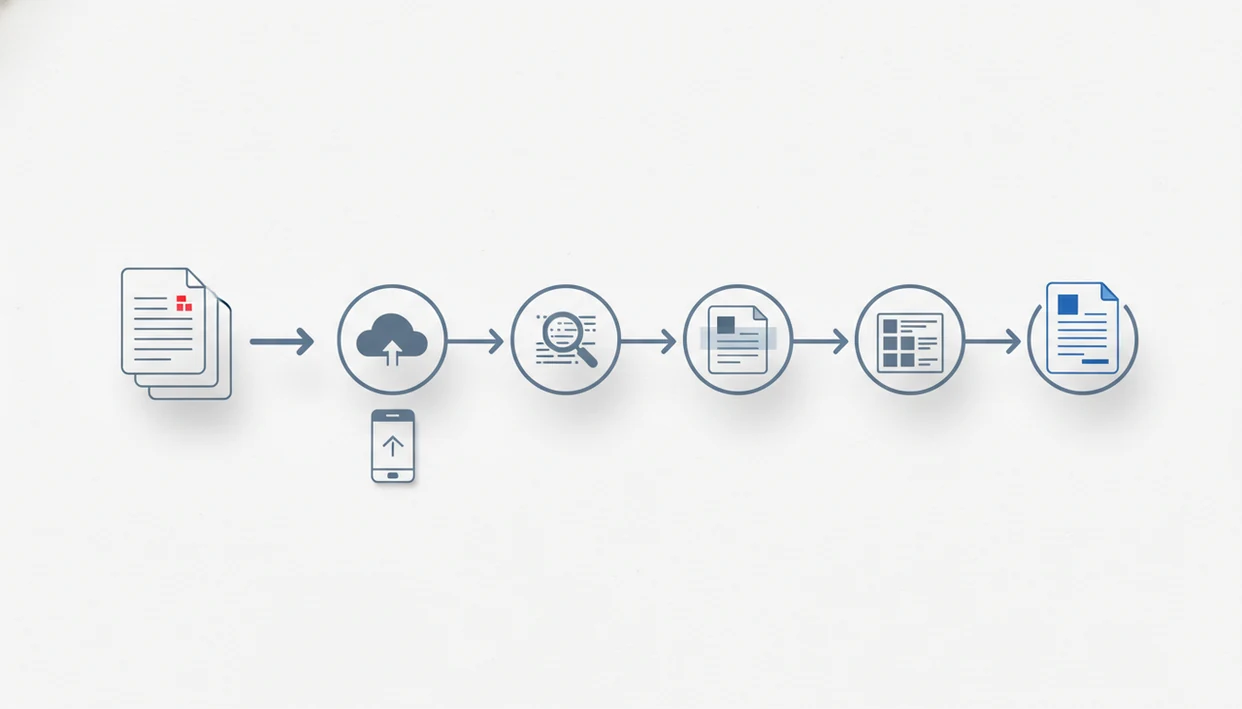
A PDF to Word conversion timeline usually runs from upload to processing, OCR if needed, DOCX rebuilding, download, and final review. Simple digital PDFs may convert in seconds, while scanned, large, image-heavy, or table-heavy files can take several minutes plus extra cleanup time.
> Definition: A PDF to Word conversion timeline is the staged path a PDF follows as it becomes an editable DOCX file, including upload, analysis, text extraction, layout reconstruction, download, and review.
TL;DR
- Most simple PDF to DOCX conversions take about 10 seconds to 2 minutes, but scanned or complex files take longer.
- The main PDF conversion steps are upload, file analysis, OCR when needed, DOCX rebuilding, download, and user review.
- On iPhone and Android, network speed, file size, cloud processing, and manual formatting cleanup often decide the real timeline.
PDF To Word Conversion Timeline At A Glance
Simple digital PDFs often convert to DOCX in about 10 seconds to 2 minutes, but that range is only a practical estimate. The visible timeline is upload, analysis, OCR if needed, DOCX generation, download, and review.
Treat the 10-second-to-2-minute range as a practical field estimate, not a guaranteed benchmark. Real timing depends on upload speed, file size, OCR needs, server queueing, download speed, and how long the final DOCX review takes.
The pause usually starts before conversion does. A phone may still be sending the source PDF, especially on hotel Wi-Fi or a weak 5G signal. After that, the converter checks whether the file has a text layer or only page images.
The quiet delay is review.
A five-page invoice can finish fast, then take longer to inspect because the table borders shifted or totals moved into the wrong column. Mobile users should also expect extra time when the app uses cloud processing, since upload and download become part of the real DOCX conversion process.
Before You Start A PDF To Word Conversion
Before you convert, make sure the PDF is usable, safe to upload, and ready to open as a DOCX afterward. A quick pre-check prevents the most common delays: failed uploads, unexpected OCR, privacy concerns, and a finished file you cannot view.
- Open the PDF first and confirm it is not corrupted, blank, or blocked by a password you do not have. If the file will not open normally, conversion is unlikely to fix it.
- Test whether the text is selectable by pressing or dragging over a sentence. Selectable text usually converts faster; a full-page image or photo scan will likely need OCR.
- Use Wi-Fi for large, image-heavy, or multi-page files so the upload does not stall halfway through processing.
- Decide whether the document includes sensitive personal, legal, medical, or financial details before sending it to any converter, especially a cloud-based one.
- Install Microsoft Word, Google Docs, or another DOCX viewer before converting, so you can open and inspect the result immediately.
Five PDF Conversion Steps That Decide The Timeline
Five parts of the PDF conversion steps decide both speed and quality, not just the converter’s progress bar. These facts explain why two PDFs with the same page count can finish at different times.
- File size and page count affect transfer time. A 2-page PDF can be slower than a 20-page PDF if it contains high-resolution images.
- Digital PDFs convert faster than scanned PDFs. Selectable text gives the converter something to extract directly.
- OCR adds time and possible errors. A scanned page must be read as an image before editable text can be rebuilt.
- Tables, columns, fonts, and images slow reconstruction. A merger agreement table with tiny borders needs more layout mapping than plain paragraphs.
- Review is part of conversion. For most editing work, the final DOCX check is not cleanup after the timeline; it is the last stage of the timeline.
For scanned files, the related scanned PDF to Word OCR timeline explains why recognition can become the longest step.
Evidence Behind The PDF Conversion Timeline
The timeline is based on how PDF and DOCX files are built, plus practical mobile transfer limits. The short timing ranges on this page are estimates unless a tool publishes a named test method or benchmark.
- Separate format facts from speed claims. PDF is a fixed-layout presentation format, while DOCX is an editable package of document parts such as paragraphs, runs, tables, styles, and media. That structural mismatch is why conversion includes rebuilding, not just renaming a file.
- Treat mobile delay as a real conversion stage. Heavy smartphone use and mobile web traffic make phone-first conversion normal, but upload speed, signal strength, and cloud round trips decide the wait a user actually feels.
- Label timing honestly. “10 seconds to 2 minutes” is a field estimate for simple digital PDFs, not a measured lab result. If first-party data is used, name the product testing method, such as device model, network type, file set, page counts, and repeated runs.
- Check OCR conditions before trusting the result. OCR accuracy changes with scan resolution, skew, contrast, handwriting, stamps, and whether the engine supports the document language.
- Review the DOCX after download. Benchmarks can measure processing time, but they do not replace checking tables, line breaks, and numbers.
How The DOCX Conversion Process Works Behind The Scenes
The DOCX conversion process rebuilds a new editable Word document from a fixed-layout PDF; it does not simply unlock the original file. A PDF preserves page appearance, while a DOCX stores editable paragraphs, runs of text, styles, lists, tables, and objects.
For source context, Adobe describes PDF as a format built to preserve document presentation across devices (https://www.adobe.com/acrobat/about-adobe-pdf.html), while Microsoft documents DOCX as WordprocessingML with paragraphs, runs, tables, styles, and related parts (https://learn.microsoft.com/en-us/office/open-xml/word/structure-of-a-wordprocessingml-document).
Behind the scenes, the converter looks for a text layer, detects fonts, identifies images, and maps where blocks appear on each page. In plain terms, it tries to turn a printed-looking page back into an editable structure.
Scanned PDFs add another step. OCR reads letters from page images before the converter can rebuild paragraphs and tables. That is why a PDF that looks selectable may still fail the long-press test on a phone and grab only one image block. A good PDF to Word converter app converts PDF files to editable DOCX Word documents on iPhone and Android, not a guaranteed replica of every margin, font, and border.
How To Use A PDF To Word Conversion Timeline On Mobile
Use the timeline as a checklist, not just a wait screen. On mobile, the safest approach is to let upload and download finish before switching networks or closing the app.
- Upload the source PDF from Files, Photos, email, or cloud storage, then stay online until the upload stage finishes.
- Wait during analysis while the app checks for selectable text, images, tables, and scanned pages.
- Keep the app available during OCR or DOCX generation, especially for large files or weak connections.
- Download the finished DOCX before leaving Wi-Fi or locking the phone for a long period.
- Review the document in Microsoft Word mobile or Google Docs before sending it back.
- Save a clean copy, then remove sensitive local copies from Recents if the file should not stay visible.
Tools like PDF To Word App fit this mobile timeline, especially when you need to download PDF to Word app for iPhone and check the result without moving to a laptop.
Upload And Queue Delays In Mobile PDF Conversion Steps
Upload delays happen because the phone must transfer the source PDF before processing can begin. File size, signal strength, network congestion, and cloud processing all affect this first visible stage.
Many converters process files on servers rather than entirely on the phone. That can help with OCR and heavy layout work, but it also means a slow upload can look like “processing” even when conversion has barely started. Phone heat during a large PDF conversion is a small clue that the device is doing more than showing a spinner.
Mobile context matters. Mobile devices accounted for about 60% of global website traffic in 2023, according to StatCounter (https://gs.statcounter.com/platform-market-share/desktop-mobile-tablet/worldwide/2023). Pew Research Center also reports that many adults rely on smartphones for internet access (https://www.pewresearch.org/internet/fact-sheet/mobile/). HTTP Archive page-weight data shows modern web transfers can be several megabytes, so a large PDF upload can feel heavy on a weak connection (https://httparchive.org/reports/page-weight).
OCR And Scanned PDF Conversion Timeline Delays
Does OCR make scanned PDF conversion take longer? Yes. OCR is the stage that reads text from page images before the converter can build an editable DOCX file.
Low resolution, skewed pages, handwriting, stamps, shadows, and faint photocopies all slow this stage. They also raise the chance of recognition mistakes. A receipt photographed under a desk lamp may produce editable text, but the merchant name, totals, or form labels can still need manual correction.
OCR creates a working text layer; it does not recreate perfect formatting.
Expect more review time for scanned contracts, receipts, forms, and image-based PDFs. A student opening a handout from the Files app five minutes before class may get a usable DOCX quickly, but tiny scanned paragraphs still need checking before quoting or submitting edits. If most of your files are scans, a download scanned PDF to Word app workflow is more relevant than a basic text-only converter.
DOCX Conversion Process Review And Quality Checks
Review is the final stage of the DOCX conversion process, not an optional extra. After download, compare the editable DOCX against the original PDF before sending, signing, filing, or redlining it.
Check headings, line breaks, fonts, tables, columns, images, and page order. PDFs and DOCX files use different layout models, so the converter must approximate structure rather than preserve the page as a single fixed object. That is why numbered contract clauses can shift by half a line after conversion, even when the text itself is correct.
For contract, resume, and academic files, open the DOCX in Microsoft Word mobile if possible. Look at the first page, one middle page, and the final page. For users who mainly need editable Word output, a download PDF to DOCX app path should still include this formatting check before sharing the file.
Common PDF Conversion Mistakes And Troubleshooting
Most PDF conversion problems come from the same few places: the file never fully uploads, OCR was skipped, layout reconstruction guessed wrong, or the finished DOCX did not download cleanly. Troubleshoot in that order before starting duplicate jobs.
- Switch to a steadier network if the upload stalls, then retry only after the phone has a reliable signal. Moving from weak mobile data to Wi-Fi can save more time than repeatedly tapping convert.
- Confirm whether OCR was enabled when text is missing or appears as one large image. If the original PDF is a scan, the converter needs OCR before it can create editable Word text.
- Compare tables against the original PDF column by column. Totals, dates, and account numbers can slide into nearby cells even when the table looks mostly correct.
- Choose readability when fonts shift. An exact visual match is less important than clean, editable text that a reviewer can understand and revise.
- Reopen the app if the download fails, then check whether the completed file is still available before launching another conversion. That avoids wasting time and creating two slightly different DOCX versions.
Limitations
PDF to Word conversion is useful, but it has real limits. Set expectations before depending on the finished DOCX.
- No converter can perfectly preserve every font, layout, table, border, image, or graphic.
- Scanned PDFs with poor image quality can remain inaccurate after OCR.
- Slow mobile networks can make upload and download slower than the actual conversion.
- Large files and bulk conversions may be queued, throttled, or split by some tools.
- Free apps may limit file size, page count, daily conversions, OCR access, or downloads.
- Password-protected PDFs may require the correct password before conversion can begin.
- Complex legal, academic, or financial documents should be compared line by line before use.
- Sensitive files need careful file handling, including deleting local copies when appropriate.
Not glamorous. Necessary.
Apps such as PDF To Word App, Adobe Acrobat online, Smallpdf, and iLovePDF can all produce useful DOCX files, but the review step still belongs to the user.
FAQ
How long does PDF conversion take?
Simple digital PDF to Word conversion often takes about 10 seconds to 2 minutes. Large files, scanned pages, complex layouts, weak mobile connections, and OCR can make it longer.
Why is my PDF still processing?
Your PDF may still be uploading, waiting in a queue, running OCR, or rebuilding a complex DOCX layout. On iPhone and Android, weak Wi-Fi or mobile data can make this stage feel slower than the actual conversion.
Do scanned PDFs take longer?
Yes, scanned PDFs usually take longer because OCR must read text from page images before DOCX rebuilding starts. Poor scan quality can also reduce accuracy.
Does OCR make text editable?
OCR can turn text in a scanned PDF into editable Word text. The result may still need manual correction for misspelled words, broken lines, or misread numbers.
Why did formatting change?
Formatting changes because PDF and DOCX files store layout differently. Fonts, tables, spacing, columns, images, and page breaks may shift during conversion.
Can I close the app?
It is safer to stay online during upload and download, especially in mobile apps such as PDF To Word App. After processing starts, background behavior depends on the app, phone settings, and connection.
Is cloud conversion faster?
Cloud conversion can be faster for OCR and large layout reconstruction because servers may have more processing capacity than a phone. It can also feel slower if upload or download speed is poor.
What should I check after conversion?
Check the DOCX text, headings, tables, images, fonts, line breaks, columns, and page order. Compare the converted file against the original PDF before sending or editing further.