
Before-and-after DOCX conversion examples
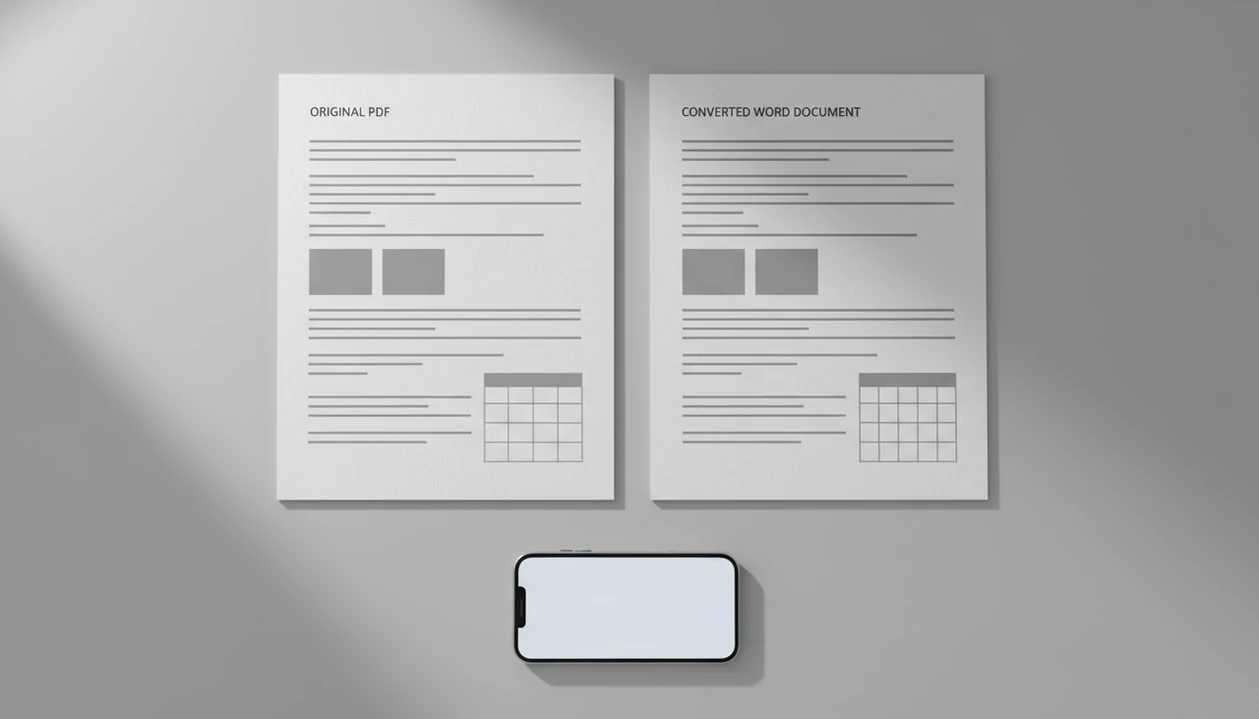
The best way to see PDF to Word before and after quality is to compare the original PDF against the converted DOCX for editable text, table structure, image placement, fonts, and reading order. Clean digital PDFs usually convert well, while scanned files, columns, forms, and image-heavy pages often need manual cleanup.
> On mobile, a converter should turn the source PDF into an editable DOCX you can open in Word or Google Docs, then compare against the original before sharing.
- A good PDF to Word result keeps the text editable, preserves the main layout, and leaves tables usable in Word or Google Docs.
- A flawed DOCX conversion usually shows broken tables, shifted images, font substitutions, merged columns, or OCR mistakes.
- Before sharing a converted Word file, compare it page by page with the original PDF, especially on invoices, resumes, contracts, and scanned documents.
Conversion results at a glance
A good PDF to Word before-and-after result gives you editable text, recognizable spacing, usable tables, and images that stay near their original positions. An acceptable result needs light cleanup, while a poor result forces you to rebuild sections by hand.
Check six things first: text, tables, images, fonts, spacing, and OCR. Digitally created PDFs usually give the strongest match because the text layer already exists. A PDF that looks selectable until you long-press and only grab an image block is different. That file needs OCR before Word can edit the words.
Small changes are normal. Line breaks may move. A font may be replaced. Page two may start a few lines earlier than it did in the source PDF.
How PDF and DOCX conversion works
PDF to Word conversion is document reconstruction: a PDF preserves page appearance, while a DOCX stores editable structure such as paragraphs, headings, tables, images, and styles. That difference is why conversion is not a simple file format swap.
How PDF to Word conversion works: the converter extracts the text layer, estimates reading order, rebuilds paragraphs, detects tables, places images, and applies fonts or substitutes. If the page is scanned, OCR first turns the image of text into editable characters. In plain terms, the app is rebuilding a Word document from visual and structural clues.
A 2018 benchmark of commercial PDF conversion tools found layout preservation ranged from about 70% to over 95%, depending on tool and document type, with tables and multi-column layouts causing the most errors source. A reference table with tiny superscripts is exactly where we slow down and compare line by line.
How to check conversion results on iPhone and Android
How to use a PDF to Word converter on mobile: convert the PDF, open the DOCX in a mobile office app, then compare the result against the source PDF before sharing it. Microsoft Word, Google Docs, and other office apps can open most DOCX conversion results.
- Open the source PDF from Files, Drive, email, or your Android file picker.
- Convert the PDF to DOCX using your chosen app or service.
- Compare the first, middle, and last pages against the original PDF.
- Edit problem areas in Microsoft Word, Google Docs, or another mobile office app.
- Save a clean copy with a clear name, such as `invoice-edited.docx`.
Five minutes before class, a student may open a handout from the Files app and need fast edits. That is when the formatting check matters most. If you are testing on iOS, you can download PDF to Word app for iPhone and run the same page-by-page comparison.
Clean digital document examples
Does a clean digital PDF convert well to Word? Usually, yes, if the PDF has selectable text, simple headings, normal paragraphs, and few graphics.
Before: selectable PDF text
A simple business letter or monthly report often starts with real text, not a flat image. You can select a sentence, copy it, and see normal headings. Monthly report pages on dual monitors are a good test because the spacing is visible immediately.
After: editable DOCX paragraphs
The converted DOCX should let you edit paragraphs, adjust headings, and delete or add text without breaking the page. Font substitution and changed line breaks are usually acceptable if the reading order stays right. For text-heavy digital PDFs, conversion usually works best when the source file has a real text layer, while OCR fits image-only scans.
DOCX conversion results for tables, invoices, and forms
Tables are the most important before-and-after test because a table can look fine at first glance and still contain shifted values. Always verify numbers, labels, totals, and row order before sending the DOCX.
Before: fixed PDF table grid
An invoice PDF may show a fixed grid with item names, quantities, tax, and totals locked into visual rows.
After: editable Word table
A good result creates a real Word table. A flawed result may turn the grid into floating text blocks.
| Area to compare | Good DOCX result | Warning sign |
|---|---|---|
| Rows and columns | Cells remain aligned | Values slide into the wrong column |
| Totals | Totals match the PDF | Decimal points or labels move |
| Borders | Grid is editable | Borders become loose lines |
| Form labels | Labels stay near fields | Labels merge with answers |
Tools like PDF To Word App, Adobe Acrobat online, and Smallpdf can produce different results on the same table, so the source PDF still decides much of the outcome.
Scanned document before and after OCR examples
Scanned PDFs need OCR before the text can become editable in Word. OCR quality depends on scan resolution, contrast, language, skew, and whether the page has columns or handwriting.
- A scanned PDF is often one image per page until OCR identifies letters and words.
- A good OCR result gives searchable text, mostly correct characters, and usable paragraphs.
- A poor OCR result shows wrong letters, missing accents, broken lines, or image-only output.
- A 2021 systematic review reported that modern OCR can exceed 98% character recognition on high-quality scanned English documents, but accuracy drops on poor scans and complex layouts source.
- If your file is a scan, a dedicated workflow such as download scanned PDF to Word app is more relevant than a plain text-layer conversion.
Cold tea beside a conference paper is a familiar OCR scene. The PDF looks readable to your eyes, but the converter still has to recognize every character.
5 DOCX conversion warning signs
Bad DOCX conversion results are usually visible within the first minute if you know where to look. These warning signs matter because they increase editing time and create easy-to-miss errors.
- Broken tables: rebuild the table if totals or columns no longer line up.
- Merged columns: reconvert from a cleaner PDF or split the text manually.
- Image shifts: replace the image and anchor it again in Word.
- Missing text: check whether the source page was scanned or protected.
- Wrong reading order: move paragraphs back into sequence before editing.
Microsoft notes that PDF-to-Word conversion can change page breaks, tables, graphics, footnotes, and other layout elements, so layout review is still required after conversion source. That matches real review work. Clause headings checked against an original PDF can reveal numbered contract clauses shifting by half a line after conversion. For complex files, compare the result against a PDF to Word conversion timeline so you know when cleanup is normal and when to restart.
Limitations
Before-and-after examples set expectations, but they cannot guarantee your exact result. A good PDF to Word converter app that converts PDF files to editable DOCX Word documents on iPhone and Android should deliver editable structure, not a pixel-identical clone of every source PDF.
- No converter can guarantee pixel-perfect DOCX output for every PDF.
- Fonts, line breaks, image positions, and page counts may change.
- Scanned PDFs, handwriting, low-resolution files, and unusual fonts can cause OCR errors.
- Large or graphics-heavy PDFs may fail, process slowly, or lose image quality on mobile.
- Some mobile apps process files in the cloud, so check privacy practices before uploading sensitive documents.
- Free or ad-supported tools may impose file size limits, watermarks, queue delays, or quality restrictions.
- Password-protected PDFs may require the correct password before conversion can start.
Sensitive files need an extra pause. After handling a contract or resume, delete the local copy from Recents if your workflow requires it. If you need a general mobile converter, you can download PDF to DOCX app and test with a non-sensitive sample first.
FAQ
Will the converted Word file look identical to the original PDF?
Identical output is not guaranteed. Minor changes in fonts, line breaks, image placement, and pagination are normal.
Why did my table break after converting PDF to Word?
A table in a PDF may be visual layout, not a true editable table. The converter must reconstruct rows and columns, and complex grids can fail.
Can a scanned PDF become editable in Word?
Yes, a scanned PDF can become editable if OCR recognizes the text. The result depends on scan quality, contrast, resolution, and page complexity.
What does a good PDF to Word result look like?
A good result has editable text, preserved reading order, usable tables, and minimal layout cleanup. It should be easy to edit in Word or Google Docs.
Why are the fonts different after PDF to Word conversion?
Fonts change when the original PDF font is unavailable, embedded differently, or substituted during DOCX creation. The text may still be editable even when the font changes.
Can I compare PDF to Word before and after results on my phone?
Yes, you can open the PDF and DOCX in separate apps or switch between previews on iPhone and Android. Checking the converted DOCX in Microsoft Word mobile before sending it back is a practical final step.
Are online PDF to Word converters private?
Many online converters upload files for processing. Review the tool’s security, retention, and deletion policies before uploading sensitive documents.
How do I fix a bad PDF to Word conversion?
Try reconverting from a cleaner source PDF, correcting OCR text, rebuilding broken tables, and replacing shifted images. If the file is complex, PDF To Word App may still need manual review after conversion.