
Large PDF To Word Timeline On Mobile Devices
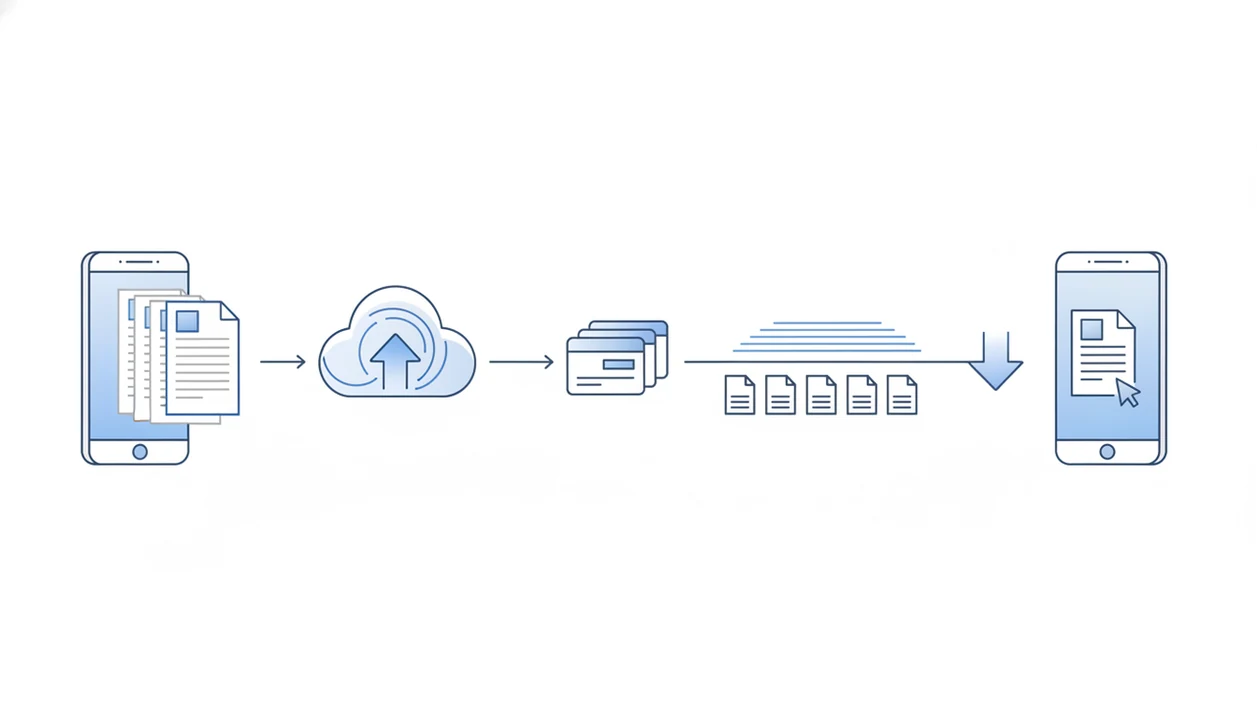
A large PDF to Word timeline is usually longer on mobile because the phone must upload the PDF, wait for layout analysis or OCR, then download the finished DOCX over a connection that may slow down or drop. Big scans, image-heavy pages, weak Wi-Fi, cellular upload limits, server queues, low battery, and background app suspension can all turn a conversion from seconds into minutes or a failed timeout.
PDF To Word App is a document conversion app that converts PDF files into editable DOCX documents for people using iPhone and Android.
- Large PDF conversion time depends most on file size, page count, scans, OCR, upload speed, server processing, and DOCX download speed.
- The biggest mobile risks are unstable networks, iOS or Android pausing background work, low power mode, and apps timing out during long uploads.
- To reduce big PDF to DOCX delay, use reliable Wi-Fi, keep the app open, close heavy apps, split very large PDFs, and avoid converting while the phone is low on power.
Large PDF to Word Timeline Meaning
A large document conversion timeline means the total elapsed time from selecting the source PDF to receiving an editable DOCX. It includes upload, queue time, conversion, OCR when needed, DOCX generation, and download.
A 5-page text PDF and a 200-page scanned contract are not comparable jobs. The first may already contain a text layer. The second may be a stack of images that must be read page by page before Word text can be built.
On mobile, the wait feels longer because you often watch the progress inside one app. We have seen users reopen a PDF that looked selectable, long-press it, and realize the whole page was only an image block.
That changes the timeline.
For a broader baseline, compare this with a standard PDF to Word conversion timeline.
How Large PDF Conversion Works On Mobile
Large PDF conversion on mobile works as one elapsed timeline: the phone sends the PDF, the job waits its turn, the converter reads the document, a DOCX is built, and the finished file returns to the device. The time you see is not just server processing time; it also includes upload, queue, download, and any phone-side interruptions.
- Upload the PDF from local storage, cloud storage, email, or another app to the converter.
- Wait while the job enters a queue if cloud processing is being used or if the file is large.
- Analyze the pages for text, layout, images, tables, and page order.
- Recognize scanned pages with OCR, because an image-only scan has no editable text until page-image recognition turns visible letters into text.
- Build the DOCX structure and download it back to the phone.
Cloud limits are different from phone limits. A cloud service may be slowed by file-size rules, server load, or OCR demand, while the phone may be slowed by weak upload speed, low battery, background suspension, or limited storage.
Large PDF to Word Mobile Conversion Pipeline
Large mobile PDF conversion works in stages: the phone sends or processes the file, the converter analyzes the document, then it builds and returns a DOCX. Each stage can slow down on iPhone or Android.
First, the PDF uploads from local storage, Files, Google Drive, email, or another app. Some tools process locally, but larger jobs often use cloud conversion because layout detection and OCR need more compute than a phone can spare for long.
The converter then checks text extraction, page order, fonts, images, tables, headers, and spacing. Scanned pages need OCR, which means optical character recognition. In plain terms, the app must “read” each page image before it can create editable Word text.
Finally, the service generates the DOCX and downloads it back to the phone. Cloud conversion can be faster for heavy processing, but it depends on a stable connection. Good document converter app workflows deliver usable DOCX output, not a guarantee that every PDF layout will be recreated exactly.
Large PDF Conversion Time Factors On iPhone And Android
Large PDF conversion time is mostly shaped by file weight, page type, connection quality, processing limits, and phone state. These five facts explain most big PDF to DOCX delay.
- File size matters: A 300 MB PDF takes longer to upload and download than a 12 MB PDF, even before conversion starts.
- Page type matters: Text PDFs usually convert faster than image-only PDFs or scanned pages that need OCR.
- Upload speed matters: Mobile users often know download speed, but large PDF conversion depends heavily on upload stability.
- Processing limits matter: Cloud queues, server load, or on-device CPU and RAM can slow a large job.
- Phone condition matters: Low battery mode, limited storage, background restrictions, and many open apps can interrupt conversion.
A student opening a handout from the Files app five minutes before class will notice every stalled percentage point. For scanned files, a download scanned PDF to Word app workflow should set OCR expectations before the upload starts.
Big PDF to DOCX Delay Stages And Bottlenecks
A big PDF to DOCX delay is easier to diagnose when you separate the timeline into stages. The slow part is not always the visible part.
| Stage | What happens | Common bottleneck |
|---|---|---|
| Upload | The PDF moves from phone to converter | Weak upload speed or network switching |
| Queue | The job waits for processing | Server load or file-size limits |
| OCR/layout processing | Text, scans, tables, and images are analyzed | Scanned pages and complex formatting |
| DOCX build | Word structure is generated | Fonts, tables, headers, and page breaks |
| Download | The finished DOCX returns to the phone | Interrupted data connection or low storage |
Upload is often the hidden bottleneck. A phone may stream video well, yet still struggle to send a 400 MB PDF from a crowded train station.
Scanned PDFs can also look frozen during OCR. The job may still be running, especially when tilted page text must be corrected before Word paragraphs are created. A failed final download can make a completed conversion look unsuccessful, so always check storage and the app’s recent files.
Before You Start A Large PDF Conversion
Before you start a large PDF conversion, make sure the file, phone, and connection are ready for a long upload and return download. A quick pre-check can prevent the most common mobile timeout: the job fails after you have already waited several minutes.
- Inspect the PDF before uploading it. Note the file size, page count, and whether the pages are clean scans, camera photos, or normal digital text. Try selecting a sentence; if nothing highlights, the file probably needs OCR and may take longer.
- Confirm the connection you plan to use. Stable Wi-Fi is usually best, but strong cellular can be safer than public Wi-Fi that asks you to rejoin or drops when the screen locks.
- Prepare the phone for the whole timeline. Charge the battery, leave enough free storage for the DOCX, and adjust screen timeout or auto-lock settings if needed.
- Decide whether the file should be split first. Very large PDFs, scanned bundles, and confidential documents may be better converted in smaller sections, especially when only a few pages need editing.
This short pause is boring, but it is faster than restarting a 300-page upload from zero.
How To Use PDF To Word App For Large PDF Conversion Time
Use a deliberate mobile workflow for large files instead of treating them like small PDFs. Tools like PDF To Word App can help with DOCX conversion, but the phone and network still control much of the timeline.
- Check the file size, page count, and page type before conversion. A scanned 180-page lease behaves differently from a text-based report.
- Switch to stable Wi-Fi or a strong cellular signal before starting. Avoid public Wi-Fi that drops when the screen locks.
- Close heavy apps that are using memory, battery, or network bandwidth in the background.
- Keep the app open and the phone awake during long uploads or OCR-heavy jobs.
- Download the finished DOCX and open it in Microsoft Word mobile or Google Docs to confirm the text is editable.
- Save a copy before editing, especially if the original came from email or a shared folder.
If you still need setup guidance, use the download PDF to Word app page for the mobile install path.
Mobile Network Effects On Large Document Conversion Timeline
Mobile network quality can make the same PDF convert quickly one day and slowly the next. Signal strength, upload speed, congestion, and network switching all affect the large document conversion timeline.
Pew Research Center reports that 90% of U.S. adults own a smartphone, which explains why document conversion now happens in taxis, hallways, and lunch breaks (https://www.pewresearch.org/internet/fact-sheet/mobile/). The FCC’s mobile broadband reporting shows that real-world mobile performance varies by carrier, location, and signal quality, so upload stability can matter more than headline download speed for large PDFs (https://www.fcc.gov/reports-research/reports/measuring-broadband-america). Ericsson projects continued growth in mobile data traffic through 2029, which can add congestion during busy periods (https://www.ericsson.com/en/reports-and-papers/mobility-report).
Common Large Document Conversion Timeout Mistakes
“Why does my large PDF conversion keep timing out?” Usually, the cause is one of a few repeatable mobile behaviors, not always a damaged PDF.
Leaving the app, locking the screen, or switching to another task can pause a long upload or processing session. iOS and Android both manage background activity to protect battery, and document conversion can get caught by those rules.
Starting on low battery is another common mistake. Low power mode may reduce background work, network activity, or screen-on time. We have also seen users begin a lease addendum conversion from a taxi, then move between cellular towers during upload.
Unstable public Wi-Fi is risky for large files. So is converting a huge scanned PDF without splitting it first. Running video calls, games, cloud backup, or multiple document apps can also consume memory and bandwidth.
Small-file success does not predict large-file performance. A one-page receipt and a 250-page scan are different workloads.
Large DOCX Verification Checklist
After a long conversion, verify the DOCX before sending or editing it. A completed download does not prove the Word file is accurate or fully editable.
- Open the DOCX and click into the text. Confirm it is editable text, not one large image inside Word.
- Review page breaks, tables, headers, footers, images, and numbered lists.
- Check scanned pages for OCR errors, especially names, dates, totals, and clause numbers.
- Compare the first, middle, and last pages against the original PDF.
- Save a clean copy before making edits.
For contract-style files, inspect numbered clauses carefully. We have seen clause headings shift by half a line after conversion, which looks minor until redlines begin. If your main goal is editable DOCX output, a download PDF to DOCX app workflow should still end with this formatting check.
Limitations
Large document conversion on mobile has real limits. Faster networks and better apps reduce risk, but they do not remove every bottleneck.
- Very large or image-heavy PDFs may still be slow, even on a strong connection. - Complex layouts, forms, unusual fonts, layered graphics, and dense tables may not convert cleanly to DOCX. - Offline on-device conversion is limited by phone storage, CPU, RAM, and battery. - Cloud conversion speed cannot be guaranteed during server queues, congestion, or service limits. - Privacy-sensitive files may not be suitable for cloud upload, especially contracts, medical records, or confidential business files. If privacy is the priority, compare cloud tools such as Adobe Acrobat, Smallpdf, iLovePDF, Google Drive, and Microsoft Word against their file-retention, deletion, and offline-processing policies before uploading confidential documents. - A timeout does not always mean the PDF is corrupted. It may mean the job exceeded mobile, network, or converter limits. - Low storage can block the final DOCX download even after processing finishes.
For sensitive documents, the quiet final step matters: delete unneeded local copies from Recents after you confirm the saved version is where it belongs.
FAQ
Why is my mobile document conversion slow?
It is usually slow because the phone must upload the file, process layout or OCR, then download the DOCX. File size, scans, weak signal, and server queue time all add delay.
How long should a large document conversion take?
A large PDF may take minutes rather than seconds, especially if it has many scans or images. Exact timing depends on file size, page count, connection stability, OCR, and queue load.
Do scanned PDFs take longer to convert to Word?
Yes, scanned PDFs usually take longer because OCR must identify text from page images. OCR can also introduce recognition errors that need manual review.
Does Wi-Fi speed affect document conversion time?
Yes, both upload and download speed affect conversion time. Weak Wi-Fi can be worse than strong cellular if it drops during upload or DOCX download.
Can I close the app while a large PDF is converting?
Closing the app, switching tasks, or locking the phone can pause or interrupt long mobile conversions. Keep the app open when converting a large PDF.
Should I split a large PDF before converting it to Word?
Splitting can reduce timeout risk when a PDF is very large, scanned, or image-heavy. Convert sections, then merge or edit the DOCX files after verification.
Why did my converted DOCX fail to download or open?
The likely causes are network interruption, low storage, timeout, file-size limits, or unsupported document complexity. Try again on a stable connection and verify available storage.
Is cloud document conversion faster than on-device conversion?
Cloud conversion can be faster for OCR and complex layouts because remote servers handle the processing. It still depends on upload stability, server load, privacy requirements, and the app’s file limits.