
Find Broken PDF To Word Formatting Before You Edit
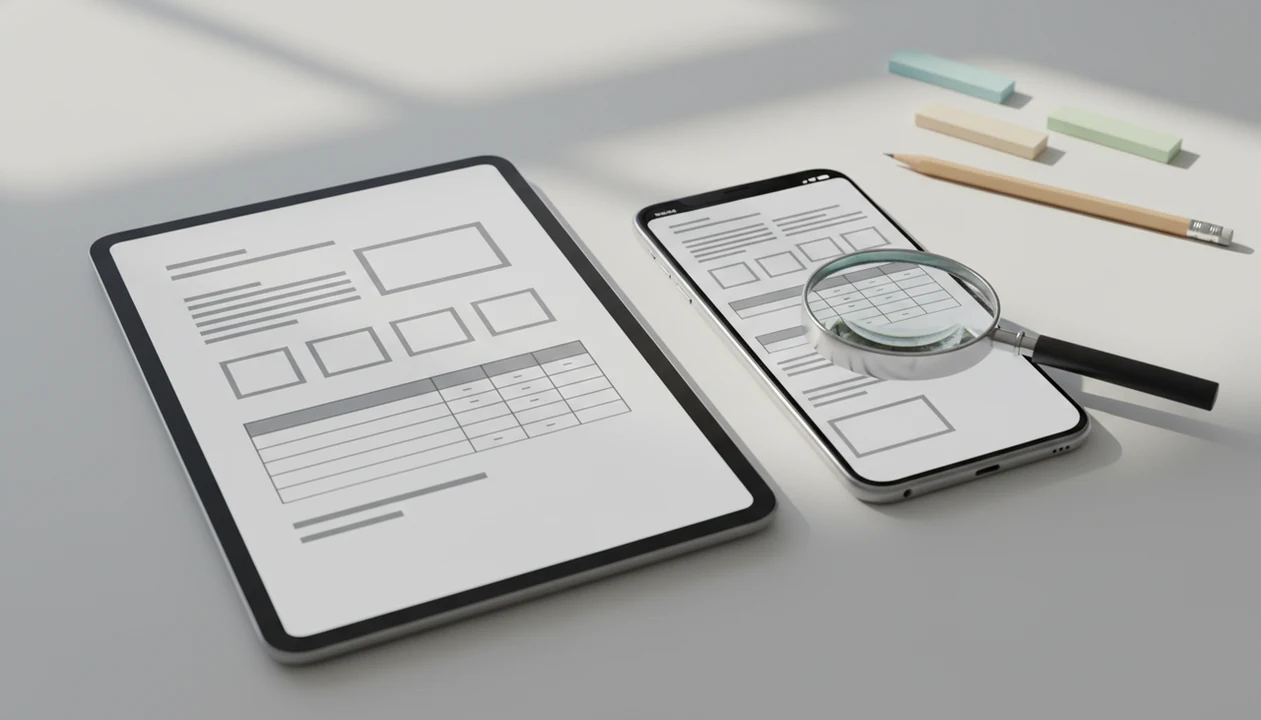
To find broken PDF to Word formatting, compare the converted DOCX against the original PDF before editing and check fonts, spacing, columns, tables, lists, headers, images, and page breaks in order. This catches layout damage early, before you waste time editing text that may need to be rebuilt.
PDF To Word App converts PDFs into editable DOCX documents on iPhone and Android.
- Start by opening the original PDF and converted DOCX together, then scan page structure before editing words.
- The highest-risk areas are tables, columns, lists, headers, footers, images, scanned text, and forced page breaks.
- Treat formatting review as quality control: some differences are cosmetic, but broken tables, missing text, and bad reading order can affect submission or sharing.
How PDF to Word formatting breaks during DOCX conversion
PDF to Word formatting breaks because a PDF stores a fixed page appearance, while Word builds an editable document that reflows as text, margins, fonts, and objects change. That mismatch is the root of most layout issues after conversion.
A source PDF may contain text boxes, embedded fonts, image layers, columns, tables, lists, headers, footers, and hard page breaks. During conversion, those items must be translated into Word’s paragraph, style, table, and object model. A page that looks selectable can still behave oddly when you long-press and grab one image block instead of real text.
Complex PDFs cannot always become exact editable DOCX files. The U.S. National Archives notes that PDF to text or Word document conversion often struggles with complex layouts, especially tables and forms, and recommends manual quality control after conversion.
A good pdf to word converter app that converts pdf files to editable docx word documents on iphone and android should deliver usable editable text and layout preservation, not a promise that every source PDF will become an identical Word file.
5 facts about broken DOCX formatting after PDF conversion
- PDF and Word use different layout models, so a converted DOCX may reflow even when the conversion succeeds.
- Text may convert into separate boxes instead of normal paragraphs, especially when the PDF was built from positioned fragments.
- Scanned PDFs need OCR, and OCR can add text errors, false line breaks, or missing characters.
- Mobile converters can preserve much of the source PDF, but tables, columns, forms, and images still need inspection.
- Systematic inspection finds broken DOCX formatting faster than random proofreading because it checks the riskiest areas first.
In a Microsoft research study on document conversion and editing, participants reported layout changes as the main problem when moving documents between formats. That tracks with everyday files: a resume header may look fine until the spacing shifts before an application deadline.
If your main issue is image-only text, a download scanned PDF to Word app workflow should include OCR review, not just a visual check.
How to use a PDF to Word formatting checklist on iPhone or Android
Use a formatting checklist before editing so you can separate conversion repair from content changes. On mobile, the order matters because small screens make it easy to miss a shifted table or broken footer.
- Open the original PDF and the converted DOCX in separate apps or recent-file views.
- Review one page at a time, starting with page structure instead of word-level edits.
- Check headings, columns, tables, lists, images, headers, footers, and page breaks.
- Compare the first page, last page, and every page with a table, form, or large image.
- Save a clean copy of the converted DOCX before fixing anything.
Do this before changing sentences. A student opening a handout from the Files app five minutes before class should first confirm the columns survived, then edit notes. For iPhone-specific setup, the download PDF to Word app for iPhone page covers the app path separately.
PDF to Word layout issues that matter before submission
Submission-critical layout issues after conversion are problems that change meaning, hide content, or make the DOCX hard to review. Cosmetic differences matter less unless the file has strict formatting rules.
| Issue type | Examples | Priority |
|---|---|---|
| Submission-critical | Missing text, broken tables, wrong numbering, unreadable OCR, cut-off content | Fix before editing |
| Submission-critical | Misplaced signatures, shifted images, damaged forms, wrong reading order | Compare with the PDF |
| Cosmetic | Slightly different fonts, small spacing changes, minor line wrapping | Fix after structure |
| Cosmetic | A heading moves by one line but content stays complete | Usually lower risk |
Tables, forms, columns, and positioned elements deserve first attention because they depend on layout relationships, not just text. Adobe guidance warns that tables, multi-column layouts, and positioned elements are error-prone when converting PDFs to editable formats and need post-conversion checks.
A table that “mostly” converted can still lose a merged cell. That one cell may be the point.
Mobile review method for finding broken PDF to Word formatting
When you cannot compare documents side by side, use page order as your anchor. Move through the original PDF and converted DOCX by page number or thumbnails, then check the same page in both files.
Start zoomed out. Look at page shape, section breaks, image placement, and whether the document suddenly gets longer or shorter. Then zoom in for paragraph spacing, bullets, numbering, and text that may have split into boxes. On a phone, a monthly report page on dual monitors becomes a narrow strip, so subtle alignment problems can disappear until you open the file later.
Check the first page, last page, and any page with tables or images before reading every paragraph. Use comments or a note app to list fixes first. Tools like PDF To Word App, Adobe Acrobat online, and Smallpdf can produce a workable DOCX, but the mobile formatting check is still yours.
For Android users, the download PDF to Word app for Android route should still end with a Word or Google Docs review.
Common myths about PDF to Word layout issues
Myth 1: A good converter always creates a perfect Word copy. A clean source PDF may convert closely, but a complex PDF with columns, forms, and layered graphics often needs manual cleanup.
Myth 2: Broken formatting always means the app is bad. The source PDF structure often predicts the damage. Scans, text boxes, and unusual fonts can create problems before any app touches the file.
Myth 3: Fixing one visible problem fixes the whole document. A corrected heading does not repair a broken table, a shifted image, or a footer that disappeared three pages later.
Myth 4: Mobile conversion is always worse than desktop conversion. Many mobile tools use similar conversion engines to desktop services. The real weakness is review space, not always conversion quality.
Numbered contract clauses are a useful test. If clause 4.2 shifts by half a line after conversion, inspect every numbered section before redlining.
Accessibility checks for broken DOCX formatting
A converted DOCX can look acceptable and still have broken structure. Accessibility checks verify whether headings, lists, tables, images, and reading order make sense beyond the visual page.
Check heading hierarchy first: Heading 1, Heading 2, and body text should not be faked with bold styling alone. Then inspect list structure, table order, alt text placeholders, and whether text reads in the right sequence. Screen readers and other assistive technologies may misread a converted file if the source PDF used columns, floating objects, or scanned text.
The UK Government Digital Service guidance says converted documents may need manual correction of headings, lists, and reading order. In Word mobile, run a formatting check before sending the DOCX back, especially if the file will be shared with classmates, clients, or public users.
For many users, download PDF to DOCX app workflows work best when followed by a separate accessibility and structure pass.
Limitations
No mobile review method can detect every conversion problem. Users often spend extra editing time correcting spacing, alignment, and list problems after document import or conversion.
- No converter can perfectly preserve every complex layout from every source PDF.
- Small screens make side-by-side comparison difficult, especially for columns and tables.
- Scanned PDFs and OCR can create hidden text errors that look fine at a glance.
- Tables, forms, columns, and positioned elements may require manual rebuilding.
- Fonts may substitute if the exact font is unavailable on the device or in Word.
- Some issues only appear after printing, emailing, or opening the DOCX on desktop Word.
- Password-protected or restricted PDFs may block extraction or create incomplete output.
- Sensitive files need extra file handling care, including deleting local copies from Recents when appropriate.
If you need a fresh install before testing, the download PDF to Word app page is a better starting point than editing a damaged copy repeatedly.
FAQ
Why did my DOCX formatting break?
Your DOCX formatting broke because PDFs and Word files use different layout systems. A PDF fixes content on a page, while Word reflows editable text and objects.
Can conversion to DOCX stay identical?
Simple PDFs can stay very close after conversion. Complex layouts with tables, columns, forms, scans, and positioned images rarely convert perfectly.
How do I check converted tables?
Compare row count, column count, merged cells, borders, alignment, and missing text against the original PDF. Open the DOCX in Word if possible before submitting it.
Why are fonts different after document conversion?
Fonts may change when the original font is embedded, unavailable, restricted, or mapped to a substitute during conversion. Style changes can also occur when Word rebuilds the document.
Why did images move in my converted Word document?
Images can move because Word treats positioned objects and anchors differently from a fixed PDF page. Reflowed text may push images higher, lower, or onto another page.
Do scanned PDFs convert worse than digital PDFs?
Yes, scanned PDFs usually convert worse because they require OCR before Word text can be created. OCR increases the risk of missing words, odd characters, and layout errors.
Can I fix broken page breaks in Word?
Yes, you can remove extra breaks, add manual page breaks, and check whether headers or footers caused the shift. Review the pages after each change.
Should I edit text before checking formatting?
No, inspect layout first. Otherwise, you may spend time editing text inside a section that later needs to be rebuilt.