
Check Editable DOCX Output After PDF to Word Conversion
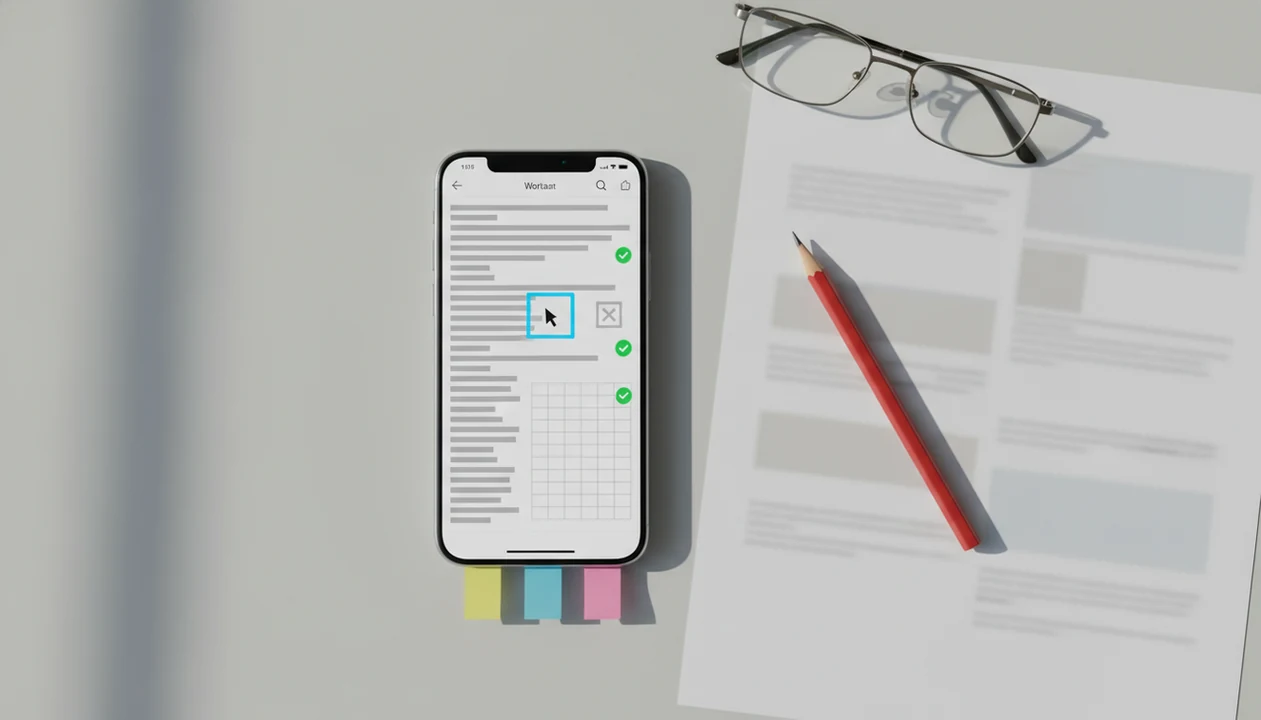
To check editable DOCX output, open the converted Word file and confirm that real text, headings, tables, images, links, and page order can be selected and changed, not just viewed. Use a short quality checklist before you share, print, or keep editing the document.
A mobile PDF-to-DOCX converter can create an editable Word file, but the result still needs a quick structure check before you rely on it.
- A converted DOCX is truly editable only if you can place the cursor inside most visible text and type, delete, or reformat it.
- Scanned PDFs need OCR, so proofreading is required even when the layout looks correct.
- Tables, multi-column layouts, images, links, and page breaks are the most common places to find conversion errors.
Editable DOCX output quality at a glance
A converted DOCX passes the first quality check only when it is editable, not merely similar to the source PDF. Visual matching is useful, but it does not prove you can revise the file in Word.
Use the fast checks first: place the text cursor in several paragraphs, select a paragraph, test headings, click table cells, move an image, open links, compare page order, and proofread OCR text. On iPhone or Android, open the DOCX in Microsoft Word mobile or another compatible editor before sending it back. We often catch problems only after tapping into the file, especially when a PDF looks selectable until a long-press grabs one image block.
To verify PDF to Word result quality, test editing behavior before judging appearance.
Five facts before you verify PDF to Word result quality
- Editable means cursor-level editing. If the whole page selects as one object, the DOCX may be a screenshot rather than usable Word text.
- Structure matters. Headings, lists, paragraphs, tables, and images should behave like Word elements, not scattered fragments.
- Scanned PDFs depend on OCR. In one analysis of 1,352 PDFs, about 26% contained only scanned page images, which need OCR before they can become editable text source.
- Mobile checks need touch tests. Tap to edit, reformat a paragraph, move an image, open links, and inspect footnotes if the document has them.
- Conversion engines vary. If a converted file has broken structure, reconverting with OCR, updating the app, or trying another engine can produce a cleaner DOCX.
A good converter should deliver editable text and usable structure, not a guarantee that every brochure, scan, or contract will rebuild exactly.
How editable DOCX output works after PDF conversion
PDF to Word conversion works by detecting text regions, reading order, fonts, images, tables, and page layout, then rebuilding those pieces as DOCX elements. A born-digital PDF usually has a text layer already. A scanned PDF is different; it is closer to a photo of a page.
OCR, or optical character recognition, estimates which characters appear in scanned images. That estimate can fail on faint print, skewed pages, stamps, handwriting, or tight columns. OCR accuracy varies widely by scan quality, language, fonts, and layout; NIST's OCR evaluation work documents why character recognition error rates depend heavily on the source image and test set source. Layout-analysis benchmarks also show that detecting text regions, tables, and reading order is a separate task from recognizing letters, which is why columns and tables remain frequent failure points source.
Some converters preserve appearance by placing content in text boxes or images. That can look fine on a phone. Editing it later is the problem.
How to use a DOCX quality checklist on iPhone or Android
Use this DOCX quality checklist right after conversion, while the source PDF is still easy to compare. Save a duplicate first if the file matters.
- Open the DOCX in Microsoft Word mobile, Google Docs, or another editor that supports Word files.
- Tap inside body text and edit a short phrase, then undo the change.
- Select a paragraph and change bold, font size, or spacing to confirm real text structure.
- Inspect headings, lists, tables, images, page order, links, and footnotes against the source PDF.
- Save a copy before cleanup edits, especially if the file is a resume, contract, or form.
- Reconvert with OCR if scanned pages still behave like images.
Tools like PDF To Word App fit this mobile conversion context when you need a DOCX to check on iPhone or Android. The quiet part matters too: after a sensitive file, delete the local copy from Recents if you no longer need it.
Editable DOCX pass-or-fix decision test
Use a pass-or-fix test when you need a quick decision. If the DOCX needs only small spacing edits, keep going. If the structure is wrong, reconversion is usually faster than patching every line.
| Check area | Pass | Fix or reconvert |
|---|---|---|
| Text | Words are selectable and editable | Pages select as screenshots |
| Structure | Headings and paragraphs follow a logical order | Text is trapped in boxes or scattered lines |
| Tables | Cells accept text and rows stay aligned | Rows split apart or columns collapse |
| Images | Images can be moved or resized | Images are fused into full-page pictures |
| Pages | Page order matches the source PDF | Missing, duplicated, or shuffled pages |
| OCR | Only minor typos appear | Wrong letters, broken words, and frequent errors appear |
For scanned PDFs, reconvert with OCR before manual repair. For poor structure in a digital PDF, try another conversion engine, app update, or a download PDF to DOCX app workflow that handles DOCX output directly.
Text, heading, and paragraph checks for editable DOCX output
“Can I edit the converted Word file, or am I just looking at a picture?” Start by placing the cursor inside several text areas. Type one character, delete it, then try the same test in a heading, a bullet list, and a footer if present.
Select words and paragraphs, not the whole page. If selection grabs a large rectangular block, the converter may have embedded an image. Headings should behave like headings, meaning they can be selected, restyled, moved, and used in Word’s navigation features when styles survive.
Check bullets, numbering, line breaks, spacing, and paragraph joins. Numbered contract clauses can shift by half a line after conversion, which looks minor until redlines start. OCR errors often include missing accents, broken words, wrong letters, and ligature mistakes such as “fi” or “fl” appearing strangely.
Table, image, and layout checks in a DOCX quality checklist
Tables are one of the highest-risk parts of a converted DOCX. Research on table extraction has reported F1 scores around 80% to 90% for table structure recognition, which means cleanup is common even with advanced methods source.
Click inside several cells. Add a short word, resize a column, and check whether merged cells, row order, headers, borders, and numeric alignment still make sense. An expense form balanced on a keyboard can look finished until one column total wraps into the next cell.
Then test images. Move or resize one image and confirm its caption stays nearby. Review multi-column text, forms, page breaks, headers, footers, and page order. For forms, exact visual alignment is not enough; the fields also need to remain understandable after editing.
Tables usually need manual review after PDF to Word conversion because visual rows do not always equal real Word table structure.
Common mobile patterns when users verify PDF to Word result files
Most mobile conversion results fall into a few recognizable patterns. Triage the file before spending time on cleanup: edit simple text on mobile, but finish complex layouts on a desktop.
Clean text PDF pattern
A clean digital PDF often converts well, with minor spacing or font cleanup. A student opening a handout from the Files app five minutes before class may only need to fix a broken heading or copied definition.
Scanned PDF OCR pattern
A scanned document becomes editable only after OCR. If words are mostly correct but names and numbers are risky, compare them line by line against the source PDF or use a download scanned PDF to Word app path.
Designed layout cleanup pattern
Brochures, forms, and graphics-heavy reports may look similar but edit poorly. Large DOCX files with many images can also heat up a phone or lag during scrolling.
For simple text edits, mobile is often faster than desktop because the file is already in hand; for tables, forms, and redlines, desktop review is usually safer because the screen shows more structure at once.
DOCX quality checklist limits for legal, academic, and financial files
A checklist can reveal obvious editability and layout problems, but it cannot guarantee perfect reconstruction. Legal, academic, financial, and signed documents need closer review because small changes can matter.
Keep the original PDF as the reference copy. Compare clause numbers, citations, totals, footnotes, signatures, and page breaks before relying on the converted DOCX. Accessibility features, tracked changes, comments, and exact styling may also need separate checks in Word.
Identical appearance is not the same as strong document structure. A contract may look right while headings are plain text, tables are images, and comments are missing. If you are handling redlines during a courthouse hallway wait, send the file only after checking the converted DOCX in Microsoft Word mobile, not just in a preview pane.
Limitations
No mobile PDF to Word converter can guarantee exact results for complex layouts. A checklist reduces risk, but it does not remove the need for review.
- Blurry, skewed, handwritten, or noisy scans can produce poor OCR, even when the page preview looks readable.
- Some apps wrap text in boxes or frames to imitate the PDF, which makes normal paragraph editing harder.
- Interactive PDF elements, including form fields, buttons, annotations, and some links, may be flattened or lost.
- Very large or graphics-heavy DOCX files can be slow or unstable on phones.
- Tables and multi-column documents often require manual cleanup because structure recognition is difficult.
- OCR can misread names, numbers, symbols, accents, and ligatures, so proofreading remains necessary.
- Signed, legal, academic, and financial documents may need review by the responsible professional, not just a conversion check.
If mobile cleanup becomes tedious, convert on the phone, then finish in Word on a larger screen. For mobile setup, the download PDF to Word app for iPhone and download PDF to Word app for Android pages cover platform-specific starting points.
FAQ
How can I tell if my DOCX is really editable?
Place the cursor inside visible text, type and delete characters, select a paragraph, and change formatting. If the whole page selects as one image, the DOCX is not truly editable.
Why did my converted DOCX open as one big image?
The source PDF may have been scanned, or the converter may have preserved the page as a screenshot. Reconvert with OCR if you need editable text.
How do I check OCR accuracy after conversion?
Compare suspicious words against the original PDF. Proofread names, numbers, accents, symbols, dates, and any text with unusual spacing.
Can tables convert perfectly from PDF to Word?
Tables often need manual cleanup because PDF files do not always store table structure clearly. Test cells, rows, merged cells, borders, and numeric alignment before relying on the DOCX.
Why are my converted headings not editable in Word?
The heading may be image-based text, trapped in a text box, or converted without Word styles. Test it by placing the cursor inside the heading and changing its style or text.
When should I reconvert the PDF instead of fixing the DOCX manually?
Reconvert when pages are images, text is missing, OCR errors are frequent, tables are broken, or page order is wrong. For scanned files, use OCR during reconversion.
How can I check a converted DOCX on Android?
Open the DOCX in Microsoft Word, Google Docs, or another Word-compatible editor on Android. Run the same tap-to-edit checks for text, tables, images, links, and page order.
How can I check a converted DOCX on iPhone?
Open the converted file in Word mobile, Files preview with an editor, or another compatible app on iPhone. Verify text editing, table behavior, image movement, links, and page order before sharing.