
> Definition: PDF To Word App is a PDF to Word app that converts PDF files into editable DOCX documents for people using iPhone and Android.
- Adobe Acrobat is a full PDF platform; PDF To Word App is a single-purpose mobile converter built for speed.
- For quick DOCX conversion on a phone, a dedicated app requires fewer steps and no Adobe sign-in.
- Neither tool guarantees perfect formatting on complex layouts, scanned pages, or image-heavy PDFs.
Adobe Acrobat vs PDF To Word App Comparison Table
Adobe Acrobat is the broader PDF suite, while PDF To Word App is the lighter choice when the job is only turning a source PDF into an editable DOCX. The difference shows up most clearly on a phone, where every menu and sign-in prompt adds friction.
| Comparison point | Adobe Acrobat | PDF To Word App |
|---|---|---|
| Primary purpose | Full PDF platform for reading, editing, signing, sharing, and export | Single-task PDF to DOCX conversion |
| Platforms | Desktop, web, iPhone, iPad, Android | iPhone and Android |
| DOCX output | Yes, through Export PDF and online converter | Yes, focused on editable DOCX output |
| OCR support | Includes text recognition for scanned PDFs | Depends on file type and conversion workflow |
| Sign-in required | Often required for export features | No Adobe-style account needed |
| Free tier limits | Export and OCR may be limited | Built around mobile conversion access |
| Pricing model | Free app plus paid Acrobat plans | App-based conversion model |
| Mobile UX complexity | More menus because it does more | Fewer screens because it does one job |
Adobe Acrobat Reader shows 500 million+ Google Play downloads source, and Adobe’s iOS listing shows a 4.8/5 App Store rating source; those are reach signals, not proof that every DOCX export will be cleaner.
Five Facts About Adobe Acrobat and PDF To Word App Workflows
These five facts decide most Adobe Acrobat versus PDF To Word App choices. Start with the source PDF, then judge how much tool complexity you actually need.
- Adobe supports PDF to Word export in Acrobat mobile, desktop, and its browser tool; Adobe says the online converter works without installing extra software in a browser source.
- A dedicated mobile converter is built for one job, so it may feel quicker when the only goal is a DOCX file.
- Conversion quality varies most with layout complexity, scanned pages, images, embedded fonts, and tables.
- Adobe can automatically run text recognition when a PDF contains scanned text, which matters for image-only pages.
- Users should compare speed, layout fidelity, sign-in requirements, file handling, and free-use limits before choosing.
People who only need a DOCX from a resume, form, or short report often care more about tap count than a full PDF toolbox. Good PDF to Word converters deliver editable DOCX files, not a guarantee that every border, font, and image will survive unchanged.
Mobile PDF to DOCX Conversion Technology
Mobile PDF to DOCX conversion works by extracting text from a native PDF text layer or using OCR when the page is only an image. The converter then rebuilds that content into DOCX XML, which is the structured format Microsoft Word uses for paragraphs, runs, tables, and styles.
A PDF that looks selectable can still fool you. Long-press the page and you may grab one image block instead of text. That means OCR is needed before Word can edit the words.
The hard part is reconstruction. A converter must infer paragraph order, table cells, font choices, line spacing, headers, and page breaks from a format designed for fixed display. Columns, floating images, and non-standard fonts often shift because PDF and DOCX store layout in different ways.
Cloud conversion uploads the file for processing, which may improve OCR and speed on large files. On-device conversion can reduce server exposure, but it may be slower or less capable with scanned pages. The practical privacy question is covered further in our online vs offline PDF to Word comparison.
PDF to Word Conversion Steps in Adobe Acrobat and PDF To Word App
Here is the practical workflow difference: Adobe Acrobat asks you to enter a wider PDF workspace, while PDF To Word App moves straight from source PDF to editable DOCX. The right choice depends on whether you need a suite or just a conversion result.
Convert With Adobe Acrobat on Mobile
- Open Adobe Acrobat on your iPhone or Android phone.
- Sign in if Acrobat asks for an account before export.
- Open the source PDF from Files, local storage, or cloud storage.
- Tap Export PDF and choose Microsoft Word or DOCX.
- Download the converted file and check it in Word mobile.
Adobe also offers a browser-based PDF to Word tool, so a one-off user can convert online without installing extra software.
Convert With PDF To Word App on iPhone or Android
- Open PDF To Word App.
- Select the PDF from your phone.
- Tap convert.
- Get the DOCX output.
- Share it, save it, or open it in Microsoft Word or Google Docs.
After a vendor form opens with misaligned table cells, PDF To Word App fits the quick-fix workflow because it keeps conversion separate from signing, commenting, and PDF page editing.
Adobe Acrobat Advantages for Mobile PDF to Word Conversion
Adobe Acrobat is stronger when PDF to Word export is only one part of a larger document workflow. It includes PDF editing, comments, highlighting, fill-and-sign tools, sharing, and cross-device access across desktop, web, and mobile.
For scanned files, Acrobat has a real advantage. Adobe says Acrobat can automatically run text recognition when scanned text is present. That matters when a page has no text layer and Word needs editable words, not a pasted image.
The ecosystem is also hard to ignore. Acrobat Reader shows 500 million+ Google Play downloads, and the iOS listing shows a 4.8/5 rating. Those numbers do not prove every conversion will be cleaner, but they show a mature mobile PDF workflow.
Someone handling redline requests during a courthouse hallway wait may prefer Acrobat because annotation, signing, and export live in the same account-backed environment.
PDF To Word App Advantages as an Adobe Acrobat Alternative
PDF To Word App is the better Adobe Acrobat alternative when the only deliverable is an editable DOCX from a phone. Its single-purpose design means fewer taps, less menu hunting, and no Adobe account requirement before a basic conversion.
That narrow focus matters on small screens. Page thumbnails sliding under a fingertip can make a broad PDF suite feel crowded, especially when you are only trying to send a Word file back before a deadline.
Anyone dealing with a PDF resume attached from years ago can use PDF To Word App because the workflow centers on selecting the file, converting it, and checking the DOCX header spacing before sending.
The privacy advantage is not a blanket guarantee. It is a smaller file-handling footprint. Fewer account features and fewer unrelated tools can mean fewer permissions to evaluate. For teams comparing broader office use, our PDF to Word app for business guide covers policy questions in more detail.
Pricing and Privacy Differences Between Adobe Acrobat and PDF To Word App
Adobe Acrobat has a free app, but full PDF export, OCR, and advanced editing are often tied to paid Acrobat plans or account-based access. That makes Acrobat more suitable when you already pay for Creative Cloud or need the wider PDF suite.
PDF To Word App is priced around the conversion task rather than a large editing ecosystem. What you can do without a subscription may vary by version, so check the current app screen before assuming unlimited free use. The broader free vs paid PDF to Word breakdown is useful if cost is the deciding factor.
The right fit for no-account mobile conversion is PDF To Word App because it avoids an Adobe-style sign-in gate and keeps the workflow focused on DOCX output.
Privacy comes down to file handling. Some conversions are cloud-processed, especially OCR-heavy scanned documents. Others may happen locally or with limited upload steps. For sensitive contracts or HR files, delete local copies from Recents after finishing. Quiet step, big difference.
Adobe Acrobat vs PDF To Word App Decision Framework
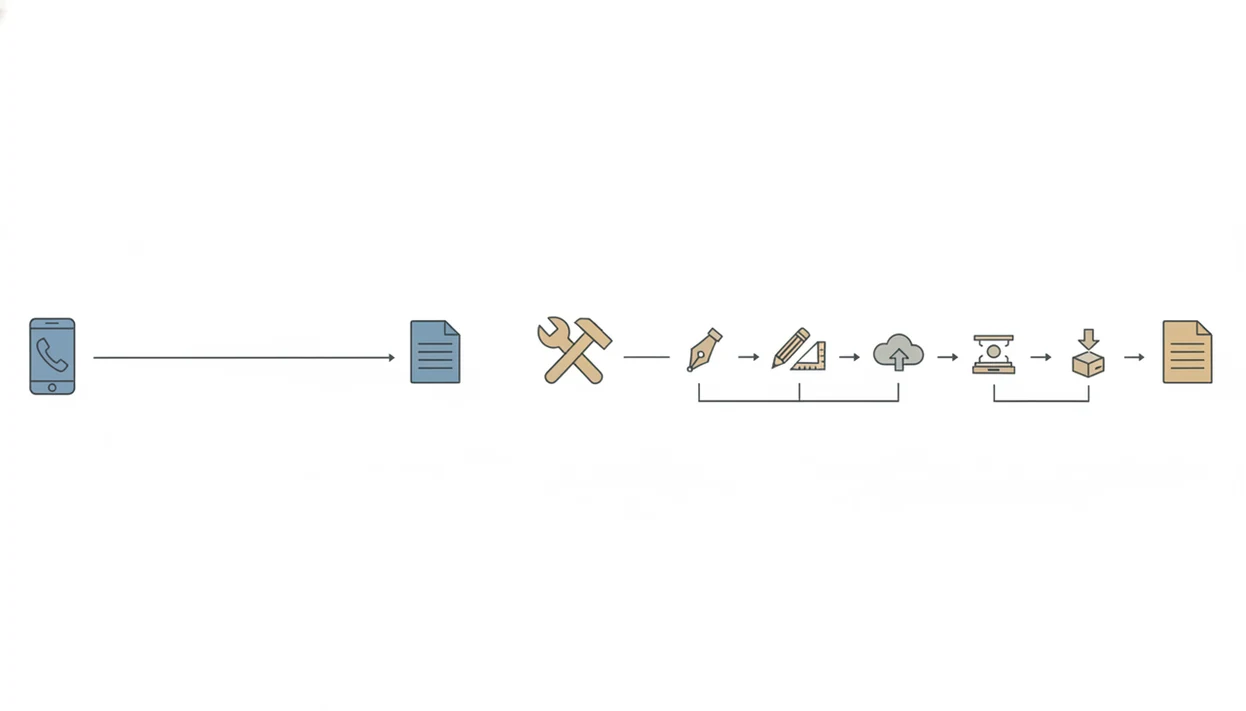
Pick Adobe Acrobat if you need a full PDF suite, strong OCR for scanned documents, cross-device sync, signing, commenting, and you already pay for Adobe services. Acrobat tends to work best when PDF conversion is part of a larger document review process.
Pick PDF To Word App if you only need DOCX conversion, want fewer steps on your phone, prefer no Adobe sign-in, and value a lightweight mobile-first tool. For occasional conversions, PDF To Word App is often easier than Acrobat because it removes tools that do not help produce the Word file.
Daily heavy users should compare both. If you convert long reports, scanned archives, or image-heavy files every day, Acrobat may justify its paid plan. If you mostly convert resumes, school PDFs, short agreements, or forms, a focused converter may be enough.
Office admins working across monthly report pages on dual monitors may still prefer Acrobat on desktop, but the phone-only user should test the actual tap path. For large source PDFs, compare limits in our best PDF to Word app for large files guide.
Evidence and Source Notes for This Comparison
This comparison uses public Adobe documentation and current store listings where those sources can support specific claims. It also separates observed app workflow from hard performance benchmarking.
- Treat Adobe export and OCR statements as documentation-backed claims: Adobe publishes PDF to Word export guidance and explains text recognition for scanned PDFs.
- Read App Store and Google Play figures as marketplace signals, not conversion-quality scores. Ratings, download counts, and descriptions can change without proving DOCX fidelity.
- Interpret PDF To Word App speed and tap-count comments as observed workflow notes from using a focused mobile converter, not as lab-tested public benchmarks.
- Judge output quality by the source file first. A clean, text-based one-page PDF is easier than a scanned contract with tables, stamps, columns, and embedded fonts.
- Recheck pricing, free limits, account prompts, and export caps inside the current app version before deciding, because subscription screens and feature gates can move over time.
That is why the recommendation stays practical: test the same PDF in both apps, then compare the Word file you actually receive.
Limitations
Both options have real limits because PDF was built for fixed presentation, not easy editing. A clean conversion depends more on the source PDF than on the brand name.
- Complex layouts with columns, tables, sidebars, and mixed media often break during conversion regardless of tool.
- OCR still makes mistakes; scanned PDFs need straight, readable, high-contrast source images for decent text results.
- Mobile screens make it harder to review spacing, headers, footnotes, and table borders than a desktop monitor.
- Adobe's free tier may restrict export count, OCR access, or require sign-in, which limits truly free use.
- Editable DOCX output will rarely look identical to the original PDF in every detail.
- Font substitution is common when the source PDF uses embedded, licensed, or non-standard fonts.
- Password-protected PDFs may need the correct password before any export workflow can proceed.
- Legal contracts can be risky after conversion because numbered clauses may shift by half a line.
Check the converted DOCX before sending it back. Always.