
What App Identifies PDF Tables for Word Editing?
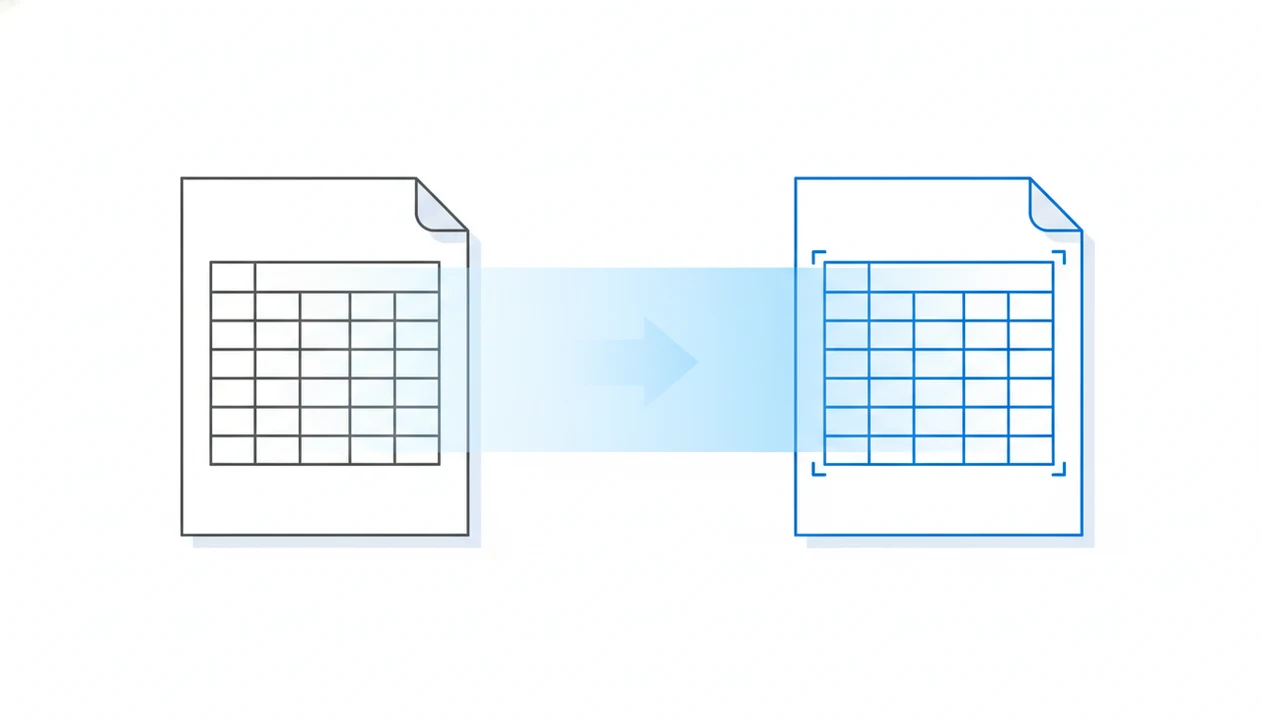
A PDF to Word converter app is the best answer to what app identifies PDF tables because it detects table layout and rebuilds the content as editable DOCX tables. The key is choosing an app that preserves rows, columns, borders, merged cells, and cell text instead of exporting the table as a flat image.
> Use a mobile PDF-to-DOCX converter when you need to turn PDF tables into editable Word tables on iPhone or Android.
- Use a mobile converter when you need editable Word tables from PDF files on iPhone or Android.
- Table recognition should rebuild real Word table structure, not paste screenshots into a DOCX.
- Scanned PDFs need OCR, and complex tables may still require cleanup in Word.
What App Identifies PDF Tables as Editable Word Tables?
What app identifies PDF tables? Look for a PDF to Word converter with table recognition and OCR, because the goal is editable DOCX output, not simple image extraction.
A useful app does two jobs. First, it finds the table area in the source PDF. Then it rebuilds rows, columns, headers, borders, and cell text as a real Word table. That second part matters more. A screenshot of a table inside a DOCX may look acceptable on a phone screen, but you can't tab through cells or edit column text cleanly.
The phone screen tells on it.
If a PDF looks selectable until you long-press and only grab one image block, OCR is needed before table structure can be rebuilt. For scanned files, a scanned PDF to Word app is the more relevant category.
Before You Convert a PDF Table
Before you convert a PDF table, check the source file, the editing goal, and the privacy risk. A two-minute review can prevent the wrong output format, weak OCR results, or an avoidable upload of sensitive data.
- Test the PDF text first. Long-press or drag across a few table values; if individual words or numbers select, start with normal conversion, but if the page behaves like one image, choose OCR.
- Decide where the table will be edited. Use PDF to Word when the result belongs in a report, contract, or handout; use spreadsheet conversion when formulas, sorting, filtering, or large numeric cleanup matter more.
- Save an untouched copy of the original PDF before converting, preferably with a clear name, so you can compare row order, totals, and headers after the DOCX opens.
- Flag confidential content before uploading. Contracts, payroll tables, client files, medical forms, and legal exhibits deserve extra caution with cloud tools.
- Use the sharpest scan available if the table came from paper. Straight pages, dark text, and visible borders give OCR a much better starting point.
How PDF Table Recognition Works in a PDF-to-DOCX Converter
PDF table recognition is the process of analyzing a PDF page’s visual and text layout, then recreating detected rows and columns as editable Word table objects in a DOCX file.
The app starts with layout analysis. It looks for ruled lines, column gaps, row spacing, repeated headers, and cell boundaries. In a native digital PDF, the text layer already exists, so the converter can map words into likely cells. In a scanned page, OCR must first turn pixels into text. OCR means optical character recognition, or software reading text from an image.
Clean digital PDFs are easier. Screenshots, skewed scans, and blurred receipts make the app guess where one cell ends and the next begins. A research folder full of renamed PDFs usually proves this fast: the original report converts better than the scanned photocopy of the same table.
A good mobile converter repairs the file into an editable DOCX; it does not guarantee a perfect clone of every border, merged cell, or repeated header.
Five Facts About PDF Tables to Word Conversion
- True Word tables matter more than visual similarity. A clean-looking DOCX is not enough if the table is just positioned text or a pasted image.
- OCR is required for scanned or image-only PDFs. If the source PDF has no selectable text, OCR must read the table before conversion can rebuild cells.
- Clean digital PDFs convert better than low-quality scans. Straight pages, sharp text, and consistent borders give layout analysis more reliable clues.
- Mobile apps can hand off DOCX files to office apps. On iPhone or Android, the practical check is opening the result in Microsoft Word mobile before sending it back.
- Merged cells often need cleanup. Multi-page tables, nested headers, and irregular spacing can shift after conversion, especially when a header repeats differently on page two.
For students, converting a clean handout is often easier than retyping values because the table already has a digital text layer. The same logic applies to PDF to Word for students workflows.
How to Use a PDF-to-DOCX Converter for Editable Word Tables
Use this mobile workflow when the table needs editing in Word, not just viewing as a PDF. It works for iPhone and Android, but the formatting check should happen before you share the file.
- Select the source PDF from Files, Drive, Downloads, or your email attachment.
- Check whether table text selects normally; if it does not, enable OCR before converting.
- Convert the PDF to DOCX and wait for the app to rebuild the table structure.
- Open the DOCX in Microsoft Word, Google Docs, or another office app on your phone.
- Tap inside several cells to confirm the result is an editable table, not a flat image.
- Fix shifted borders, merged cells, and header rows before sending the document onward.
A student opening a handout from the Files app five minutes before class should still do step five. Fast conversion is useful, but a quick cell test prevents awkward edits later.
App Features That Matter for Editable Word Tables from PDF
The features that matter most are OCR, DOCX output, layout preservation, border detection, and mobile file handling. Exporting to Excel is different; Excel conversion targets spreadsheet cells, while PDF to Word should rebuild a table inside a Word document.
| Feature | Why it matters for PDF tables |
|---|---|
| OCR support | Reads scanned pages and image-only tables before conversion. |
| DOCX output | Creates editable Word tables from PDF instead of static previews. |
| Layout preservation | Keeps row order, headers, spacing, and page sequence closer to the source PDF. |
| Border detection | Helps the app separate cells when lines are visible but text spacing is tight. |
| Mobile file handling | Lets iPhone and Android users send the DOCX into Word, Files, Drive, or email. |
Also check file-size limits, cloud processing rules, and language support. Tools like PDF To Word App, Adobe Acrobat, Smallpdf, and iLovePDF may all convert tables, but their OCR access and mobile limits differ. If your file is image-only, the image-only PDF to Word path sets better expectations.
Clean PDF Tables Versus Scanned PDF Tables
Decide whether the table has selectable text before choosing settings. If the text selects, convert normally; if it does not, use OCR.
| PDF table type | What you see | Best next step |
|---|---|---|
| Clean digital table | Individual words or numbers highlight when selected | Convert to DOCX normally, then inspect table cells in Word. |
| Scanned table | Long-press selects the whole page or image block | Enable OCR, then check for split cells and missing borders. |
If the table text is selectable
Selectable text usually converts more accurately because the app can use the existing text layer. A phone screen showing cramped resume margins is still fixable if the table text can be selected and rebuilt in Word.
If the table is a scan
Scans depend on OCR and may lose borders, merge rows, or split columns incorrectly. For iOS-specific steps, the guide to convert scanned PDF to Word on iPhone covers that workflow more directly.
Common Mistakes When Converting PDF Tables to Word
The most common mistake is judging the DOCX by how the table looks, not by whether it behaves like a real Word table. A few quick checks prevent sending a file that still needs OCR, cleanup, or a different output format.
- Test the converted table in Word before sharing it. Tap or click into several cells, tab across a row, and try editing one value; if the whole table moves like a picture, it is not truly editable.
- Enable OCR when the PDF is image-only. If long-pressing the source selects the whole page instead of individual words or numbers, normal conversion will not have enough text data to rebuild the cells.
- Compare merged headers against the original PDF. Multi-row headings, repeated page headers, and grouped columns can look close while pointing to the wrong values underneath.
- Inspect several ordinary cells, not just the first row. Totals, footnotes, and narrow numeric columns are where quiet errors often hide.
- Choose spreadsheet conversion instead when the real job is sorting, filtering, formulas, or data analysis. Word is better for reports and handouts; it is not the cleanest place to audit a large table.
Common Myths About Apps That Identify PDF Tables
- Myth: every converter creates perfect tables. No converter can promise exact table reconstruction for every source PDF, especially with merged cells or irregular spacing.
- Myth: a table that looks editable has real cell structure. Many PDFs display table lines visually while storing the content as loose text or one image.
- Myth: mobile and desktop converters always perform the same. Mobile apps may use different OCR engines, upload limits, or file handling rules than desktop tools.
- Myth: OCR can fix any blurry scan. OCR helps with scanned text, but it struggles with rotated pages, shadows, handwriting, and low-resolution screenshots.
The practical value is still real. If numbered contract clauses shift by half a line after conversion, editing the DOCX is usually faster than rebuilding the whole table from scratch. Just compare the conversion result against the source PDF before accepting it.
PDF Table Conversion Demand in 3 Document Workflow Stats
Document workflows explain why PDF tables to Word conversion keeps coming up. The PDF Association has cited estimates of more than 2.5 trillion PDF documents in circulation worldwide (https://pdfa.org/pdf-is-25/). That is a lot of locked tables sitting inside reports, forms, invoices, and class materials.
Adobe’s 2022 document productivity research reported that knowledge workers frequently move between formats such as PDF, Word, spreadsheets, and presentations (https://business.adobe.com/resources/reports/document-productivity.html). Gartner has also projected that most enterprise content is unstructured, including PDFs, scans, emails, and mixed repositories (https://www.gartner.com/en/information-technology/glossary/content-services-platforms).
Those figures do not prove any single app’s table accuracy. They do show the demand: people need to move information from fixed documents into editable DOCX files. The expense form balanced on a keyboard is the ordinary version of the problem. The table is visible, but the numbers are trapped.
Limitations
No app guarantees 100% accurate PDF table recognition. Table conversion is a repair workflow, and the final DOCX still needs review.
- Complex tables with merged cells, nested headers, footnotes, or irregular spacing can break into uneven rows. - Image-only PDFs depend entirely on OCR and may lose cell boundaries during recognition. - Blurry scans, shadows, rotated pages, and low-resolution screenshots can produce wrong characters or missing cells. - Very large files can hit mobile processing limits, upload caps, or timeouts. - Free plans may restrict OCR, batch conversion, language recognition, file size, or output resolution. - Cloud conversion can create privacy concerns for contracts, payroll tables, medical forms, or client spreadsheets. For sensitive tables, check whether the converter processes files locally or uploads them to a server, and avoid uploading documents that contain client, payroll, medical, or legal data unless the policy is clear. - Password-protected PDFs may require unlocking before conversion is possible. - Manual cleanup in Word is often necessary, especially for repeating headers and multi-page tables.
Quiet detail, but important: delete local copies from Recents after handling a sensitive table. Also compare the DOCX against the source PDF before using the data.
FAQ
What app identifies PDF tables?
A PDF to Word converter with OCR and table recognition is the relevant app type. It should rebuild the table as an editable DOCX table, not just capture an image.
Can PDF tables become Word tables?
Yes, many PDF tables can become Word tables when the converter detects rows, columns, and cell text correctly. Clean digital PDFs usually convert better than scans.
Do scanned PDF tables convert?
Scanned PDF tables can convert if OCR is available. Accuracy depends on scan quality, page angle, text clarity, and table borders.
Why did my PDF table become plain text?
The converter likely failed to detect the table structure. Common causes include missing borders, uneven spacing, poor OCR, or an image-only source PDF.
Can an iPhone convert PDF tables to Word?
Yes, an iPhone can convert PDF tables to Word using a mobile converter with DOCX output. Check the result in Word mobile before sharing it.
Can Android convert PDF tables to Word?
Yes, Android can convert PDF tables to Word with a converter that supports OCR and editable DOCX output. The final table should be tested cell by cell.
Are PDF table converters free?
Some PDF table converters are free, but free plans often limit OCR, file size, batch conversion, or advanced layout preservation. PDF To Word App and similar tools may vary by platform and plan.
Is OCR needed for PDF tables?
OCR is needed when the PDF table is scanned or image-only. If the PDF has selectable text, conversion can often proceed without OCR.