
What App Identifies PDF Columns Before Word Export?
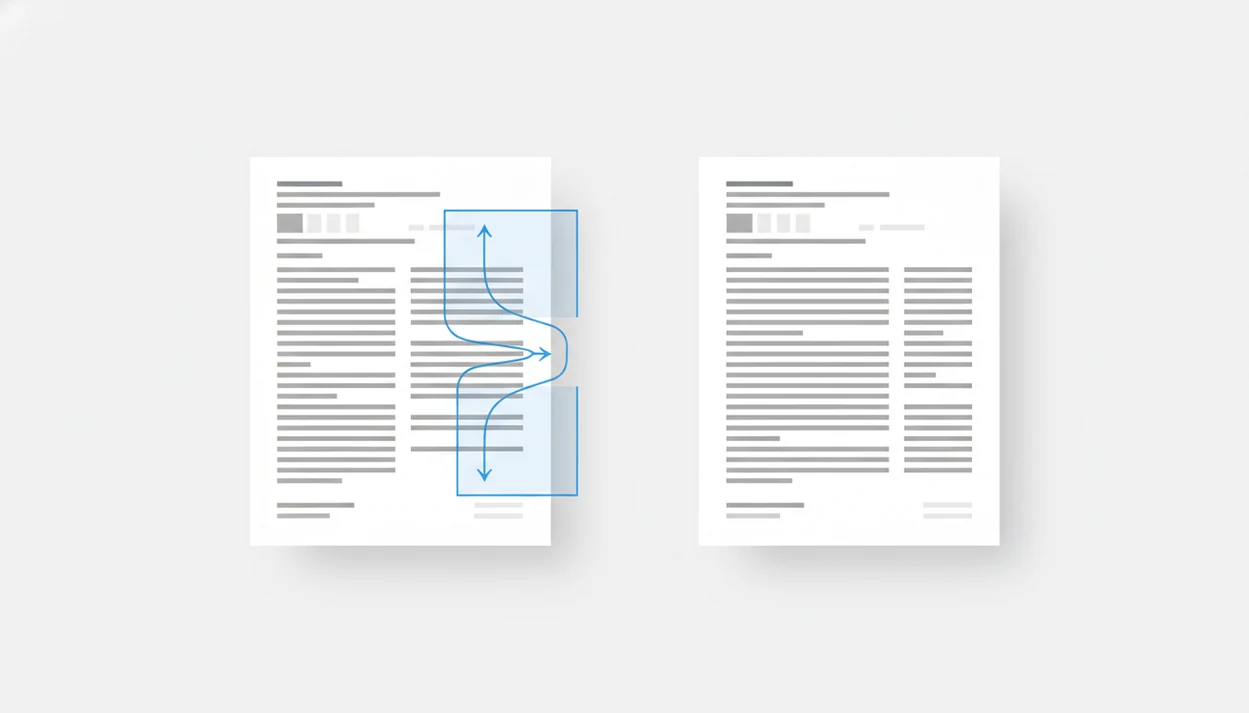
A PDF to Word converter with layout analysis and OCR is the kind of app that answers what app identifies PDF columns before export. For two-column articles, reports, and brochures, the app must detect column boundaries, reading order, headers, footers, figures, and text blocks before creating an editable DOCX.
> Definition: PDF To Word App is a PDF-to-Word converter that converts PDF files into editable DOCX documents for people using iPhone and Android.
- Column detection is part of PDF-to-Word layout analysis, not a separate visual viewing feature.
- Two-column PDF to DOCX conversion is hardest with academic papers, scanned articles, reports, brochures, floating figures, and poor PDF tags.
- Even strong converters may need manual cleanup in Word because complex PDF reading order is often unreliable.
What App Identifies PDF Columns for Word Export?
An app that identifies PDF columns is usually a PDF to Word converter with layout analysis. The real goal is not just showing two columns on your screen; it is exporting a readable DOCX where paragraph order still makes sense.
That matters for academic articles, annual reports, brochures, journals, and newsletters. A viewer can display those files correctly because it is rendering the page visually. A converter has a harder job. It must decide whether the next sentence is below the current line, across the gutter, inside a caption, or tucked into a footer.
The giveaway test is simple. If the converted Word file reads down the left column before moving to the right column, the app understood reading order. If it alternates lines across both columns, it did not.
A good PDF-to-Word converter that converts PDF files to editable DOCX Word documents on iPhone and Android should deliver editable structure, not a visual screenshot wearing a.docx extension.
How PDF Column Detection Works Before DOCX Export
PDF column detection is the layout-analysis step that separates text blocks, column boundaries, margins, headers, footers, tables, captions, and figures before a DOCX file is built.
The hard part is that a PDF stores page appearance differently from Word. Visual order and logical reading order can diverge, especially in multi-column files. The PDF Association treats reading order as a separate accessibility and structure concern, which is why even tagged PDFs can still fail in complex layouts (https://pdfa.org/resource/the-matterhorn-protocol-1-1/). That gap is why a clean-looking source PDF can still export as tangled Word text.
OCR adds another layer. If the PDF is a scanned page, the app first has to recognize letters from pixels, then group those letters into words, lines, columns, and sections. A tilted scan from a phone camera can throw off both OCR and layout detection.
Most mobile apps do the heavy conversion on cloud servers. So engine quality usually matters more than whether you use a newer phone. For scan-specific workflows, an image-only PDF to Word guide is often more useful than a general converter list.
Before You Convert a Two-Column PDF
Before converting a two-column PDF, check the file itself, not just the app. A clean source, clear permissions, and the right privacy choice give the converter a much better chance of producing a usable DOCX.
- Confirm whether the PDF contains real digital text or only a scanned image. Try selecting a sentence; if the whole page behaves like one picture, you will need OCR before Word text can be edited.
- Use the best source file available. An original digital PDF or high-resolution scan usually beats a compressed download, a screenshot, or a camera photo with shadows near the page edge.
- Check the document for passwords, copy restrictions, blank pages, missing pages, or rotated pages before upload. These small issues can look like conversion errors later.
- Decide whether cloud conversion is acceptable. If the PDF contains confidential reports, contracts, resumes, medical notes, or internal research, pause before uploading it to any mobile converter.
- Keep one untouched copy of the original PDF so you can compare the exported Word file against the source when columns, captions, or footnotes look suspicious.
Five Facts About Two-Column PDF to DOCX Conversion
- Column detection is layout analysis. During PDF to Word conversion, the app identifies text blocks, gutters, headings, and reading order before building the DOCX.
- Multi-column PDFs fail more often. Two-column PDF to DOCX conversion is more error-prone than single-column export because the app must infer flow from page geometry.
- Scanned PDFs need OCR first. Without OCR, a scanned article is just an image, even if it looks like selectable text at first glance.
- Cloud engines often decide quality. On iPhone and Android, the server-side conversion engine usually determines whether columns, captions, and tables survive.
- Manual cleanup is normal. Accessibility guidance treats reading order, headings, tables, and structure as separate checks, so manual cleanup is normal after multi-column PDF conversion (https://www.w3.org/WAI/WCAG22/Techniques/pdf/PDF3).
That last point matches what we see in real files. A lab notebook beside converted article text makes the issue obvious: the words may be recognized, but the section flow still needs checking.
How to Use a PDF to Word App for Multi-Column PDFs
Use a PDF-to-Word converter as a first pass, then verify the DOCX before sharing it. A mobile converter can help with first-pass conversion, but column-heavy files still need a formatting check in Word.
- Choose the cleanest source PDF you have, preferably a digital file rather than a photo or low-resolution scan.
- Upload the file in PDF To Word App on iPhone or Android.
- Enable OCR if the PDF is scanned or if long-pressing the text only grabs an image block.
- Export the result as an editable DOCX file.
- Review the reading order in Microsoft Word mobile before sending it back.
- Fix headings, tables, captions, footnotes, and page breaks that shifted during conversion.
A student opening a handout from the Files app five minutes before class will not have time for deep cleanup. For that case, PDF to Word for students workflows should stay simple and testable.
Best Two-Column PDF to Word Test Before Trusting an App
The best two-column PDF to Word test is a known sample article with headings, references, captions, and at least one table. Run that file before trusting the app with a long report, contract appendix, or sensitive research packet.
Check paragraph order first. Then inspect section headings, references, footnotes, captions, tables, equations, and page breaks. If the bibliography jumps into the middle of the methods section, the converter is not ready for serious use.
Price alone does not prove better column detection. Some paid tools use average engines, and some free trials expose excellent conversion back ends. Vendor updates can also change results. A converter that handled last month’s journal PDF may behave differently after an engine update.
Small test. Big warning.
Troubleshooting Jumbled Columns After Export
If the exported DOCX looks scrambled, treat it as a reading-order problem first, not a typing problem. The fastest check is whether Word is moving down one column at a time or jumping line by line across the page.
- Scan the first full page of the DOCX and read several paragraphs aloud in order. If each left-column line is followed by a right-column line, the converter guessed the column flow incorrectly.
- Re-export with OCR turned on when the original behaves like a flat picture, especially if selecting text in the PDF grabs a whole page or image block.
- Try a cleaner PDF when the source is a skewed scan, a shadowed phone photo, or a low-resolution copy. A straighter, brighter file can change the result more than another tap on the same bad source.
- Repair the parts that usually drift before sharing: headings, captions, tables, footnotes, references, and page breaks.
- Open the final file in desktop Word when the mobile preview feels cramped. A narrow phone screen can make a decent export look worse than it is.
Common Myths About Apps That Identify PDF Columns
Myth 1: “Keeps layout” means columns will be preserved perfectly. Layout preservation can mean visual spacing, not reliable reading order. Microsoft documentation acknowledges that complex PDF layouts, including columns, may not preserve perfectly and may need manual adjustment.
Myth 2: A visually clean PDF always converts cleanly. Some PDFs look selectable until you long-press and only grab an image block. Others have weak tags or hidden reading-order problems.
Myth 3: Paid apps always beat free apps. Engine quality and document complexity matter more than price labels. Test output, not branding.
Myth 4: Column errors only happen with scanned PDFs. Digitally generated journal files can also break when they include floating figures, sidebars, dense footnotes, or narrow tables.
For scanned files, a scanned PDF to Word app should be judged on both OCR quality and DOCX structure.
Academic Articles and Reports That Break PDF Column Detection
Scientific papers are often the toughest files because they combine two columns with footnotes, references, equations, floating figures, sidebars, and tables. The converter has to decide what belongs in the main text and what belongs somewhere else.
Scans make the job rougher. Low resolution, skewed pages, photos of documents, faded ink, and poor contrast reduce OCR reliability. A scanned archive page with faded ink may produce recognizable words, but still lose the structure that Word needs.
A 2019 OCR study on scientific articles reported character recognition above 98%, yet still found frequent layout errors in complex multi-column layouts. In plain terms, high OCR accuracy does not guarantee a clean Word document.
For phone workflows, a guide on how to convert scanned PDF to Word on iPhone can help when the source file is a scan rather than a true digital PDF.
Limitations
No iPhone or Android PDF-to-Word app can guarantee perfect column detection for every academic paper, report, or brochure.
- Low-quality scans reduce OCR accuracy, especially when pages are skewed, shadowed, or photographed at an angle.
- Untagged or poorly tagged PDFs can hide bad reading order even when the page looks correct.
- Cloud conversion can raise privacy concerns for confidential reports, contracts, resumes, or internal research files.
- Tables, equations, captions, footnotes, references, and page breaks often need manual cleanup after export.
- Vendor engine updates can change conversion results over time, for better or worse.
- Password-protected PDFs may need unlocking permissions before conversion is possible.
- Mobile review is useful, but a final check in desktop Word may catch layout problems missed on a small screen.
The quiet step matters: delete local copies from Recents after handling a sensitive file.
FAQ
What app identifies PDF columns?
A PDF to Word converter with layout analysis and OCR support is the app category that identifies PDF columns. PDF To Word App is one mobile option for converting PDFs into editable DOCX files.
Can PDF columns convert to Word?
Yes, PDF columns can convert to Word, but the reading order and layout need review. Complex PDF columns to Word often require manual cleanup.
What is column detection in a PDF?
Column detection means identifying text blocks, column boundaries, and reading order inside a PDF. It helps the converter decide how to place text in DOCX.
Can an iPhone converter handle a two-column file?
Yes, iPhone PDF-to-Word apps can convert a two-column PDF to DOCX. Many use cloud conversion engines rather than doing the full conversion on the phone.
Can an Android app convert PDF columns to Word?
Yes, an Android PDF-to-Word app can process PDF columns if its conversion engine supports layout analysis. PDF To Word App can be used on Android for DOCX export.
Do scanned PDFs keep columns after OCR?
Scanned PDFs need OCR before columns can become editable Word text. Scan quality strongly affects whether columns stay in the right order.
Why do PDF columns get jumbled in Word?
PDF columns get jumbled when reading order is weak, tags are missing, layouts are complex, or OCR errors mix text blocks. Captions and footnotes are common trouble spots.
Is two-column PDF to DOCX export ever perfect?
Two-column PDF to DOCX export can be very good for clean files, but complex layouts often need manual cleanup. Always review the DOCX before relying on it.