
Convert PDF to Word in Google Docs After DOCX Export
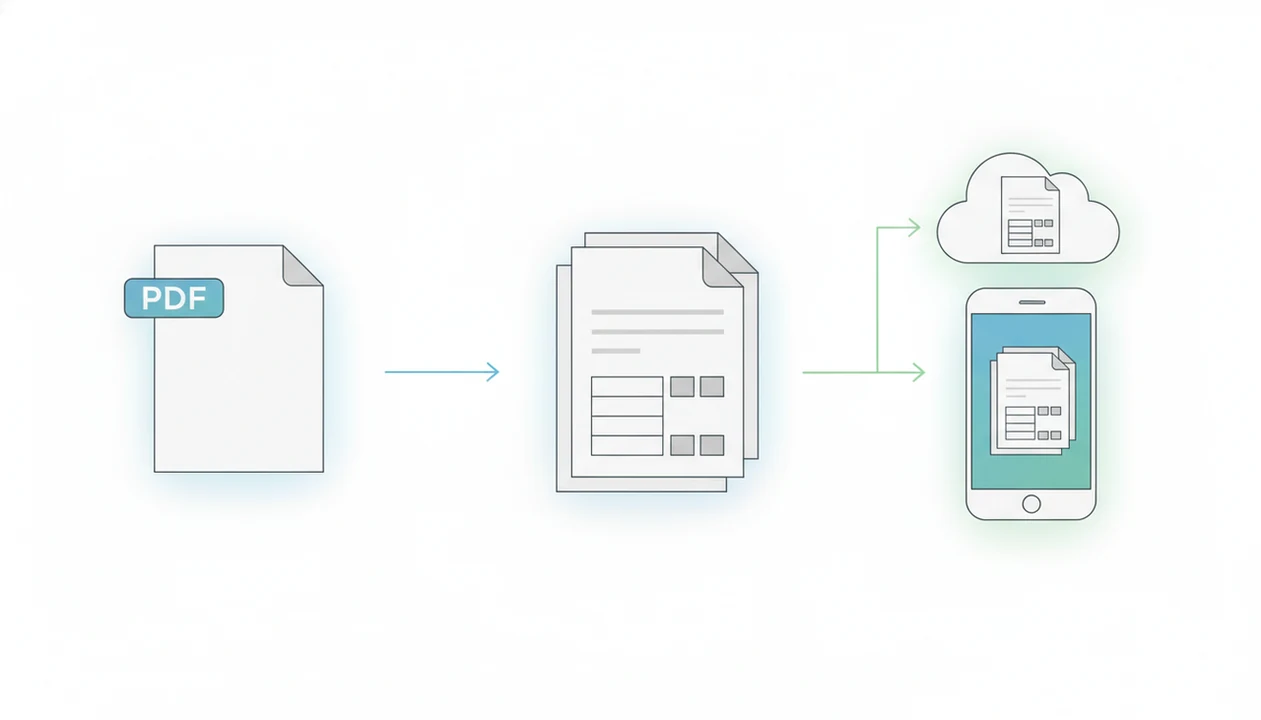
The most reliable way to convert PDF to Word in Google Docs is to create an editable DOCX first, upload that DOCX to Google Drive, and then open it in Google Docs for editing. Google Docs can open PDFs directly, but layout, images, tables, and scanned text often survive better when you use a PDF-to-DOCX step before the Google Docs import.
> Use a PDF-to-DOCX converter when Google Docs direct opening breaks layout or when you need a Word-compatible file before editing in Docs.
TL;DR
- Convert the PDF to DOCX first, then import the DOCX into Google Docs.
- Use OCR before import if the PDF is scanned or image-based.
- Check tables, headings, spacing, and images after Google Docs opens the DOCX.
PDF to Word for Google Docs: DOCX workflow basics
PDF to Word for Google Docs means moving a fixed PDF into an editable Google Docs file, usually by using DOCX as the bridge format. Uploading a PDF to Google Drive stores the file; it does not automatically give you a clean Word-style document.
Definition: Direct PDF opening asks Google Docs to interpret the PDF itself, while DOCX import gives Google Docs an editable document structure to work from.
That difference matters when the source PDF has headings, lists, footnotes, or a table that needs later edits. A PDF can look selectable until you long-press on mobile and only grab an image block. That is the moment the workflow changes.
Use DOCX when you need editing continuity, not just viewing. Good PDF to Word converter app workflows deliver editable DOCX Word documents on iPhone and Android, not a promise that every PDF will match the source page exactly.
PDF and DOCX conversion mechanics for Google Docs
PDF conversion works by rebuilding a fixed-layout page into editable document elements. A PDF stores page appearance; DOCX stores paragraphs, styles, tables, images, and reading order in a form Google Docs can edit.
- A PDF is a fixed-layout format, so its text, images, and coordinates are tied to page appearance.
- A DOCX file is an editable document structure, which makes it a practical import format for Google Docs.
- PDF-to-DOCX conversion reconstructs paragraphs, headings, lists, tables, images, and text order from the source PDF.
- OCR, or optical character recognition, is needed when a scanned page contains pixels of text instead of real text.
- Google warns that converted files may not preserve the original layout exactly, so a formatting check is part of the workflow.
The technical part is not glamorous. It is file repair. A research folder full of renamed PDFs can produce very different results, even when every file ends in “.pdf.”
DOCX import checklist for Google Docs files and settings
Before DOCX import into Google Docs, check whether the PDF has a real text layer or only a scanned image. If the page was photographed, flattened, or blurry, choose OCR before you expect editable text.
Run this quick check first:
- Try selecting one sentence in the PDF, not just the whole page image.
- Turn on OCR for scanned, blurry, faxed, or photographed pages.
- Confirm the right Google account is signed in on the phone.
- Check Drive space before uploading; Google says personal Google Accounts include 15 GB of storage shared across Drive, Gmail, and Photos: https://support.google.com/drive/answer/6374270.
- Keep the original PDF as the reference copy until the Google Docs file is verified.
For scanned files, a dedicated scanned PDF to Word app workflow is often safer than hoping Google Docs reads the image correctly. The original PDF is your control sample.
Keep it nearby.
PDF to Word steps for Google Docs on iPhone and Android
Use this mobile flow when the PDF is on your phone and the final editing will happen in Google Docs. A mobile PDF-to-DOCX converter can handle the conversion step before Drive and Docs take over.
Select the PDF file
- Open the PDF in a PDF-to-DOCX app, or share it from Files, Drive, Mail, WhatsApp, or another mobile source.
- Confirm whether the source PDF is text-based or scanned before converting.
Convert the file to DOCX
- Convert the PDF into an editable DOCX document.
- Enable OCR if the PDF is scanned, photographed, or image-only.
Open the DOCX in Google Docs
- Save or share the DOCX to Google Drive from your iPhone or Android phone.
- Open the DOCX with Google Docs, review the import, and begin editing.
A student opening a handout from the Files app five minutes before class should not be troubleshooting page order. For phone-specific instructions, the iOS flow is covered in how to convert PDF to Word on iPhone, and the Android flow is covered in how to convert PDF to Word on Android.
Google Docs DOCX import checks for tables and images
After Google Docs opens the DOCX, verify the file before you treat it as final. The fastest check is to compare the important pages against the original PDF, not just skim the first page.
- Headings and paragraphs: Confirm headings, paragraph breaks, line spacing, lists, and page breaks still make sense.
- Tables: Look for shifted cells, merged rows, missing borders, and spreadsheet figures trapped inside a PDF table.
- Images and marks: Inspect signatures, stamps, logos, screenshots, captions, and any image placed near text.
- Reference copy: Keep the DOCX if Word compatibility matters, then rename the Google Docs file clearly.
For contracts, check numbered clauses line by line. We have seen clause numbers shift by half a line after conversion, which is easy to miss on phone glass.
Google Docs direct PDF conversion versus DOCX import
Direct PDF opening in Google Docs can be fine for simple text PDFs. DOCX-first conversion is usually better when you need editing continuity, cleaner mobile handoff, or a file that still works in Microsoft Word.
| Workflow | Works well for | Common problems | Better fit |
|---|---|---|---|
| Direct PDF-to-Docs | Simple text PDFs with few images | Layout shifts, image movement, weak table structure | Quick edits or text extraction |
| PDF-to-DOCX-to-Docs | Resumes, contracts, class handouts, business files | Still needs cleanup after import | Editing, sharing, and Word compatibility |
| OCR-to-DOCX-to-Docs | Scanned pages and image-only PDFs | OCR errors on blurry or skewed scans | Making scanned text editable |
Google Docs is widely used because it sits inside Google Workspace; Google has described Workspace as serving more than 3 billion users across its apps: https://workspace.google.com/blog/product-announcements/google-workspace-is-for-everyone. Scale does not remove conversion limits, and Google’s own Docs help notes that PDF conversion can lose some formatting: https://support.google.com/docs/answer/6055139. A cafeteria tray beside class readings is still a bad place to fix broken table borders.
PDF to Word mistakes in Google Docs workflows
“Why did my PDF not become an editable Google Docs file?” Usually because one step was assumed instead of checked.
Do not assume uploading a PDF to Drive converts it automatically. Drive can store the PDF without changing its format. Do not skip OCR when the PDF is scanned, because image-only pages do not contain editable text. Do not expect complex PDFs to preserve every font, margin, form field, or image position.
Check before editing.
Avoid making revisions before you inspect tables and page order. That is how a clean-looking file turns into a messy redline later. If numbered clauses are squeezed on phone glass, compare them against the PDF before sending comments back.
Finally, do not delete the original PDF until the Google Docs version is verified. For larger phone workflows, how to convert PDF to Word with phone covers the handoff points that often cause confusion.
Limitations
PDF-to-DOCX conversion improves editability, but it cannot guarantee an exact Google Docs match. Treat the result as a working draft that needs a formatting check.
- Google Docs conversion may distort multi-column layouts, forms, brochures, and graphics-heavy files.
- OCR may fail on blurry scans, low-resolution photos, handwriting, shadows, or skewed pages.
- Tables, spacing, fonts, headers, footers, and image placement may need manual cleanup.
- Protected, flattened, or structurally complex PDFs may convert poorly or block parts of the workflow.
- A PDF-to-DOCX app can improve the editable document structure, but Google Docs may still reinterpret the file during import.
- Free workflows may include file size, page count, batch conversion, watermark, or OCR limits.
- Sensitive files need extra care; delete local copies from Recents after handling contracts, IDs, or private forms.
That last step is quiet but important. The conversion result is only useful if the file handling fits the document.
FAQ
Can Google Docs convert a PDF to an editable document?
Yes, Google Docs can open PDFs from Google Drive, but formatting may change. Images, tables, columns, and spacing often need review after conversion.
Is DOCX better than PDF for editing in Google Docs?
Yes, DOCX is usually the better editable bridge because Google Docs can work with document structure instead of fixed PDF layout. PDF remains better as a reference copy.
Can I make a scanned PDF editable in Google Docs?
Yes, but the scanned PDF needs OCR before the text can be edited reliably. Without OCR, Google Docs may treat the page as an image.
Why does PDF formatting change after opening it in Google Docs?
PDF formatting changes because the fixed page layout must be reconstructed into editable paragraphs, tables, images, and spacing. That reconstruction is not exact for every file.
How do I make a PDF editable in Google Docs on iPhone?
Convert the PDF to DOCX, save the DOCX to Google Drive, then open it with Google Docs. Check layout, tables, and images before sending or sharing.
How do I convert a PDF to Word for Google Docs on Android?
Use a PDF-to-DOCX tool, enable OCR if the file is scanned, then upload the DOCX to Drive. Open it with Google Docs and review formatting.
Does Google Drive automatically convert PDFs to Word or Google Docs?
No, uploading a PDF to Google Drive stores the file. Conversion happens only when you open, import, or process the file through a conversion workflow.
How do I keep PDF tables when importing into Google Docs?
Convert the PDF to DOCX first, then import the DOCX into Google Docs. After import, check merged cells, borders, row order, and copied numbers against the original PDF.