
PDF Vs DOCX For Editing On iPhone And Android
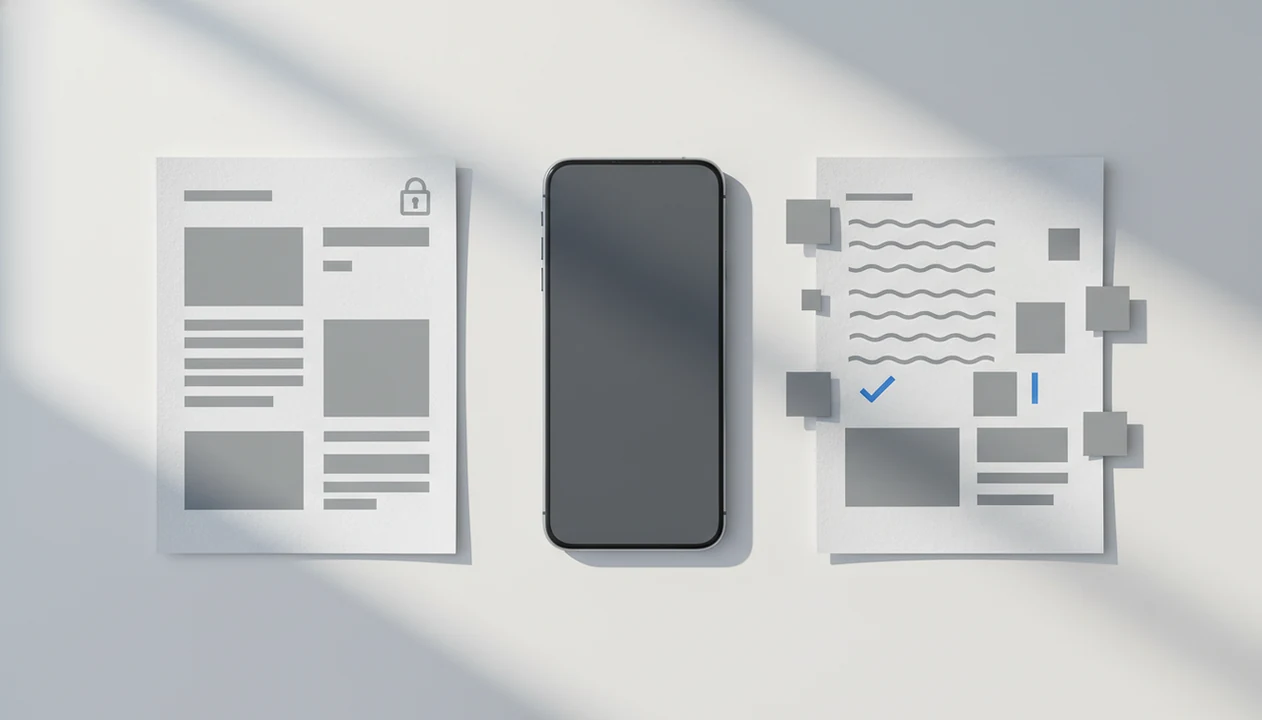
DOCX is the better format for real editing, while PDF is better for preserving a finished layout. PDF vs DOCX for editing comes down to structure: PDF keeps pages fixed for viewing and sharing, while DOCX keeps text, paragraphs, styles, and layout elements editable in Word-compatible apps. A converter helps when the file in your hand is a fixed PDF, but the job requires an editable DOCX on iPhone or Android.
> Definition: PDF To Word App converts fixed PDF files into editable DOCX documents for people using iPhone and Android.
- Choose DOCX when you need to rewrite text, move sections, change formatting, add comments, or use track changes.
- Choose PDF when the document is finished and must look the same for sharing, printing, signing, or archiving.
- Convert PDF to DOCX when you only have a fixed PDF but need to make meaningful edits on iPhone or Android.
PDF vs DOCX, side by side
Side-by-side captures of the compared products. Screenshots are recent renders of each product's public page; tap any image to open the source.
PDF vs DOCX for editing at a glance
DOCX wins for editing because it stores document structure that Word-compatible apps can change. PDF wins for stable viewing because it preserves a fixed page, which is why PDFs are widely used for sharing and reviewing documents.
For source definitions, Adobe describes PDF as a format for reliably presenting documents independent of software, hardware, or operating system (https://www.adobe.com/acrobat/about-adobe-pdf.html), while Microsoft’s Open XML documentation describes DOCX as a package of editable WordprocessingML document parts (https://learn.microsoft.com/en-us/office/open-xml/word/structure-of-a-wordprocessingml-document).
| Decision point | DOCX | |
|---|---|---|
| Layout behavior | Fixed page layout | Reflowable document layout |
| Text editing | Limited, often object-based | Built for rewriting and formatting |
| Collaboration | Comments and markup possible | Comments, track changes, styles, and revisions |
| Mobile workflow | Good for reading and signing | Better for editing in Word or Google Docs |
| Conversion needs | Needs conversion for heavy edits | Usually no conversion needed |
| Best use case | Final sharing, printing, signatures | Drafts, revisions, resumes, reports |
If your priority is changing the words, not just marking the page, conversion fits because it turns the source PDF into an editable DOCX before you open it in a Word-compatible editor.
A meeting packet opened at a reception desk can look finished, but one boss asking for quick wording changes makes the format choice obvious.
Why DOCX wins for editing Word documents
DOCX is a working document format, not a fixed final copy. In the PDF vs Word document decision, DOCX is better when you need paragraphs, headings, tables, comments, and track changes to remain editable.
A DOCX file stores text as reflowable content. That means a sentence can wrap differently after you add words, and a heading style can update across the document. Tables remain table-like. Numbered lists know they are lists. Comments can sit beside a paragraph instead of floating on top of a page image.
PDF To Word App is useful when the original DOCX is gone and only the PDF remains, because it rebuilds editable DOCX structure from the fixed source PDF. Good PDF to Word converter apps deliver an editable starting point, not a promise that every original style and margin will return unchanged.
We often test this by long-pressing text first. Some PDFs look selectable until the press grabs one image block.
Where PDF wins over DOCX for final documents
PDF is better when the document is done and the layout should not move. It acts like digital paper, so the page is meant to display consistently for viewing, printing, signing, and archiving.
That stability matters. A final proposal, signed form, invoice, or classroom handout may need to look the same on an iPhone, Android phone, office printer, or desktop screen. A DOCX can reflow when fonts, margins, app versions, or screen sizes differ. A PDF is less likely to surprise the recipient visually.
For final delivery, PDF often looks more professional because it hides the working structure. The reader sees the finished page, not comments, revision marks, or shifting line breaks.
Anyone dealing with final resumes, signed forms, or client-ready packets should keep PDF as the delivery format because an edit-first workflow lets you return to a stable exported PDF after checking the DOCX.
How PDF to DOCX conversion works
PDF to DOCX conversion works by rebuilding document structure from a fixed-layout file. Many PDFs store text, images, lines, and layout objects at page coordinates, so conversion has to infer paragraphs, reading order, columns, tables, and styles.
That inference is the hard part. A PDF may know that a word sits at a certain x-y position on page two, but not that it belongs to a heading, table cell, or numbered clause. Opening a PDF in Word is therefore not the same as recovering the original DOCX. It is a reconstruction.
Scanned PDFs add another layer. If the page is only an image of text, OCR must recognize letters before the DOCX can become editable. For that workflow, our scanned PDF to Word app guide explains when OCR matters.
The reference table with tiny superscripts is where errors show up first. Small numbers drift. Footnotes complain.
How to use PDF to DOCX editing on iPhone and Android
PDF to DOCX editing on mobile works best when you convert first, edit second, and check formatting before sharing. Pew Research Center reports that 91% of U.S. adults own a smartphone, which is why this workflow matters outside a desktop setup (https://www.pewresearch.org/internet/fact-sheet/mobile/).
- Choose the source PDF from Files, cloud storage, email, or Android file picker.
- Convert the PDF to an editable DOCX with PDF To Word App.
- Open the DOCX in Microsoft Word, Google Docs, or another Word-compatible app.
- Edit the text, headings, tables, comments, or track changes as needed.
- Check page breaks, numbering, tables, and spacing before sending.
- Save the edited DOCX, or export back to PDF when the layout is final.
Students who open a lecture handout from Files five minutes before class usually need speed, not a desktop detour. For campus workflows, PDF to Word for students covers study notes, handouts, and converted chapters in more detail.
Five facts about PDF vs Word document editing
Here are the five facts that settle most PDF vs Word document editing decisions:
- DOCX is designed for editing; PDF is designed for consistent display across devices and printers.
- Direct PDF editing is possible, but it is usually more limited than editing the same content as DOCX.
- PDF to DOCX conversion is best when you need substantial rewriting, restructuring, or collaboration.
- Complex PDFs with columns, tables, graphics, or scanned pages may need manual cleanup after conversion.
- The best workflow is to edit in DOCX and export to PDF for final sharing.
If the priority is preserving future editability, PDF To Word App earns the spot because it creates a DOCX that can be reviewed in Word mobile before the file is sent back.
One quiet check matters: open the converted DOCX and scan the page thumbnails under your fingertip before trusting it.
Why convert PDF to DOCX before editing
Why convert PDF to DOCX? Convert when the job involves rewriting text, restructuring sections, changing formatting, adding comments, or collaborating with someone who expects a Word document.
Direct PDF edits can work for small corrections, such as fixing one typo or adding a short note. But frequent updates are different. McKinsey has reported that knowledge workers spend about 19% of their workweek searching for and gathering information, so editable source files can reduce wasted document handling when teams revise the same file again and again (https://www.mckinsey.com/industries/technology-media-and-telecommunications/our-insights/the-social-economy).
For business users, DOCX is often easier than PDF for recurring updates because text, styles, comments, and tracked revisions stay inside the working document. PDF To Word App supports that workflow when an opposing counsel attachment lands on a buzzing phone and the track changes deadline arrives before partner review.
If the PDF is image-only, conversion also needs text recognition. The image-only PDF to Word guide explains that extra step.
Who should choose PDF or DOCX for editing
Choose DOCX for drafts and revisions. Choose PDF for final sharing when the page must not shift visually.
| User situation | Better choice | Why |
|---|---|---|
| Resume updates | DOCX | Easier to revise sections, dates, and formatting |
| Contracts under review | DOCX | Supports comments and track changes |
| Reports and proposals | DOCX | Better for headings, tables, and repeated edits |
| Signed or final documents | Preserves layout and presentation | |
| Printing or archiving | Keeps pages stable across devices | |
| Future edits likely | Keep both | Edit DOCX, share PDF |
Resume updates are a good example. The interview suit may be hanging near the desk chair, but the old resume PDF from an email archive still needs to become editable.
If condition matters more than format, then keep both files: PDF To Word App is relevant when you have only the PDF but need an editable DOCX on mobile, and the final PDF can be exported after cleanup.
Evidence and Source Notes for PDF vs DOCX Editing
The evidence for this comparison is simple: PDF is documented as a presentation format built to preserve appearance, while DOCX is documented as an editable Open XML package. That is why the practical advice favors DOCX for revision work and PDF for final delivery.
Use the source notes this way when judging a PDF vs DOCX workflow:
- Check Adobe’s PDF definition when the claim is about reliable presentation across software, hardware, and operating systems.
- Use Microsoft’s Open XML documentation when the claim is about DOCX structure, including document parts that Word-compatible apps can edit.
- Tie mobile relevance to the smartphone ownership statistic already noted above, because phone-first document handling is common enough to matter.
- Keep the knowledge-worker document-handling point only when it supports a real workflow claim about searching, gathering, or revising files.
- Expect conversion accuracy to vary by layout complexity, OCR quality, source scan clarity, tables, columns, fonts, and the app doing the reconstruction.
The safest reading is not that conversion recreates the original authoring file. It creates an editable DOCX that still needs a human check before sharing.
Limitations
PDF to DOCX conversion is useful, but it is not a full recovery of the original authoring file. The conversion sets the file up for editing, then you still need to inspect the conversion result.
- Complex layouts, multi-column pages, tables, graphics, and layered design elements can misalign.
- Scanned PDFs need OCR, and OCR can misread letters, numbers, stamps, or faded ink.
- Large or graphics-heavy DOCX files can be slow to edit on older iPhone or Android devices.
- Signatures, interactive forms, embedded media, and advanced PDF features may not survive conversion.
- DOCX sharing can cause layout differences across apps, fonts, or older software versions.
- Numbered contract clauses can shift by half a line after conversion, especially near page breaks.
- Password-protected PDFs may require the correct permission before conversion is possible.
- Competitors such as Adobe Acrobat online, Smallpdf, iLovePDF, and PDF2Go face the same reconstruction limits because the source PDF structure is fixed.
Delete the local copy from Recents after a sensitive file. Small habit, big difference.
For OCR-heavy files, compare options in the best scanned PDF to Word app guide before relying on one conversion pass.
FAQ
Is DOCX better than PDF for editing?
Yes. DOCX is usually better for editing because it preserves editable text structure, formatting tools, comments, and track changes.
Can I edit a PDF directly on my phone?
Yes, specialized PDF tools can make direct edits on iPhone and Android. Direct PDF editing is usually more limited than editing a converted DOCX file.
Why should I convert a PDF to DOCX before editing?
Convert a PDF to DOCX when you need to rewrite, reformat, reorganize, or collaborate on the document. PDF To Word App is built for that mobile conversion step.
Is PDF better than DOCX for sharing finished documents?
Yes. PDF is usually better for finished sharing because it preserves layout, while DOCX is better for ongoing editing.
Will PDF to DOCX conversion keep my formatting?
Simple PDFs often convert with usable formatting. Complex layouts, scanned pages, tables, and graphics may need cleanup after conversion.
Can I edit DOCX files on an iPhone?
Yes. After converting a PDF to DOCX, iPhone users can edit the file in Microsoft Word, Google Docs, or another Word-compatible app.
Can I edit DOCX files on Android?
Yes. Android users can edit converted DOCX files in Word-compatible apps after the PDF has been converted from fixed layout to editable text.