
PDF To Word Troubleshooting For Broken DOCX Files
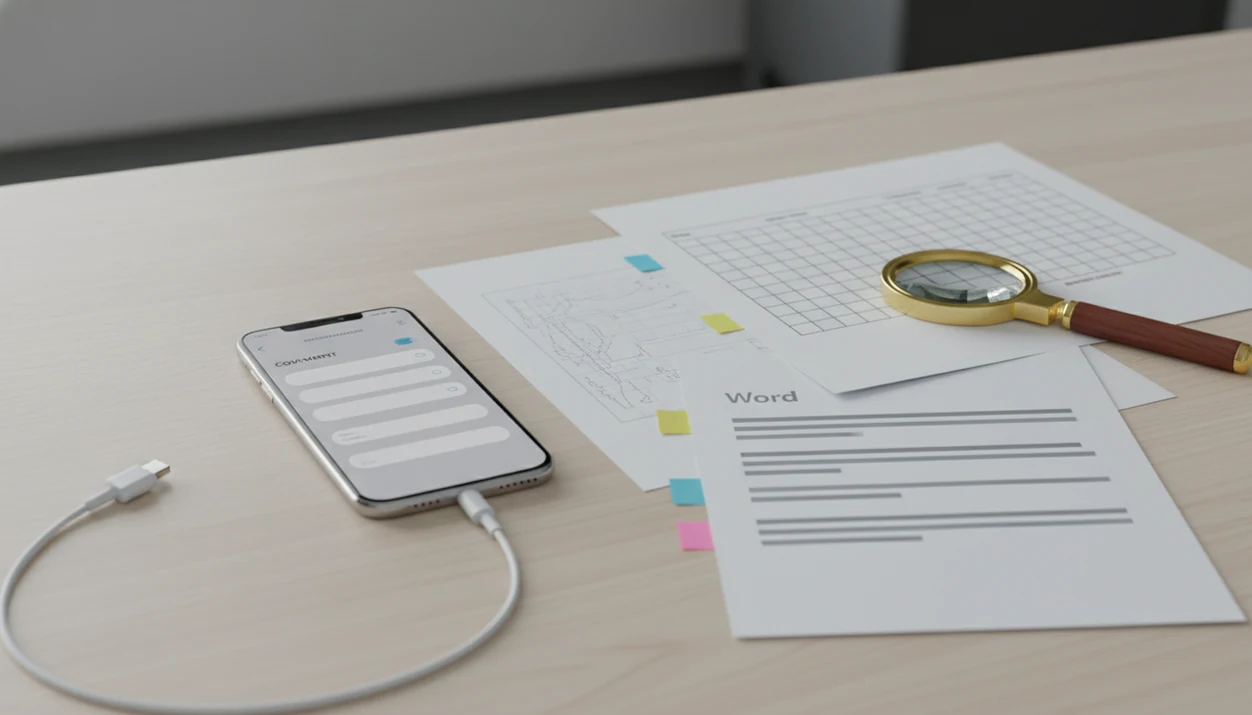
PDF to Word troubleshooting starts by identifying whether the source PDF is native text, scanned, protected, corrupted, or too complex for a clean DOCX conversion. Most broken Word files can be improved by checking the PDF type, splitting large files, rerunning OCR when needed, and manually repairing layout details that no converter can perfectly preserve.
> On mobile, the practical goal is a usable editable DOCX: selectable text first, then repaired tables, images, headings, and spacing.
- Scanned PDFs need OCR, so they usually produce more text errors than native text PDFs.
- Broken tables, shifted images, and strange spacing usually come from complex PDF layouts, not just app failure.
- If conversion fails on mobile, check password protection, file size, storage, network stability, and whether the PDF is damaged.
PDF To Word Troubleshooting Diagnostic Map
Start PDF To Word troubleshooting by matching the DOCX symptom to the source PDF type. Garbled text points to OCR or font encoding. Uneditable text usually means the PDF was scanned or converted as an image. Broken tables, missing images, and partial output often come from complex layout, file damage, or a mobile interruption.
A native text PDF, a scanned page, a protected contract, and a three-column brochure need different fixes. On iPhone and Android, also check low storage, unstable Wi-Fi or cellular data, background app limits, and huge file size before blaming the converter.
Adobe reported in 2018 that 72% of business professionals use PDFs for sharing and reviewing documents (Adobe PDF survey, 2018). That explains why a failed conversion is not a rare edge case. It happens during real work, like an application portal countdown on a phone while an old resume PDF sits in an email archive.
Five PDF To Word Conversion Facts That Explain Most DOCX Problems
- Native text PDFs usually convert better than scanned image PDFs because the converter can read an existing text layer.
- Scanned PDFs require OCR, and OCR can misread faded ink, skewed pages, small type, or unusual fonts.
- Tables, columns, forms, footnotes, and graphics increase the risk of shifted spacing and broken layout.
- Failed mobile conversions are often caused by password restrictions, corruption, low storage, cloud upload issues, or network drops.
- Manual cleanup in Word is normal after conversion, especially for headings, tables, images, and page breaks.
A good PDF to Word converter app that converts PDF files to editable DOCX Word documents on iPhone and Android should deliver usable editable text, not a promise that every table border and graphic position will survive unchanged.
Tiny table borders tell the truth fast.
PDF To DOCX Conversion Engine Mechanics
PDF to DOCX conversion works by turning a fixed visual page into an editable document structure, and that translation always requires inference. A PDF preserves page appearance; a DOCX preserves paragraphs, styles, tables, headings, images, and document flow.
Conversion engines inspect page objects, text positions, fonts, image blocks, and reading order. Then they rebuild those pieces as Word elements. OCR adds a recognition layer for scanned PDFs. In plain language, OCR tries to “read” a picture of text and turn it into editable characters.
That extra step is fragile. A scanned archive page with faded ink may look readable to your eye, but OCR can confuse “rn” with “m” or skip a light footnote. Complex pages force the converter to guess structure, which creates shifted images, broken tables, and odd spacing in the conversion result.
PDF Source Checks Before Word Conversion Repair
Check the source PDF before repairing the DOCX. If you long-press text and only grab one image block, the page is probably scanned or image-only, even if it looks selectable at first glance.
Next, look for password protection, editing restrictions, digital signatures, or damage. A PDF that opens slowly, shows blank pages, or fails in more than one viewer may be corrupted. Also note the file size, page count, high-resolution images, forms, comments, and annotations.
On mobile, the device matters too. Confirm storage space, battery saver settings, app permissions, and network stability for cloud conversion. The offline vs cloud PDF to Word choice can change whether a large file fails during upload or stalls in background processing.
For scanned PDFs, OCR usually works best when the page is straight, high contrast, and typed rather than handwritten.
Six PDF To Word Troubleshooting Steps For iPhone And Android
Use this workflow when a converted DOCX is messy, partial, or not editable. It covers the source PDF, the phone, and the final Word file.
- Open the PDF and test whether the text is selectable.
- Unlock or remove restrictions if the PDF is password-protected and you have permission.
- Split very large PDFs or convert a small page range first.
- Rerun conversion with OCR enabled when the PDF is scanned or image-only.
- Open the DOCX in Microsoft Word mobile and repair headings, tables, fonts, image positions, and spacing.
- Save a clean copy and compare it against the original PDF before sharing.
Tools like PDF To Word App can help create the editable DOCX, but the formatting check still belongs to the person sending the file. We usually catch the worst issues by editing one sentence, tabbing through a table, and checking page one against the source PDF.
DOCX Conversion Problems By Symptom And Fix
No single fix works for every PDF because source structure determines conversion quality. Use the table below to fix PDF to Word conversion issues without repeating the same failed attempt.
| DOCX symptom | Likely PDF cause | Mobile check | Best fix |
|---|---|---|---|
| Garbled text | OCR error or font encoding | Zoom into the original scan | Rerun OCR, then correct text in Word |
| Missing text | Hidden layer, crop issue, or damaged PDF | Open in another PDF viewer | Export a smaller page range |
| Uneditable text | Image-only PDF | Try selecting text | Enable OCR before conversion |
| Broken tables | Complex table grid | Check if table spans pages | Rebuild or simplify tables in Word |
| Shifted images | Fixed PDF positioning | Check image-heavy pages first | Re-anchor images after conversion |
| Wrong fonts | Missing embedded font | Open DOCX in Word mobile | Substitute fonts consistently |
| Failed conversion | Password, corruption, size, network | Check storage and connection | Unlock, split, or retry on stable Wi-Fi |
| Partial output | Background limit or huge file | Keep app open during conversion | Convert sections separately |
A vendor form with misaligned table cells is often faster to rebuild than to “fix” one border at a time.
Four Myths About Fixing PDF To Word Conversion
- Myth 1: A better converter always makes scanned PDFs perfect. OCR improves editable text, but low-resolution scans, handwriting, and skewed pages still create recognition errors.
- Myth 2: Every failed mobile conversion means the app is broken. Password protection, damaged files, weak networks, and phone storage limits can stop a conversion before the app finishes.
- Myth 3: Microsoft Word or any mobile app can preserve every layout detail. PDF positioning and DOCX flow are different systems, so numbered contract clauses can shift by half a line after conversion.
- Myth 4: DOCX conversion problems always start in Word. Many DOCX conversion problems begin in the original PDF, especially when it contains forms, annotations, columns, or image-only pages.
For sensitive files, decide whether the workflow fits the document before uploading. The privacy side is covered in our PDF to Word app privacy guide.
Clean DOCX Verification After PDF To Word Troubleshooting
A clean DOCX verification means comparing the converted Word file against the original PDF before you edit heavily or send it back. IDC has reported that knowledge workers spend about 2.5 hours per day searching for information, so a five-minute formatting check can prevent a much longer rebuild (IDC white paper).
Compare page by page. Check whether the text is editable, searchable, and in the correct reading order. Inspect tables, lists, headers, footers, footnotes, images, and page breaks. Then run a small edit test: change one word, add one bullet, and save the file.
Open the DOCX in Microsoft Word mobile before sending it back. A student opening a handout from the Files app five minutes before class does not have time to discover that page two is one giant image.
For business files, the secure PDF to Word app checklist can help you think through file handling before conversion.
Limitations
PDF to Word conversion has real limits, even when the app and phone are working correctly.
- No converter can guarantee a pixel-perfect DOCX for every complex PDF.
- OCR can misread scanned pages with low resolution, handwriting, small fonts, skew, or unusual typefaces.
- Password-protected, digitally signed, or restricted PDFs may not convert unless an authorized user unlocks them.
- Very large PDFs can exceed mobile memory, storage, background processing, or cloud service limits.
- Forms, vector graphics, annotations, and embedded objects may convert as static images or disappear.
- Some fonts may be substituted if they are unavailable on the device or in Word.
- Manual cleanup is still part of many successful PDF to Word workflows.
After handling a sensitive file, delete unneeded local copies from Recents and downloads. Quiet step. Important step. For contract-heavy workflows, read the confidential contract PDF to Word guidance before converting.
FAQ
Why is my converted DOCX garbled after conversion?
Garbled DOCX text usually comes from OCR errors, unusual font encoding, or poor scan quality in the source PDF. Rerun OCR if the PDF is scanned, then correct remaining text manually in Word.
Why is my converted Word file not editable?
The Word file may not be editable because the PDF was scanned, converted as an image, restricted, or processed without OCR. Try selecting text in the source PDF to confirm whether it has a real text layer.
How do I fix broken tables after converting a PDF to Word?
Try converting a smaller page range, then repair table rows and columns in Word. If the PDF table is complex, rebuilding it manually is often faster than correcting every shifted cell.
Why do images move after PDF to Word conversion?
Images move because PDFs use fixed page positioning while DOCX files use editable document flow. Complex layouts, columns, captions, and wrapped text increase image movement during conversion.
Do scanned PDFs need OCR before they become editable in Word?
Yes, scanned PDFs need OCR before they can become editable Word text. Without OCR, the converted DOCX may contain image blocks instead of selectable words.
Why did my PDF to Word conversion fail on my phone?
Mobile conversion can fail because of password protection, corruption, huge file size, low storage, background app limits, or network interruptions. Try unlocking the PDF, freeing storage, splitting the file, or using a stable connection.
Can PDF fonts be preserved in the converted Word file?
PDF fonts may be preserved when they are embedded and available to Word. Font substitution is common when the font is missing, restricted, or unsupported on the device.
Should I split a large PDF before converting it to Word?
Yes, splitting a large PDF can improve conversion success on iPhone and Android. Smaller page ranges reduce upload failures, memory strain, and partial DOCX output.
Is flawless PDF to Word conversion possible?
Simple native text PDFs can convert very cleanly. Complex layouts, scanned pages, forms, and graphics often require manual cleanup after conversion.