
Does PDF To Word Conversion Work For Real Editing?
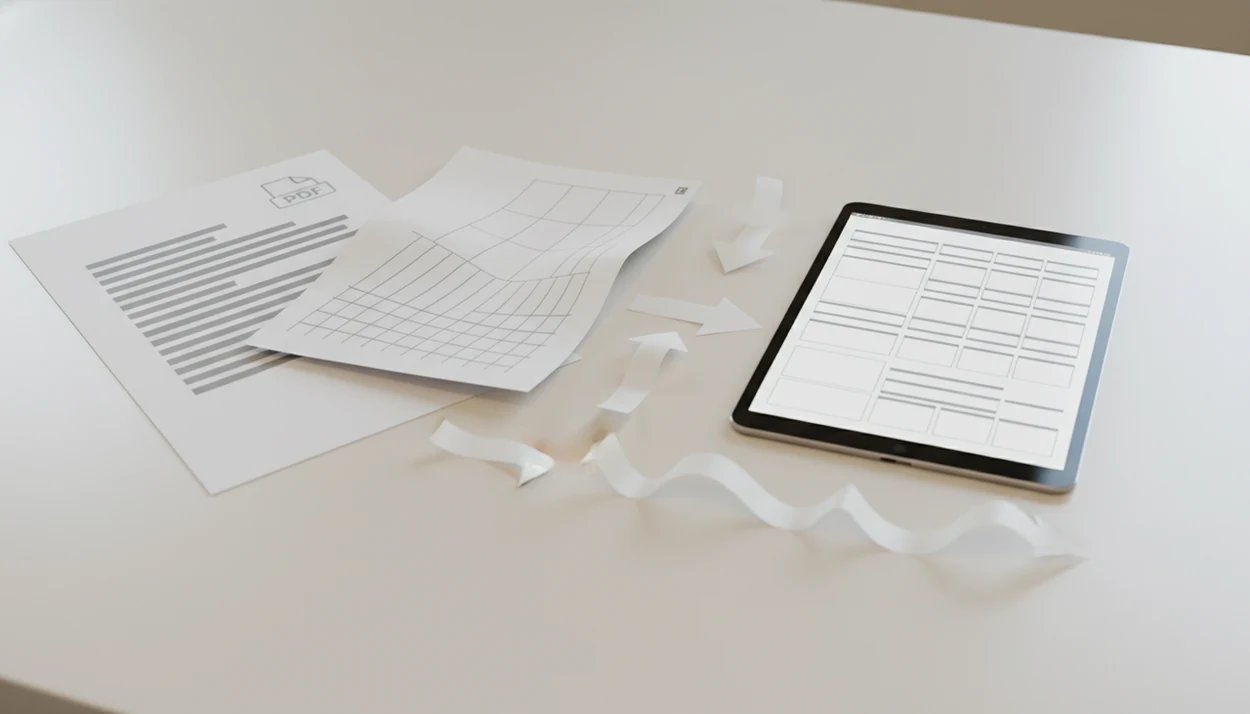
Yes, converting a PDF into Word can work for real editing, especially when the PDF started as a digital document with selectable text. Scanned, photographed, table-heavy, or highly designed PDFs often need cleanup, and the practical goal is an editable DOCX, not a perfect visual clone.
> Definition: A PDF-to-DOCX converter turns fixed-layout PDF files into editable Word documents. PDF To Word App does this on iPhone and Android.
- PDF conversion accuracy is highest when the PDF has selectable text and simple formatting.
- Scanned PDFs can work with OCR, but blur, skew, handwriting, and low resolution reduce accuracy.
- Tables, columns, forms, fonts, watermarks, and signatures are the parts most likely to break.
At-a-glance answer on PDF to Word conversion accuracy
PDF to Word conversion works best when the source PDF was exported from Word, Google Docs, PowerPoint, InDesign, or a similar digital tool. Those files usually contain real text objects, so the converter has something structured to rebuild.
The answer changes with scans. A scanned page needs OCR, which means the software reads pixels and guesses the characters. A complex two-column report, a signed form, or a resume with text boxes may convert, but the spacing can move.
Success means the DOCX is editable enough to fix, copy, and send back. It does not always mean the Word file looks identical to the PDF. We often check the converted DOCX in Microsoft Word mobile before sending it, especially when numbered contract clauses have shifted by half a line.
Editable first. Pretty second.
Five facts that decide how accurate PDF to Word is
- Selectable text converts more accurately than image-only pages. If you can highlight a sentence in the PDF, the converter can usually reuse that text layer.
- OCR quality depends on scan resolution, lighting, blur, and page angle. Research on OCR has reported character accuracy above 98% on high-quality scanned text, but lower-quality scans reduce results source.
- Tables, columns, forms, and graphics are harder than paragraphs. Spreadsheet figures trapped inside a PDF table are where cleanup usually starts.
- Missing fonts can change spacing and line breaks. Word may substitute a similar font, which can push bullets or headings onto new lines.
- Mobile apps can be accurate because many use cloud conversion engines. The phone is often just the file picker and review screen.
For text-heavy PDFs, a mobile PDF to Word converter can be worth testing before you rebuild the document by hand.
How PDF to Word conversion works behind the scenes
PDF to Word conversion rebuilds a fixed-layout PDF into a flowing DOCX document by interpreting text objects, font data, images, coordinates, and page order. A PDF stores how a page should appear, not how a Word document should behave when you edit a sentence.
The key process is reflow. The converter tries to reconstruct paragraphs, headings, lists, tables, and reading order from objects placed on a page. Microsoft describes Word’s PDF reflow as better suited to text-heavy PDFs than documents with complex formatting, images, or forms source.
For scanned PDFs, OCR adds another layer. It turns image pixels into editable characters, then the converter places those characters into Word. That reconstruction is inferential, so layout changes are normal. A PDF that looks selectable until a long-press grabs only one image block is not really text-ready.
Before You Convert a PDF to Word
Before converting, make sure the PDF is yours to edit and that the conversion settings match the file. A few checks up front can prevent bad OCR, privacy surprises, and lost originals.
- Confirm that you have permission to edit, reuse, or convert the file, especially for contracts, client documents, course materials, and forms with signatures.
- Test the PDF by selecting a sentence. If the text highlights normally, leave OCR off at first; if the page behaves like one image, OCR is probably needed.
- Save a backup copy of the original PDF before you start. Keep it untouched so you can compare page numbers, clauses, tables, or signatures after conversion.
- Decide whether you care more about editable text or visual fidelity. A clean DOCX may change spacing, while a near-identical layout may be harder to edit.
- Avoid uploading sensitive files to a cloud converter unless your workplace, school, or client policies allow it and the app’s privacy terms are acceptable.
These checks take less time than repairing a bad conversion from scratch.
How to use a PDF to Word converter app on iPhone or Android
Use a PDF to Word converter app by testing the file type first, converting to DOCX, then checking the problem areas before relying on the result. Cloud-based conversion may also need internet access, so a weak signal can slow the job.
- Open the PDF from Files, Drive, email, or your Android file picker.
- Select Word or DOCX as the output format.
- Enable OCR if the page is scanned, photographed, or not selectable.
- Convert the file, allowing upload if the app uses a cloud engine.
- Open the DOCX in Microsoft Word or Google Docs on your phone.
- Check tables, bullets, columns, signatures, and page breaks before sharing.
A student opening a handout from the Files app five minutes before class should check headings and page order first. For a deeper mobile workflow, the convert PDF to DOCX app guide covers output checks in more detail.
Common PDF Conversion Mistakes to Avoid
The most common PDF conversion mistake is treating every PDF like it has real editable text inside. Avoid that by checking the source file, using OCR only when needed, and reviewing the DOCX before you send it.
- Test whether the PDF is selectable before converting. If a page is really one image, skipping OCR can leave you with a Word file that looks fine but cannot be edited properly.
- Review page order and section breaks after conversion. A DOCX can open cleanly while pages, appendices, or numbered clauses have shifted.
- Inspect the fragile parts first: tables, signatures, footnotes, merged cells, stamps, and form boxes. These are more likely to flatten, split, or move than normal paragraphs.
- Use clean scans instead of quick low-resolution phone photos when possible. Shadows, blur, curled pages, and cropped edges make OCR guess harder.
- Check cloud retention and deletion terms before uploading sensitive files. Contracts, IDs, medical forms, and client documents deserve a privacy review before convenience wins.
A two-minute check can save a messy re-conversion later.
PDF source types that predict conversion success
Native PDFs are usually worth converting first because they often keep a real text layer. The quick test is simple: try to highlight or copy a sentence. If the whole page selects like one picture, expect OCR.
| PDF source type | Conversion outlook | What to check |
|---|---|---|
| Native PDF | High | Text selection, headings, lists |
| Scanned PDF | Medium | OCR quality, page skew, blur |
| Photographed page | Low to medium | Shadows, angle, cropped edges |
| Form PDF | Mixed | Fields, boxes, signatures |
| Design-heavy PDF | Mixed to low | Columns, fonts, images |
Selectable-text PDFs
Selectable-text PDFs usually give the cleanest DOCX because the converter can reuse actual characters. Old resume PDFs from an email archive often fall into this group, though bullet points may still shift before an application deadline.
Scanned and photographed PDFs
Scanned and photographed pages depend on OCR and image quality. A tilted phone photo of a contract page can produce editable text, but table borders and clause numbering may need manual repair.
Common myths about PDF conversion accuracy
- Myth 1: Conversion is always visually identical. The correction: a DOCX is editable flow, so spacing, fonts, and page breaks can change.
- Myth 2: All PDFs convert the same way. The correction: native PDFs, scans, forms, and photo pages give very different conversion results.
- Myth 3: OCR can perfectly read any scan. The correction: blur, handwriting, skew, and background noise reduce recognition accuracy.
- Myth 4: Mobile conversion is automatically worse than desktop conversion. The correction: many phone apps use cloud engines similar to web tools, so the source PDF matters more than the device.
Good PDF to Word converter apps that convert PDF files to editable DOCX Word documents on iPhone and Android deliver editable file handling, not guaranteed page-for-page reconstruction.
Adobe Acrobat online, Smallpdf, Microsoft Word, and PDF To Word App can all produce useful DOCX files, but none remove the need to check tables, line breaks, and missing fonts before sharing.
When PDF to Word conversion is worth trying
“Should I try PDF to Word conversion or recreate the file?” Try conversion when the PDF is mostly text and you need a fast editable draft. Skip or be cautious when exact page fidelity matters more than editable content.
Try conversion for: contracts, letters, reports, resumes, invoices, meeting notes, and text-heavy academic readings. Even an imperfect DOCX can save time if it captures most paragraphs correctly.
Use caution for: complex brochures, scanned handwriting, legal exhibits, fillable forms, equations, dense footnotes, and documents where line breaks must match the PDF exactly. A redline request during a courthouse hallway wait is a reasonable conversion use case, but the final document still needs review.
For most editing jobs, converting first is often faster than recreating the document because it preserves the text you would otherwise retype. A free PDF to DOCX app can be enough for a quick trial file.
Limitations
No converter guarantees 100% formatting fidelity, and some files are poor candidates from the start. The more a PDF behaves like a picture or a designed page, the more cleanup you should expect.
- Complex layouts can break, especially multi-column pages, brochures, newsletters, and layered graphics.
- Tables, forms, equations, footnotes, and nested lists may convert as rough structures instead of clean Word objects.
- Low-quality scans, skewed pages, blur, handwriting, shadows, and background noise reduce OCR accuracy.
- Missing fonts can change spacing, line breaks, bullet alignment, and page count.
- Watermarks, annotations, signatures, stamps, and interactive fields may flatten, move, or disappear.
- Password-protected PDFs may require unlocking before conversion, if you have permission.
- Cloud-based mobile conversion raises privacy questions, including upload handling, encryption, retention, and deletion.
- Sensitive files should be reviewed locally after conversion, including the quiet step of deleting copies from Recents.
If privacy is the deciding factor, compare retention policies before using any free PDF to Word app.
FAQ
How accurate is converting a PDF into Word?
Conversion is accurate for many text-based PDFs with simple formatting. Accuracy drops with scans, forms, tables, and complex layouts.
Can scanned PDFs become Word files?
Yes, scanned PDFs can become Word files if OCR is used. The result depends on scan clarity, resolution, page angle, and printed text quality.
Why does formatting change after PDF to Word conversion?
Formatting changes because a fixed PDF layout must be rebuilt into Word’s editable document flow. Fonts, spacing, images, and objects can shift during that rebuild.
Do tables convert correctly from PDF to Word?
Simple tables often convert into editable Word tables. Complex tables with merged cells, borders, or wrapped text usually need manual cleanup.
Does OCR make scanned PDF text editable?
OCR recognizes printed characters in a scanned page and places them into an editable Word document. It may misread unclear text, handwriting, or distorted pages.
Are mobile PDF to Word converters less accurate than desktop tools?
Mobile converters are not automatically less accurate than desktop tools. Apps such as PDF To Word App can be comparable when they use a strong cloud conversion engine and the source PDF is suitable.
Is PDF to Word conversion private?
PDF to Word conversion privacy depends on the tool’s upload, encryption, processing, and retention policies. Check those terms before converting sensitive contracts, IDs, or business files.
Can Microsoft Word edit any PDF?
Microsoft Word can open many PDFs as editable documents, but it works best with text-heavy files. It is not designed to preserve exact page fidelity for every PDF.